> ## Documentation Index
> Fetch the complete documentation index at: https://docs.bright-sdk.com/llms.txt
> Use this file to discover all available pages before exploring further.
# Bright SDK for iOS/tvOS - Integration Guide
> This guide is for developers who want to monetize iOS/tvOS applications with Bright SDK.
export const UpdateSDK = ({platform}) => <>
Run the tool with the --update flag. It will automatically fetch and replace brdsdk.xcframework in place without losing your config or consent flow settings:
iOS:
{`npx github:BrightSDK/bright-sdk-integration --platform ios --update`}
tvOS:
{`npx github:BrightSDK/bright-sdk-integration --platform tvos --update`}
Updating in an Xcode Project
- Download the latest SDK from the Bright SDK Dashboard and unzip it.
- Replace
brdsdk.xcframework in its current location (e.g., <MyProject>/Libraries).
- Clean the build folder: Product → Clean Build Folder in Xcode.
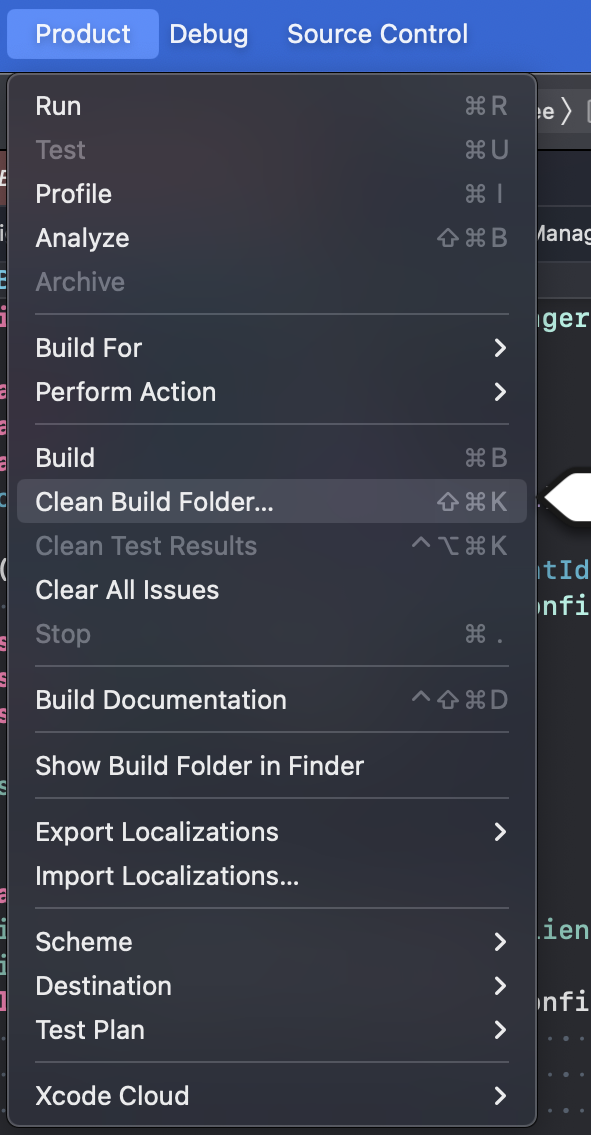
If cleaning doesn't help, clear DerivedData...
{platform === "ios" && <>
Updating in a Unity Project
- Remove the existing
brdsdk.unitypackage asset from Unity Editor.
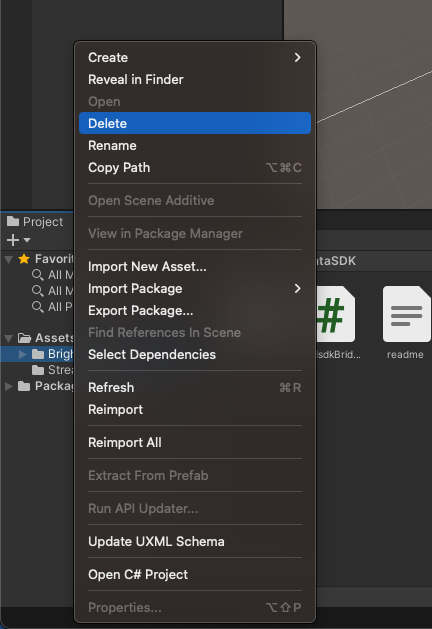
Re-import the new package following Import the SDK Package Step.
}
;
export const SubmitIntegrationReview = ({platform}) => <>
Pre-Submission Requirements
The Bright Data SDK compliance team will verify:
- SDK integration UX and functionality.
- Consent screen implementation.
- Opt-out mechanism.
- User value proposition.
-
Submission Process
Self-check using an emulator/simulator is not yet supported. Currently, self-check can only be performed on a real device.
-
Run Self-Check (takes a few minutes) — Complete the self-check verification to identify potential issues before submission:
- Navigate to the Bright SDK Dashboard and click your appID.
- Scroll down to "Implementation self-check", click "Get started".
- Install the app on the test device and follow the instructions.
- If the self-check passed successfully, submit it for review!
If the SDK isn't initializing / peer not connecting:
- Verify the correct App ID is used, confirm the SDK service is running.
- Check there aren't multiple SDK apps running from the same IP — that can interfere.
- If nothing helps, check with our team.
-
Submit for review via Dashboard
- Navigate to the Bright SDK Dashboard.
- Select your app ID.
- Click "Submit for Review".
- Complete the compliance checklist to validate adherence to guidelines.
- Upload your package.
-
Store submission — You will be notified by email once your app is approved for release. The app status in the dashboard will also be changed to "Approved".
{platform !== "ios" && platform !== "macos" && platform !== "android" && <>
Guides to help you through the store review:
}
-
Review Resources
{platform === "ios" && <>
For iOS/tvOS — How to submit your build:
- Paste a public link in the "Submit for Review" window on the dashboard, OR
- Send via TestFlight to all 4 addresses below (one invite per address):
| Email |
| sdk@brightdata.com |
| sdk+1@brightdata.com |
| sdk+2@brightdata.com |
| sdkcompliance@brightdata.com |
}
We will review each app up to 3 times. 3 rejections or failure to meet minimum quality standards may result in final rejection.
;
export const Tos = ({platform}) => <>
App Store Privacy Settings
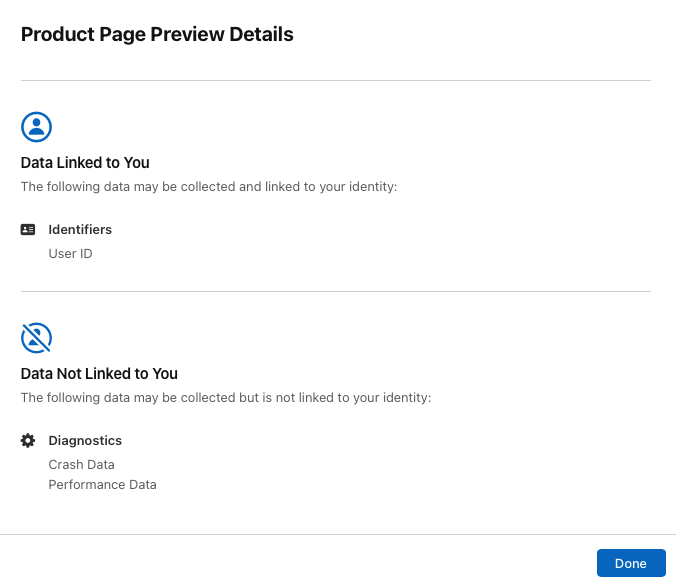
Bright SDK does not collect any personal information except the user's IP address. Bright Data knows that a certain IP exists but not who owns it or any other information.
{platform === "ios" && <>
Your existing privacy settings may already cover this (e.g., if you have ads in your app). If not, update your App Store privacy settings to include at minimum what Bright Data collects:
 }
}
Update Your FAQ and Terms of Service
Add the following text to your Terms of Service web page (TOS, EULA, or Privacy Policy):
In return for premium features of '[Your App Name]', you may choose to be a peer on the Bright Data network. By doing so, you agree to have read and accepted the Bright SDK EULA and Bright Data's Privacy Policy.
You may opt out of the Bright Data network by [add clear opt-out instructions].
Requirements
- Include all text and links as provided above.
- Any additional Bright SDK-related content must be shared during the app review process for approval.
;
export const CustomConsentApple = ({platform}) => <>
While the standard Bright SDK consent screen is always available, we highly encourage customization to match your app's look & feel, this typically leads to higher conversion rates. There are two customization options:
| Option |
Description |
| Consent Dialog Customization |
Modify the built-in Bright SDK consent screen |
| Custom Consent Screen |
Build your own consent UI entirely |
{}
Subject to Bright SDK approval. Please contact Bright SDK before implementing to get pre-approved.
{platform === "ios" && <>
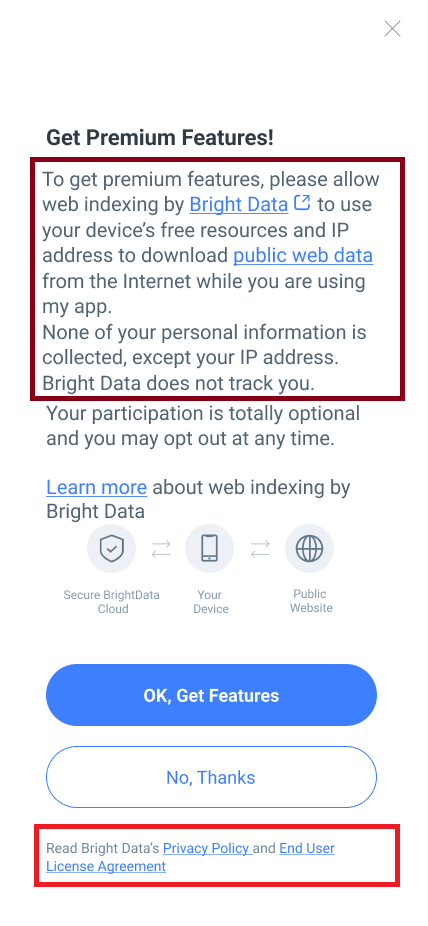
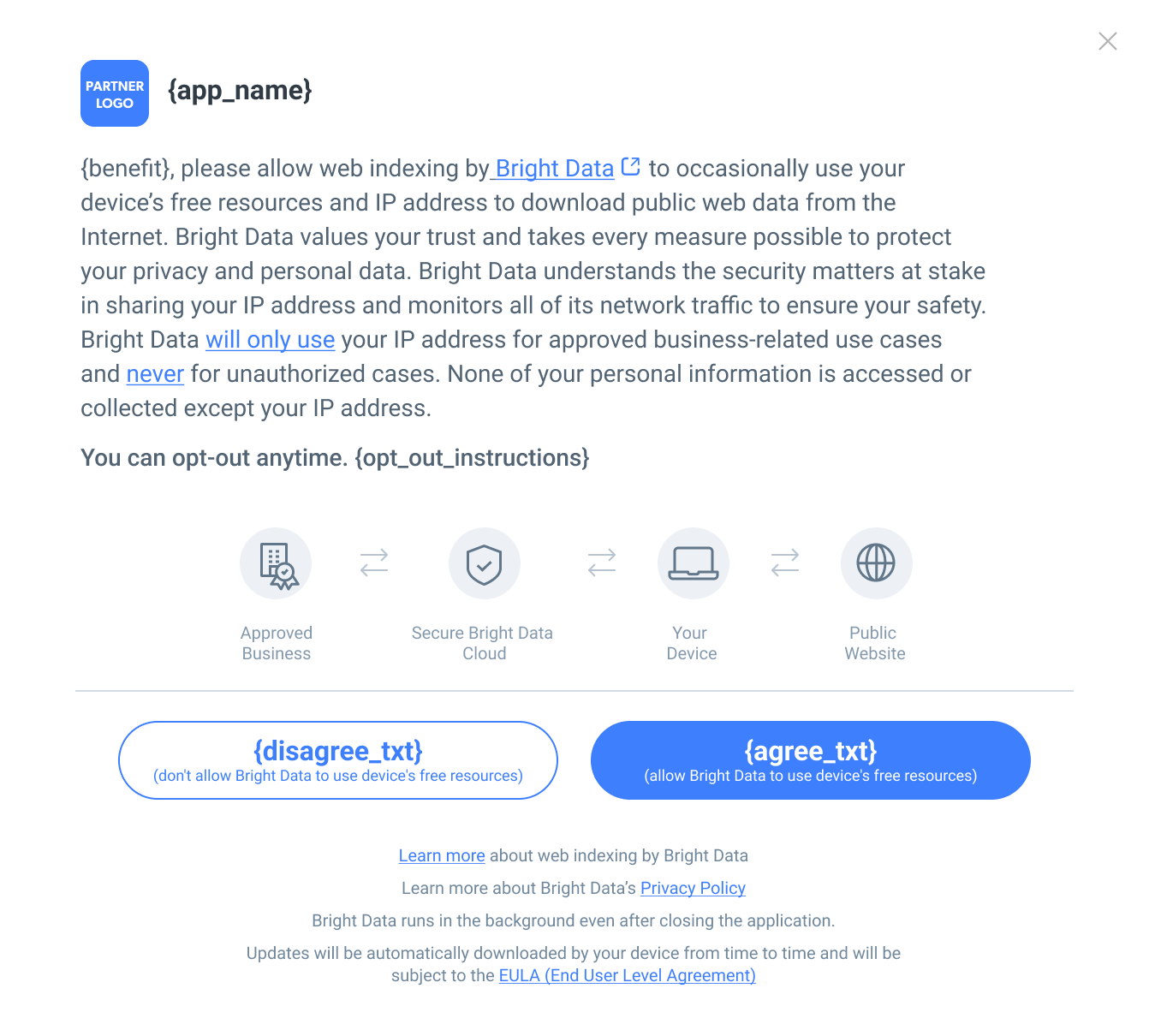
This is what it looks like on the default Bright SDK screen:
 }
{platform === "macos" && <>
}
{platform === "macos" && <>
This is what it looks like on the default Bright SDK screen:
 }
}
Design Requirements
Your custom consent screen must include the following mandatory elements:
Mandatory text:
{`"To [Benefit to user], please allow Web Indexing by Bright Data to use your device's free resources and IP address to download public web data from the Internet while you are using the app.
None of your personal information is collected, except your IP address. Bright Data does not track you."`}
{`"Read Bright Data's Privacy Policy and End User License Agreement"`}
Required links:
Interactive element:
Tapping "public web data" must open a popup with additional information:
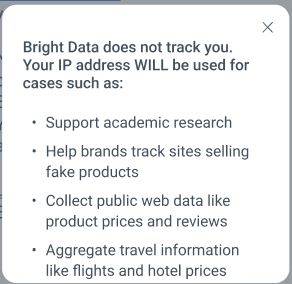
Translations:
If you wish to translate your screen, use only the provided official translations. Contact your partnership manager for any missing languages.
For tvOS:
Replace links with: "Scan the QR Code to learn more about Bright Data policy and ethical usage".
Use your own branded QR code or a hosted version pointing to:
https://bright-sdk.com/users#learn-more-about-bright-sdk-web-indexing
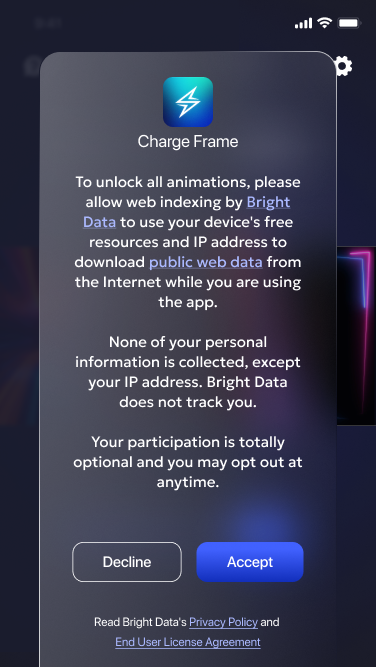
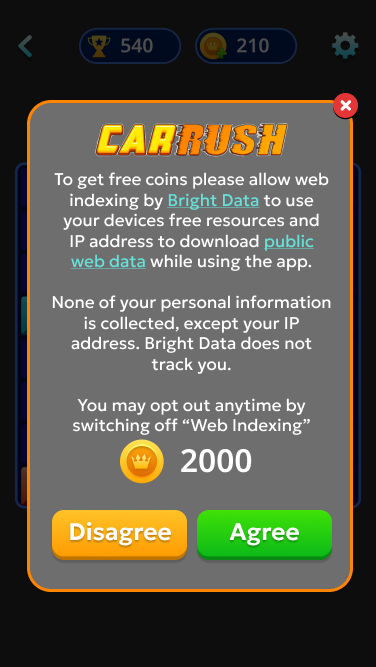
Examples of possible custom consent screens:
Integration Code
- Pass
skip_consent: true in the SDK initializer to prevent the default consent screen from showing.
- The opt-in button (e.g., "I Agree") should call
external_opt_in().
- The opt-out button (e.g., "I Disagree") should call
opt_out().
- After presenting your custom screen, call
consent_shown().
Flow of Showing the Consent Screen
- Call
brd_api.authorizeDevice() - status must be .authorized to proceed
- Present your custom consent screen
- Call
brd_api.consent_shown() after the screen is presented to register its display
- Call
external_opt_in() on agree, opt_out() on disagree
{}
All customization parameters are available for Xcode-level integration. A subset is available for Unity Editor-level integration via BrdsdkBridge.cs.
You can customize the consent dialog by passing additional parameters during SDK initialization. The following subsections cover all available customization options.
You can set background images for portrait and landscape orientations. Supported scale modes:
ScaleToFill - stretches to fill, may change aspect ratioScaleAspectFit - fits within bounds, transparent areas remainScaleAspectFill - fills bounds, some content may be clipped
Landscape image is optional - portrait will be used as fallback.
Unity:
{`ConsentBackgroundImage backgroundImage = new ConsentBackgroundImage();
// By xcasset name (add the image to xcassets in Xcode after export):
backgroundImage.portraitImage = "portrait";
// Or by file path:
backgroundImage.landscapeImage = Path.Combine(Application.dataPath, "Raw/landscape.jpg");
backgroundImage.scaleMode = ConsentBackgroundImage.ScaleMode.ScaleAspectFill;

BrdsdkBridge.init("To support this app", "I Agree", "I disagree",
    "opt-out instructions", appicon, choiceChanged, skip_consent,
    language, colors, backgroundImage, optIn, optOut);`}
Swift:
{`let background = ConsentBackgroundImage(portraitName: "portrait", landscapeName: "landscape")

try brd_api(background_image: background, skip_consent: true, campaign: nil) { choice in
    let choice = Choice(rawValue: choice) ?? .none
    self.choice = choice
}`}
Objective-C:
{`ConsentBackgroundImage *background = [[ConsentBackgroundImage alloc]
    initWithPortraitName:@"portrait"
           landscapeName:@"landscape"
               scaleMode:UIViewContentModeScaleAspectFill
                      in:NSBundle.mainBundle];

(void)[[brd_api alloc] initWithBenefit:NULL agree_btn:NULL disagree_btn:NULL
    opt_out_instructions:@""
    appicon:[UIImage imageNamed:@""]
    cwd:NULL sys_app_id:NULL language:NULL colors:NULL
    background_image:background opt_in_info:NULL opt_out_info:NULL
    fonts:NULL skip_consent:YES campaign:NULL error:&error
    on_choice_change:^(NSInteger choice) {
        ViewController *vc = (ViewController *)[application getKeyWindow].rootViewController;
        vc.choice = choice;
    }];`}
Customize the opt-in and opt-out button appearance. For each button you can set:
- A background image (overrides background color if set)
- A text image (overrides button text if set)
- A background color
- A text color
Unity:
{`ConsentActionInfo optIn = new ConsentActionInfo(
    null, null,
    unchecked((Int32)0xffdb8e5a),
    unchecked((Int32)0xff36271d)
);
ConsentActionInfo optOut = new ConsentActionInfo(
    Path.Combine(Application.streamingAssetsPath, "opt_out_bg.png"),
    Path.Combine(Application.streamingAssetsPath, "opt_out_text.png"),
    null, null
);

BrdsdkBridge.init("To support this app", "I Agree", "I disagree",
    "opt-out instructions", appicon, choiceChanged, skip_consent,
    language, colors, backgroundImage, optIn, optOut);`}
Swift:
{`let optIn = ConsentActionInfo(backgroundName: "opt_in_bg", textName: "opt_in_text")
let optOut = ConsentActionInfo(backgroundName: "opt_out_bg", textName: "opt_out_text")

try brd_api(opt_in_info: optIn, opt_out_info: optOut, skip_consent: true, campaign: nil) { choice in
    let choice = Choice(rawValue: choice) ?? .none
    self.choice = choice
}`}
Objective-C:
{`ConsentActionInfo *optIn = [[ConsentActionInfo alloc]
    initWithBackgroundName:@"opt_in_bg" textName:@"opt_in_text" in:NSBundle.mainBundle];
ConsentActionInfo *optOut = [[ConsentActionInfo alloc]
    initWithBackgroundName:@"opt_out_bg" textName:@"opt_out_text" in:NSBundle.mainBundle];`}
- Native SDK: Pass a
UIImage via the appicon parameter in the brd_api initializer.
- Unity: Pass an image path or its
xcassets name via the appicon parameter in BrdsdkBridge.init().
Use ColorSettings (Swift/ObjC) or ConsentColors (Unity) to customize consent screen element colors.
Unity:
{`ConsentColors colors = new ConsentColors();
colors.backgroundColor       = unchecked((Int32)0xffEFF0E9);
colors.titleColor            = unchecked((Int32)0xff741313);
colors.consentMessageColor   = unchecked((Int32)0xff50C7C7);
colors.consentLinksColor     = unchecked((Int32)0xff506BC7);
colors.privacyColor          = unchecked((Int32)0xff658582);
colors.privacyLinksColor     = unchecked((Int32)0xff656785);
colors.iconsForegroundColor  = unchecked((Int32)0xff344d70);
colors.iconsBackgroundColor  = unchecked((Int32)0xffe7effa);

BrdsdkBridge.init("To support this app", "I Agree", "I disagree",
    "opt-out instructions", appicon, choiceChanged, skip_consent,
    language, colors, backgroundImage, optIn, optOut);`}
Swift/Objective-C: Use the ColorSettings class — see API Documentation for full property list.
Use ConsentFontsInfo to override default fonts. You can set fonts for:
- Title text
- Main text
- Under-icons text
- License text
- Buttons text
Warning: The SDK has limitations for font sizes.
Unity:
{`ConsentFontsInfo fonts = new ConsentFontsInfo();
string fontPath = Path.Combine(Application.streamingAssetsPath, "CroissantOne-Regular.ttf");
string registeredFontName = "BebasNeue-Regular"; // must be listed in Info.plist

fonts.titleText   = new ConsentFontsInfo.ConsentFont(fontPath, 20);
fonts.mainText    = new ConsentFontsInfo.ConsentFont(fontPath, 16);
fonts.licenseText = new ConsentFontsInfo.ConsentFont(registeredFontName, 14);
fonts.buttonsText = new ConsentFontsInfo.ConsentFont(fontPath, 16);

BrdsdkBridge.init("To support this app", "I Agree", "I disagree",
    "opt-out instructions", appicon, choiceChanged, skip_consent,
    language, colors, backgroundImage, optIn, optOut, fonts);`}
Swift/Objective-C: Use the ConsentFontsInfo class — see API Documentation for full constructor and method list.
;
export const OptInOut = ({platform}) => <>
The user must always be able to opt out of Bright SDK after giving their initial consent.
Your app must include a settings option allowing users to opt in or out at any time. This is typically placed in a Settings menu.
Requirements:
Every time the user toggles Web Indexing ON, the consent screen must reappear — regardless of any previous opt-in.
{platform === "ios" && <>
Implementation:
- Use
get_choice() to get the current status for the switch/checkbox.
- When the user disables the switch → call
opt_out().
- When the user enables the switch → call
show_consent() (the user must actively opt in through the consent screen).
- Use the
on_choice_change callback to keep the UI automatically updated.
}
{platform === "macos" && <>
Implementation:
- Set the initial checkbox state based on the current SDK choice:
{`bright_sdk_checkbox.state = (sdk?.choice == .peer) ? .on : .off`}
- Add control logic for the checkbox:
{`@IBOutlet weak var bright_sdk_checkbox: NSButton!

@IBAction func bright_sdk_checkbox_action(_ sender: NSButton) {
    if bright_sdk_checkbox.state == NSControl.StateValue.off {
        bright_sdk_checkbox.state = .off
        sdk?.opt_out()
    } else {
        bright_sdk_checkbox.state = .on
        show_bright_sdk()
    }
}`}
}
There is no way to directly opt in. Only the user can decide. You must show the consent screen — opt-in happens automatically only if the user agrees.
Value text suggestions:
| State | Example text |
|---|
Opted out | "Enable to see fewer ads" |
Opted out | "Enable to get 100 extra coins" |
Opted out | "Enable to enjoy premium features" |
Opted in | "When enabled you see fewer ads" |
Opted in | "When enabled you get 100 extra coins" |
Refrain from using technical terms like "opt in" / "opt out" — always speak in terms of user value.
You may add a confirmation dialog to discourage opting out (e.g., "If you disable Web Indexing, you will start seeing ads. Continue?"), and a confirmation message after opting out (e.g., "Web Indexing disabled. You can re-enable it anytime from Settings.")
Common mistakes to avoid:
| Issue |
Guidance |
| Label reads "Bright" or "Bright SDK" |
Label must read "Web Indexing" |
| No value text |
Always include text describing what the user gains |
| No "Learn more" link |
Required — must link to the URL above |
| Switch doesn't reflect current state |
Switch must always show the true current status |
;
### Requirements
* iOS 13.0 or newer / tvOS 15.0 or newer.
* Xcode (13.4 or newer recommended).
* Bright SDK for iOS/tvOS ([latest](https://bright-sdk.com/cp/docs/sdk/ios)).
* For Unity projects: Unity Editor 2020.2.5f1 or newer.
Bright Data **must** review your application **before** you submit it to the Apple App Store. Send your test build via TestFlight for review.
### Important Notes
* Take care when implementing the consent screen and the opt-out mechanisms in a way which follows guidelines in this document.
* Users must **always, voluntarily** decide to opt in after seeing the consent screen, and must **always** have an easy way to opt out.
* Bright Data recommends offering value in exchange for opting in (e.g., fewer ads, bonus coins, premium features). However, simply asking for user support is also acceptable.
* Do not suggest Bright SDK as an alternative to paying for premium items or subscriptions via the App Store. **This violates App Store policy**.
* **Bright SDK does not do any user tracking**. It is not related to Apple's ATT (App Tracking Transparency). You may show the consent screen regardless of ATT status.
* Bright Data reviews SDK integration after initial release and regularly thereafter. Your account will be terminated if you violate the guidelines in this document.
* Starting from version 1.385.451, Bright SDK checks for parental controls. If enabled, the consent screen will **NOT** be displayed - this is by design to ensure informed consent.
If you haven't done this yet, log in to [your dashboard](https://bright-sdk.com/cp/apps) and create your app ID first.
The App ID for iOS/tvOS apps is constructed as follows: `ios_`
**Example:** If your Bundle ID is `com.mycompany.MyGame`, your App ID will be `ios_com.mycompany.MyGame`.
You can set up the Bright SDK framework in your iOS/tvOS app in two ways:
* [**Using the Bright SDK Integration CLI Tool**](https://brightsdk.github.io/bright-sdk-integration/) Recommended - automatically downloads the SDK, extracts the framework, and patches your Xcode project with the necessary references.
* **Manually** - download the SDK from the dashboard, unzip it, and copy the files yourself.
Either way, you will still need to add the SDK initialization code to your app.
Option A - Using the Integration CLI Tool Recommended}>
Run the tool using the [`bright-sdk-integration`](https://brightsdk.github.io/bright-sdk-integration/) CLI. See the [Apple example](https://github.com/BrightSDK/bright-sdk-integration-example-apple) for full setup instructions.
The tool will:
* Download the latest BrightSDK zip from `cdn.bright-sdk.com/static/`
* Extract `brdsdk.xcframework` into `BrightSDK/`
* Patch your `project.pbxproj` - adding `brdsdk.xcframework` with Embed & Sign and setting `FRAMEWORK_SEARCH_PATHS`
* Save `brd_sdk.config.json` for future runs
Once the tool completes, skip to [Step 3 - Integrate Bright SDK](#integrate-bright-sdk).
Download the latest Bright SDK using the [Bright SDK downloader](https://brightsdk.github.io/bright-sdk-downloader-rs/). Unzip it.
**SDK Structure and overview**
| Component | Description |
| :--------------------------------- | :-------------------------------------------------------------------------------------------------------------------------------------------- |
| `brdsdk.xcframework` | Universal framework for Xcode. Contains iPhoneOS & Simulator builds. Min iOS: 13.0, Min tvOS: 15.0 |
| `unity_plugin/brdsdk.unitypackage` | Unity plugin package for Unity-level integration |
| `unity_sample_app_2020.2.5` | Reference sample for Unity integration at the Unity Editor level |
| `unity_xcode_sample_app` | Reference sample for Unity integration at the Xcode level. Note: Missing `UnityFramework.framework` — build and copy it from your own project |
| `sample_tvos_xcode` | Reference sample for tvOS Xcode integration |
| `xcode_swiftui_sample_app` | Reference sample for native iOS using SwiftUI |
| `xcode_uikit_sample_app` | Reference sample for native iOS using UIKit (Swift or Objective-C) |
Choose the integration path that matches your project type:
| Project Type | Integration Path |
| :------------------------- | :---------------------------------------------------------------------------------------------------------------------------------------------------------------------------------------------------------------------------------------------------------------------------- |
| Native iOS (Swift) | [Step 3.1](https://docs.bright-sdk.com/integration-guides/ios-tvos#:~:text=3.1%20Embedding%20the%20Framework%20in%20Xcode) → [Step 3.2](https://docs.bright-sdk.com/integration-guides/ios-tvos#:~:text=3.2%20Integration%20in%20Xcode%20\(iOS%20%E2%80%93%20Swift\)) |
| Native iOS (Objective-C) | [Step 3.1](https://docs.bright-sdk.com/integration-guides/ios-tvos#:~:text=3.1%20Embedding%20the%20Framework%20in%20Xcode) → [Step 3.3](https://docs.bright-sdk.com/integration-guides/ios-tvos#:~:text=3.3%20Integration%20in%20Xcode%20\(iOS%20%E2%80%93%20Objective%2DC\)) |
| tvOS | [Step 3.1](https://docs.bright-sdk.com/integration-guides/ios-tvos#:~:text=3.1%20Embedding%20the%20Framework%20in%20Xcode) → [Step 3.4](https://docs.bright-sdk.com/integration-guides/ios-tvos#:~:text=3.4%20Integration%20in%20Xcode%20\(tvOS\)) |
| Unity (Unity Editor level) | [Step 3.5](https://docs.bright-sdk.com/integration-guides/ios-tvos#:~:text=3.5%20Integration%20in%20Unity%20Editor) |
| Unity (Xcode level) | [Step 3.1](https://docs.bright-sdk.com/integration-guides/ios-tvos#:~:text=3.1%20Embedding%20the%20Framework%20in%20Xcode) → [Step 3.6](https://docs.bright-sdk.com/integration-guides/ios-tvos#:~:text=3.6%20Integration%20in%20Xcode%20\(Unity\)) |
This step is common to all Xcode-based integrations (native iOS, tvOS, and Unity at Xcode level).
**CLI Tool users:** The framework is already extracted and referenced in your `.xcodeproj` - confirm Embed & Sign is set and skip to 3.2.
1. Copy `brdsdk.xcframework` into your app's project folder (e.g., `/Libraries`)
2. Open your project in Xcode
3. In the **Project Navigator** (left pane), select the project at the top
4. Select your app target under the **Targets** list
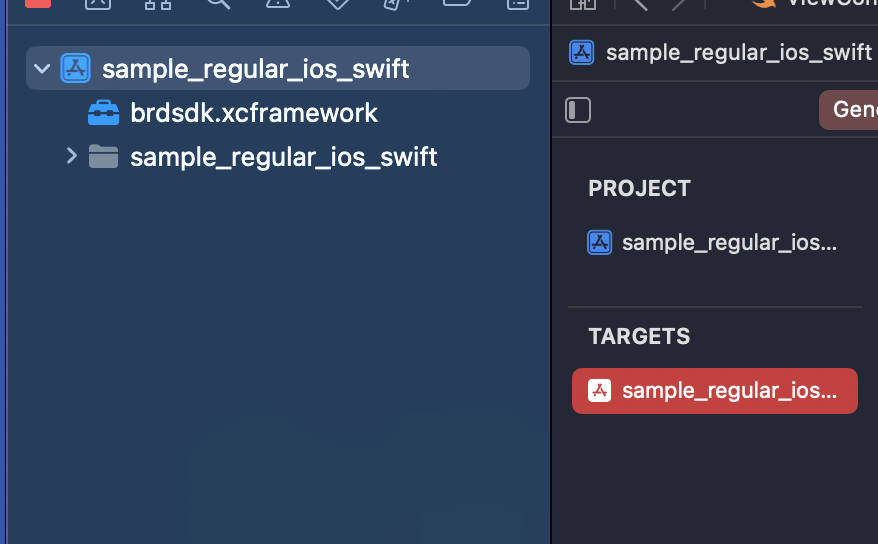 5. Go to the **General** tab → scroll to **Frameworks, Libraries, and Embedded Content**
6. Click **+** → **Add Other…** → **Add Files**
7. Locate and select `brdsdk.xcframework` → click **Open**
8. Confirm that it shows **Embed & Sign** next to `brdsdk.xcframework`
5. Go to the **General** tab → scroll to **Frameworks, Libraries, and Embedded Content**
6. Click **+** → **Add Other…** → **Add Files**
7. Locate and select `brdsdk.xcframework` → click **Open**
8. Confirm that it shows **Embed & Sign** next to `brdsdk.xcframework`
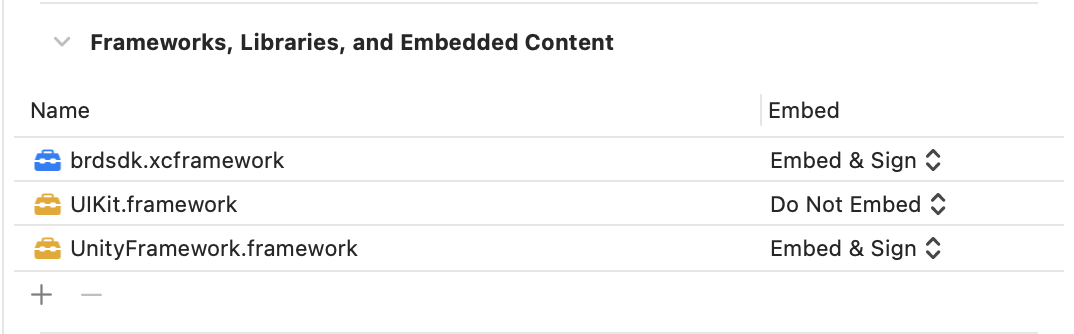 Reference sample: `xcode_swiftui_sample_app`, `xcode_uikit_sample_app`
**Short steps:**
1. Import the framework: `import brdsdk`
2. Initialize the SDK via the `brd_api` constructor (see example below). Typically done in the app delegate on the app-launched event.
3. Show the consent screen:
* Pass `skip_consent: false` → consent screen appears automatically on initialization
* Pass `skip_consent: true` → you must call `brd_api.show_consent()` manually later
4. To disable the SDK, call `brd_api.opt_out()`
It is not recommended to initialize the SDK on the main thread.
Here's the example:
**Initialization:**
```swift theme={null}
do {
try brd_api(
benefit: "",
agree_btn: "",
disagree_btn: "",
language: "en",
skip_consent: true,
campaign: nil
) { [weak self] choice in
// handle updated choice
}
uuidTextField.text = brd_api.get_uuid()
} catch {
let alert = UIAlertController(title: "Error", message: error.localizedDescription, preferredStyle: .alert)
alert.addAction(UIAlertAction(title: "OK", style: .cancel))
present(alert, animated: true)
}
```
**Presenting the consent screen manually:**
```swift theme={null}
brd_api.show_consent(self)
```
**Opting out:**
```swift theme={null}
brd_api.opt_out()
```
Reference sample: `xcode_uikit_sample_app`
**Short steps:**
1. Import the framework: `#import `
2. Initialize the SDK by calling `brd_api` constructor. Typically done in the app delegate on the app-launched event.
3. Show the consent screen:
* Pass `NO` to `skip_consent` → consent screen appears automatically on initialization
* Pass `YES` to `skip_consent` → you must call `[brd_api show_consent]` manually later
4. To disable the SDK, call `[brd_api opt_out]`
It is not recommended to initialize the SDK on the main thread.
Here's the example:
**Initialization:**
```objective-c theme={null}
NSError *error = nil;
__weak typeof(self) wSelf = self;
(void)[[brd_api alloc] initWithBenefit:NULL
agree_btn:NULL
disagree_btn:NULL
opt_out_instructions:NULL
appicon:[UIImage imageNamed:@"appicon"]
cwd:NULL
sys_app_id:NULL
language:NULL
colors:NULL
background_image:background
opt_in_info:NULL
opt_out_info:NULL
fonts:NULL
skip_consent:YES
campaign:NULL
error:&error
on_choice_change:^(NSInteger choice) {
// handle updated choice
}];
```
**Presenting the consent screen manually:**
```objective-c theme={null}
[brd_api show_consent:self benefit:@"" agree_btn:@"" disagree_btn:@"" language:@"en"];
```
**Opting out:**
```objective-c theme={null}
[brd_api opt_out];
```
Reference sample: `sample_tvos_xcode`
**Note:** Please contact our partnership managers to share information about your tvOS app before beginning implementation.
Bright SDK must show a consent screen right after the app is launched. Your app must initialize the main screen first, show the consent screen, and only then pass control to other functions/screens.
1. Embed the framework - follow [Step 3.1](https://docs.bright-sdk.com/integration-guides/ios-tvos#option-b-manual:~:text=3.1%20Embedding%20the%20Framework%20in%20Xcode).
2. Open `SampleAppApp.swift` from `sample_tvos_xcode` and implement similar SDK initialization logic in your app.
3. Open `SettingsView.swift` from `sample_tvos_xcode` and implement the settings screen similarly:
* **Web Indexing** section should have **Enable** and **Disable** buttons.
* Button actions delegate to `enableIndexingCallback`, then to `ContentViewModel.setIndexing(enable:, callback:)` (defined in `ContentView.swift`), which calls:
* `brd_api.show_consent()` - to enable the SDK.
* `brd_api.opt_out()` - to disable the SDK.
This section will guide you on how to integrate SDK **at Unity level** (no code changes in Xcode).
Reference sample: `unity_sample_app_2020.2.5`, `unity_admob_sample_app`
*Use this path if you want to integrate Bright SDK entirely at the Unity level without modifying Xcode. If you prefer to integrate at the Xcode level instead, skip to [Step 3.6](https://docs.bright-sdk.com/integration-guides/ios-tvos#:~:text=3.6%20Integration%20in%20Xcode%20\(Unity\)). Do not follow both - choose one.*
If you have other 3rd-party frameworks that need to initialize before your game launches, integrating via the Unity plugin ensures the correct user flow: Bright SDK consent screen → 3rd party initialization → game launch.
We recommend Unity Editor 2020.2.5f1. If you encounter issues, use `unity_sample_app_2020.2.5` as a reference.
**3.5.1 Import the SDK Package**
1. In Unity Editor, go to **Assets → Import Package → Custom Package**
2. Select `brdsdk.unitypackage` from the `unity_plugin` folder
3. In the **Import Unity Package** dialog, click **Import**
* This adds `brdsdk.framework`, `BrdsdkBridge.cs`, and other required files
4. Confirm there are no compilation errors
**3.5.2 Add SDK Initialization to Your Code**
1. Open `BrightDataSDK/BrdsdkBridge.cs` and review the available SDK API calls
2. Call `BrdsdkBridge.init(...)` from the `Start()` method of your game object handler (e.g., instead of direct ad initialization)
3. Implement the `on_choice_callback` method properly - see `BrightDataSDK/Sample/SampleBehaviour.cs` for an example. The result of consent will be delivered via this callback.
4. Implement the Settings screen following Step 4: Add Opt-In/Out Settings Option, using `BrightDataSDK/Sample/SettingsBehaviour.cs` as a reference
**3.5.3 Generate the Xcode Project**
1. Go to **File → Build Settings** and switch to the iOS platform
2. Click **Player Settings**:
* Scroll to **Other Settings**
* Set **Target SDK** to Device SDK
* Set **Target minimum iOS Version** to `12` or higher
* Update **Bundle Identifier** and other settings as needed
3. Close Player Settings
4. In **Build Settings**, click **Build** and choose the destination folder
5. Wait for the Xcode project to be generated
**3.5.4 Run the App on a Device**
1. Select the main project scheme (usually selected by default)
2. Connect your iPhone and select it as the target device
3. Configure **Signing & Capabilities** for the main project target
4. Confirm New Build System is selected: **File → Project Settings → Build System**
5. Press **Product → Run** (⌘R)
This section will guide you on how to integrate SDK **in Xcode level** (no code changes in Xcode).
Reference sample: `unity_xcode_sample_app`
*Use this path if you want to integrate Bright SDK at the Xcode level for a Unity project. If you already completed Step 3.5, skip this section.*
Unity generates an Xcode project when building for iOS. The default template passes app lifecycle control to `UnityFramework` immediately after launch. Bright SDK must show the consent screen **before** the game launches, so your app must initialize the root view controller, show consent, and only then pass control to `UnityFramework`.
Use `unity_xcode_sample_app` as reference. This is based on Unity's official documentation for integrating Unity as a library into a standard iOS app, simplified to the minimum steps needed for Bright SDK.
If you have other 3rd-party frameworks that need to initialize before your game launches, consider using Step 3.5 (Unity Editor integration) instead.
**3.6.1 Embed the Bright SDK Framework**
1. Follow [Step 3.1](https://docs.bright-sdk.com/integration-guides/ios-tvos#:~:text=3.1%20Embedding%20the%20Framework%20in%20Xcode) for the main app target.
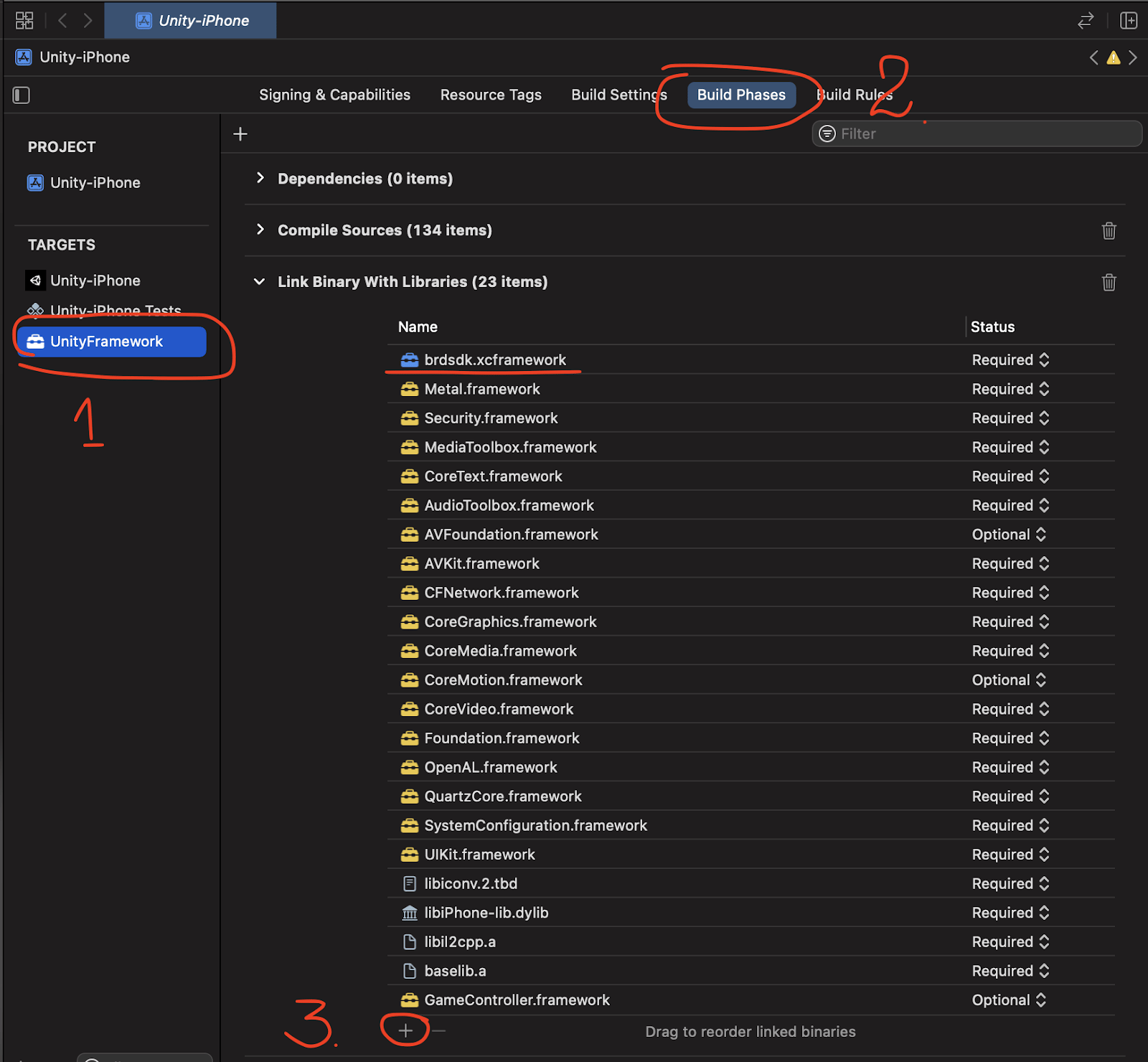
2. Additionally, link `brdsdk.xcframework` with `UnityFramework`:
* In **Project Navigator**, select the project → select **UnityFramework** under Targets.
* Go to **Build Phases** → expand **Link Binary With Libraries.**
* Click **+**, select `brdsdk.xcframework`, click **Add.**
Reference sample: `xcode_swiftui_sample_app`, `xcode_uikit_sample_app`
**Short steps:**
1. Import the framework: `import brdsdk`
2. Initialize the SDK via the `brd_api` constructor (see example below). Typically done in the app delegate on the app-launched event.
3. Show the consent screen:
* Pass `skip_consent: false` → consent screen appears automatically on initialization
* Pass `skip_consent: true` → you must call `brd_api.show_consent()` manually later
4. To disable the SDK, call `brd_api.opt_out()`
It is not recommended to initialize the SDK on the main thread.
Here's the example:
**Initialization:**
```swift theme={null}
do {
try brd_api(
benefit: "",
agree_btn: "",
disagree_btn: "",
language: "en",
skip_consent: true,
campaign: nil
) { [weak self] choice in
// handle updated choice
}
uuidTextField.text = brd_api.get_uuid()
} catch {
let alert = UIAlertController(title: "Error", message: error.localizedDescription, preferredStyle: .alert)
alert.addAction(UIAlertAction(title: "OK", style: .cancel))
present(alert, animated: true)
}
```
**Presenting the consent screen manually:**
```swift theme={null}
brd_api.show_consent(self)
```
**Opting out:**
```swift theme={null}
brd_api.opt_out()
```
Reference sample: `xcode_uikit_sample_app`
**Short steps:**
1. Import the framework: `#import `
2. Initialize the SDK by calling `brd_api` constructor. Typically done in the app delegate on the app-launched event.
3. Show the consent screen:
* Pass `NO` to `skip_consent` → consent screen appears automatically on initialization
* Pass `YES` to `skip_consent` → you must call `[brd_api show_consent]` manually later
4. To disable the SDK, call `[brd_api opt_out]`
It is not recommended to initialize the SDK on the main thread.
Here's the example:
**Initialization:**
```objective-c theme={null}
NSError *error = nil;
__weak typeof(self) wSelf = self;
(void)[[brd_api alloc] initWithBenefit:NULL
agree_btn:NULL
disagree_btn:NULL
opt_out_instructions:NULL
appicon:[UIImage imageNamed:@"appicon"]
cwd:NULL
sys_app_id:NULL
language:NULL
colors:NULL
background_image:background
opt_in_info:NULL
opt_out_info:NULL
fonts:NULL
skip_consent:YES
campaign:NULL
error:&error
on_choice_change:^(NSInteger choice) {
// handle updated choice
}];
```
**Presenting the consent screen manually:**
```objective-c theme={null}
[brd_api show_consent:self benefit:@"" agree_btn:@"" disagree_btn:@"" language:@"en"];
```
**Opting out:**
```objective-c theme={null}
[brd_api opt_out];
```
Reference sample: `sample_tvos_xcode`
**Note:** Please contact our partnership managers to share information about your tvOS app before beginning implementation.
Bright SDK must show a consent screen right after the app is launched. Your app must initialize the main screen first, show the consent screen, and only then pass control to other functions/screens.
1. Embed the framework - follow [Step 3.1](https://docs.bright-sdk.com/integration-guides/ios-tvos#option-b-manual:~:text=3.1%20Embedding%20the%20Framework%20in%20Xcode).
2. Open `SampleAppApp.swift` from `sample_tvos_xcode` and implement similar SDK initialization logic in your app.
3. Open `SettingsView.swift` from `sample_tvos_xcode` and implement the settings screen similarly:
* **Web Indexing** section should have **Enable** and **Disable** buttons.
* Button actions delegate to `enableIndexingCallback`, then to `ContentViewModel.setIndexing(enable:, callback:)` (defined in `ContentView.swift`), which calls:
* `brd_api.show_consent()` - to enable the SDK.
* `brd_api.opt_out()` - to disable the SDK.
This section will guide you on how to integrate SDK **at Unity level** (no code changes in Xcode).
Reference sample: `unity_sample_app_2020.2.5`, `unity_admob_sample_app`
*Use this path if you want to integrate Bright SDK entirely at the Unity level without modifying Xcode. If you prefer to integrate at the Xcode level instead, skip to [Step 3.6](https://docs.bright-sdk.com/integration-guides/ios-tvos#:~:text=3.6%20Integration%20in%20Xcode%20\(Unity\)). Do not follow both - choose one.*
If you have other 3rd-party frameworks that need to initialize before your game launches, integrating via the Unity plugin ensures the correct user flow: Bright SDK consent screen → 3rd party initialization → game launch.
We recommend Unity Editor 2020.2.5f1. If you encounter issues, use `unity_sample_app_2020.2.5` as a reference.
**3.5.1 Import the SDK Package**
1. In Unity Editor, go to **Assets → Import Package → Custom Package**
2. Select `brdsdk.unitypackage` from the `unity_plugin` folder
3. In the **Import Unity Package** dialog, click **Import**
* This adds `brdsdk.framework`, `BrdsdkBridge.cs`, and other required files
4. Confirm there are no compilation errors
**3.5.2 Add SDK Initialization to Your Code**
1. Open `BrightDataSDK/BrdsdkBridge.cs` and review the available SDK API calls
2. Call `BrdsdkBridge.init(...)` from the `Start()` method of your game object handler (e.g., instead of direct ad initialization)
3. Implement the `on_choice_callback` method properly - see `BrightDataSDK/Sample/SampleBehaviour.cs` for an example. The result of consent will be delivered via this callback.
4. Implement the Settings screen following Step 4: Add Opt-In/Out Settings Option, using `BrightDataSDK/Sample/SettingsBehaviour.cs` as a reference
**3.5.3 Generate the Xcode Project**
1. Go to **File → Build Settings** and switch to the iOS platform
2. Click **Player Settings**:
* Scroll to **Other Settings**
* Set **Target SDK** to Device SDK
* Set **Target minimum iOS Version** to `12` or higher
* Update **Bundle Identifier** and other settings as needed
3. Close Player Settings
4. In **Build Settings**, click **Build** and choose the destination folder
5. Wait for the Xcode project to be generated
**3.5.4 Run the App on a Device**
1. Select the main project scheme (usually selected by default)
2. Connect your iPhone and select it as the target device
3. Configure **Signing & Capabilities** for the main project target
4. Confirm New Build System is selected: **File → Project Settings → Build System**
5. Press **Product → Run** (⌘R)
This section will guide you on how to integrate SDK **in Xcode level** (no code changes in Xcode).
Reference sample: `unity_xcode_sample_app`
*Use this path if you want to integrate Bright SDK at the Xcode level for a Unity project. If you already completed Step 3.5, skip this section.*
Unity generates an Xcode project when building for iOS. The default template passes app lifecycle control to `UnityFramework` immediately after launch. Bright SDK must show the consent screen **before** the game launches, so your app must initialize the root view controller, show consent, and only then pass control to `UnityFramework`.
Use `unity_xcode_sample_app` as reference. This is based on Unity's official documentation for integrating Unity as a library into a standard iOS app, simplified to the minimum steps needed for Bright SDK.
If you have other 3rd-party frameworks that need to initialize before your game launches, consider using Step 3.5 (Unity Editor integration) instead.
**3.6.1 Embed the Bright SDK Framework**
1. Follow [Step 3.1](https://docs.bright-sdk.com/integration-guides/ios-tvos#:~:text=3.1%20Embedding%20the%20Framework%20in%20Xcode) for the main app target.
2. Additionally, link `brdsdk.xcframework` with `UnityFramework`:
* In **Project Navigator**, select the project → select **UnityFramework** under Targets.
* Go to **Build Phases** → expand **Link Binary With Libraries.**
* Click **+**, select `brdsdk.xcframework`, click **Add.**
 **3.6.2 Embed the SDK Dialog in Your Code**
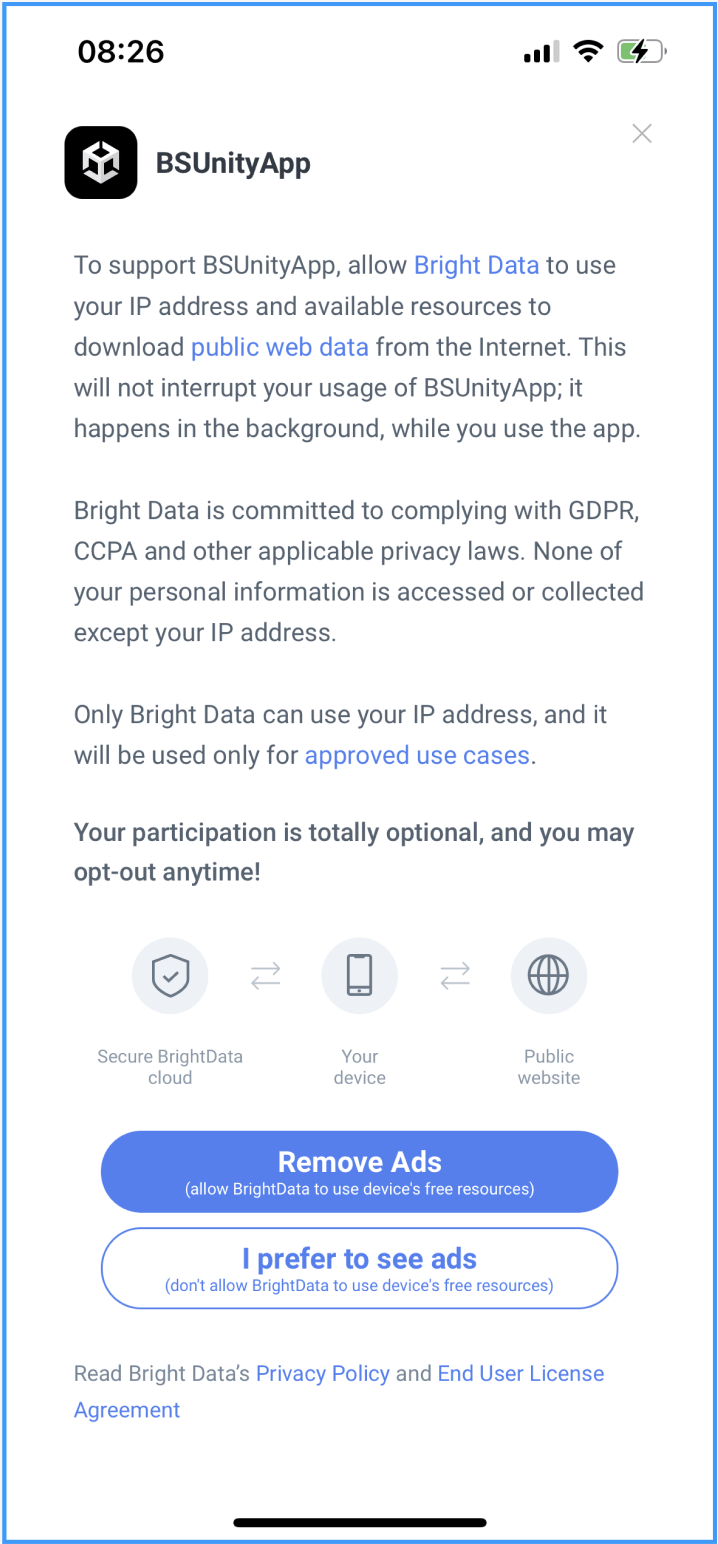 Using `unity_xcode_sample_app` as a reference:
1. Copy the contents of `unity_xcode_sample_app/main/main.m` into `MainApp/main.mm` of your Unity project.
2. Open `MainApp/main.mm` and locate `loadBrightFramework` - set appropriate button titles for the consent screen:
```objective-c theme={null}
agree_btn:"PeerTextREMOVE_ADS"
disagree_btn: "NotPeerTextADS"
```
3. If you offer ads as a monetization fallback, locate `loadUnityFramework` and enable your ad platform:
```objective-c theme={null}
if (useMonetizationFallback) {
// TODO: user did not agree to share resources with BrightData
// set up showing advertisements instead
```
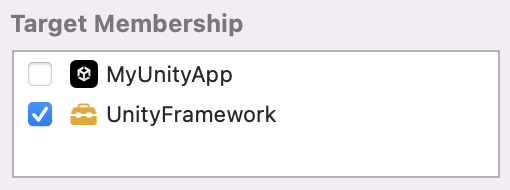
4. Embed the `Data` folder into `UnityFramework.framework`:
* Select the `Data` folder in **Project Navigator.**
* In the **Inspector** pane (right side), find **Target Membership.**
* Move the checkbox to the `UnityFramework` target.
Using `unity_xcode_sample_app` as a reference:
1. Copy the contents of `unity_xcode_sample_app/main/main.m` into `MainApp/main.mm` of your Unity project.
2. Open `MainApp/main.mm` and locate `loadBrightFramework` - set appropriate button titles for the consent screen:
```objective-c theme={null}
agree_btn:"PeerTextREMOVE_ADS"
disagree_btn: "NotPeerTextADS"
```
3. If you offer ads as a monetization fallback, locate `loadUnityFramework` and enable your ad platform:
```objective-c theme={null}
if (useMonetizationFallback) {
// TODO: user did not agree to share resources with BrightData
// set up showing advertisements instead
```
4. Embed the `Data` folder into `UnityFramework.framework`:
* Select the `Data` folder in **Project Navigator.**
* In the **Inspector** pane (right side), find **Target Membership.**
* Move the checkbox to the `UnityFramework` target.
 We prioritize user experience. Ensure your app maintains good performance.
Performance Guidelines:
1. ✅ No input lag - ensure responsive UI interactions.
2. ✅ Average CPU load: ≤ 50%.
3. ✅ RAM usage: ≤ 90%.
**Important:** If system load is too high, we cannot use the device's free resources. Such devices will not be counted as active and will not generate revenue.
**Native iOS / tvOS** - Use Xcode to build and run your app. Ensure New Build System is selected under File → Project Settings.
**Unity After generating the Xcode project**
1. Select the main project scheme.
2. Connect your iPhone/Apple TV and select it as the target device.
3. Configure Signing & Capabilities for the main target.
4. Press Product → Run (⌘R).
**Constants:**
| Constant | Description |
| :----------------- | :------------------------------------ |
| `CHOICE_NONE` | Consent screen has not yet been shown |
| `CHOICE_AGREED` | User accepted the consent screen |
| `CHOICE_DISAGREED` | User declined the consent screen |
**Methods:**
| Method | Returns | Description |
| :--------------------------------------------------------- | :-------------------- | :---------------------------------------------------------------------------------------------------------------------------------------------------------------------------------- |
| `init(...)` | `void` | Initializes the SDK. Must be called at app startup. All other methods are accessible after successful initialization. |
| `opt_out()` | `void` | Disables Bright SDK (e.g. from Settings screen) |
| `enqueue_opt_out()` | `void` | Enqueues an opt-out action to be executed once the SDK is loaded and configured |
| `external_opt_in()` | `bool` | Opts in and starts the Bright SDK process if permitted. ⚠️ NOT allowed by default — always use `show_consent()` or consult Bright Data first. Returns `true` if permitted. |
| `enqueue_external_opt_in()` | `void` | Enqueues an opt-in action once SDK is loaded. Checks authorization status before and after enqueueing. |
| `show_consent(benefit, agree_btn, disagree_btn, language)` | `bool` | Shows the consent screen (e.g. when user toggles Settings switch to enable SDK) |
| `get_choice()` | `int` | Returns the user's current choice |
| `consent_shown()` | `bool` | Triggers post-actions when a custom consent screen is shown. Must be called when presenting a custom consent screen. Returns `false` if SDK authorization status is not Authorized. |
| `authorize_device()` | `AuthorizationStatus` | Checks SDK availability on the device. Required before showing a custom consent screen; optional otherwise. |
| `get_uuid()` | `string` | Returns the current SDK UUID, or `null` if SDK is not initialized |
| `set_on_sdk_ready_callback(callback)` | `void` | Sets a handler for when the SDK is configured and ready |
| `set_on_consent_presented_callback(callback)` | `void` | Sets a handler for when the consent screen is presented |
| `set_on_consent_closed_callback(callback)` | `void` | Sets a handler for when the consent screen is dismissed (via close, agree, or disagree) |
**`init()`** Initializes the SDK. Must be called at app startup. All other methods are accessible after successful initialization. Consent screen is shown on first initialization by default - skip by setting `skip_consent: true`.
```csharp theme={null} theme={null} theme={null} theme={null} theme={null}
static void init(
string benefit,
string agree_btn,
string disagree_btn,
string opt_out_instructions,
string appicon,
ChoiceCallback on_choice_callback,
bool skip_consent = false,
string language = null,
ConsentColors colors = null,
ConsentBackgroundImage background_image = null,
ConsentActionInfo opt_in_info = null,
ConsentActionInfo opt_out_info = null,
ConsentFontsInfo fonts = null,
string campaign = null
)
```
| Parameter | Type | Description |
| :--------------------- | :------------------------ | :--------------------------------------------------------- |
| `benefit` | `string?` | Benefit text shown on the consent screen |
| `agree_btn` | `string` | "Agree" button text |
| `disagree_btn` | `string` | "Disagree" button text |
| `opt_out_instructions` | `string?` | Instructions for opting out |
| `appicon` | `string?` | xcassets name or path of the icon image |
| `on_choice_callback` | `ChoiceCallback` | Callback method reference |
| `skip_consent` | `bool` | Skip consent screen on init; show later via `show_consent` |
| `language` | `string?` | Preferred language (see supported values below) |
| `colors` | `ConsentColors?` | Consent screen colors |
| `background_image` | `ConsentBackgroundImage?` | Background images for consent screen |
| `opt_in_info` | `ConsentActionInfo?` | Opt-in button customization |
| `opt_out_info` | `ConsentActionInfo?` | Opt-out button customization |
| `fonts` | `ConsentFontsInfo?` | Font overrides for consent screen |
| `campaign` | `string?` | Campaign name |
**Supported language values:** `ar_SA`, `de-DE`, `en-US`, `es-ES`, `fa-AF`, `fr-FR`, `he-IL`, `hi-IN`, `it-IT`, `ja-JP`, `ko-KR`, `ms-MY`, `nl-NL`, `pt-PT`, `ro-RO`, `ru-RU`, `th`, `tr-TR`, `vi-VN`, `zh-CN`, `zh-TW`
**`opt_out()`** Disables Bright SDK (e.g. from Settings screen).
```csharp theme={null} theme={null} theme={null} theme={null} theme={null}
static void opt_out()
```
**`enqueue_opt_out()`** Enqueues an opt-out action to be executed once the SDK is loaded and configured.
```csharp theme={null} theme={null} theme={null} theme={null} theme={null}
static void enqueue_opt_out()
```
**`external_opt_in()`** Opts in and starts the Bright SDK process if permitted.
**NOT allowed by default.** Always use `show_consent()` or consult Bright Data first.
Returns `true` if the operation is permitted by the authorization device.
```csharp theme={null} theme={null} theme={null} theme={null} theme={null}
static bool external_opt_in()
```
**`enqueue_external_opt_in()`** Enqueues an opt-in action to be executed once the SDK is loaded and configured. Also checks authorization status before and after enqueueing.
```csharp theme={null} theme={null} theme={null} theme={null} theme={null}
static void enqueue_external_opt_in()
```
**`show_consent()`** Shows the consent screen (e.g. when the user toggles the Settings switch to enable SDK).
```csharp theme={null} theme={null} theme={null} theme={null} theme={null}
static bool show_consent(string benefit, string agree_btn, string disagree_btn, string language)
```
**`get_choice()`** Returns the user's current choice.
```csharp theme={null} theme={null} theme={null} theme={null} theme={null}
static int get_choice()
```
**`consent_shown()`** Triggers post-actions when a custom consent screen is shown. Must be called when presenting a custom consent screen. Returns `false` if SDK authorization status is not Authorized.
```csharp theme={null} theme={null} theme={null} theme={null} theme={null}
static bool consent_shown()
```
**`authorize_device()`** Checks SDK availability on the device. Required before showing a custom consent screen; optional otherwise.
```csharp theme={null} theme={null} theme={null} theme={null} theme={null}
static BrdsdkBridge.AuthorizationStatus authorize_device()
```
**`get_uuid()`** Returns the current SDK UUID, or `null` if SDK is not initialized.
```csharp theme={null} theme={null} theme={null} theme={null} theme={null}
static string get_uuid()
```
**`set_on_sdk_ready_callback()`** Sets a handler for when the SDK is configured and ready.
```csharp theme={null} theme={null} theme={null} theme={null} theme={null}
static void set_on_sdk_ready_callback(EmptyCallback callback)
```
**`set_on_consent_presented_callback()`** Sets a handler for when the consent screen is presented.
```csharp theme={null} theme={null} theme={null} theme={null} theme={null}
static void set_on_consent_presented_callback(EmptyCallback callback)
```
**`set_on_consent_closed_callback()`** Sets a handler for when the consent screen is dismissed (via close, agree, or disagree).
```csharp theme={null} theme={null} theme={null} theme={null} theme={null}
static void set_on_consent_closed_callback(EmptyCallback callback)
```
**Enum: `BrdsdkBridge.AuthorizationStatus`**
| Value | Description |
| :--------------------- | :----------------------------------------------------------------------------------- |
| `Authorized` | SDK can be used with either SDK's or custom consent screen |
| `SDKNotInitialized` | SDK has not been initialized |
| `ParentControlEnabled` | Parental controls are enabled — do not use SDK |
| `OnlySDKConsent` | Only the SDK's built-in consent screen may be used; `external_opt_in` is not allowed |
| `PlatformNotSupported` | Authorization method called on unsupported platform |
**Class: `ConsentColors`**
| Property | Type | Description |
| :--------------------- | :------ | :------------------------------ |
| `backgroundColor` | `Int32` | Consent window background color |
| `titleColor` | `Int32` | Title text color |
| `consentMessageColor` | `Int32` | Main message text color |
| `consentLinksColor` | `Int32` | Main message link color |
| `privacyColor` | `Int32` | Privacy/license text color |
| `privacyLinksColor` | `Int32` | Privacy/license link color |
| `iconsForegroundColor` | `Int32` | Icon foreground color |
| `iconsBackgroundColor` | `Int32` | Icon background color |
**Class: `ConsentBackgroundImage`**
| Property | Type | Description |
| :--------------- | :--------------------------------- | :----------------------------------------------------------------------------- |
| `portraitImage` | `String` | xcassets name or file path for portrait image |
| `landscapeImage` | `String?` | xcassets name or file path for landscape image. Falls back to portrait if null |
| `scaleMode` | `ConsentBackgroundImage.ScaleMode` | Scale mode for the image view |
**Enum: `ConsentBackgroundImage.ScaleMode`**
| Value | Description |
| :---------------- | :-------------------------------------------------------------- |
| `ScaleToFill` | Scales to fill, may change aspect ratio |
| `ScaleAspectFit` | Scales to fit, maintains aspect ratio, transparent areas remain |
| `ScaleAspectFill` | Scales to fill, maintains aspect ratio, may clip content |
**Class: `ConsentActionInfo`**
```csharp theme={null} theme={null} theme={null} theme={null} theme={null}
public ConsentActionInfo(
string _backgroundImage,
string _textImage,
Int32? _backgroundColor,
Int32? _textColor
)
```
| Parameter | Type | Description |
| :----------------- | :-------- | :-------------------------------------------------------------------------- |
| `_backgroundImage` | `string?` | Path or xcassets name for button background. Uses `backgroundColor` if null |
| `_textImage` | `string?` | Path or xcassets name for button title image. Uses `textColor` if null |
| `_backgroundColor` | `Int32?` | Button background color |
| `_textColor` | `Int32?` | Button text color |
| Property | Type | Description |
| :------------ | :------------ | :------------------------ |
| `titleText` | `ConsentFont` | Font for consent title |
| `mainText` | `ConsentFont` | Font for main description |
| `licenseText` | `ConsentFont` | Font for license text |
| `iconsText` | `ConsentFont` | Font for under-icon texts |
| `buttonsText` | `ConsentFont` | Font for button texts |
**Class: `ConsentFontsInfo.ConsentFont`**
```csharp theme={null} theme={null} theme={null} theme={null} theme={null}
public ConsentFont(string _nameOrPath, float _size)
```
| Parameter | Type | Description |
| :------------ | :------- | :---------------------------------------- |
| `_nameOrPath` | `string` | Registered font name or path to font file |
| `size` | `float` | Font size |
The APIs are identical for Swift and Objective-C - they differ in syntax only. For Objective-C, the `init` call must be made on a `brd_api` instance: `[[brd_api alloc] init...]`
**Properties:**
| Property | Type | Description |
| :------------------- | :-------------- | :--------------------------------------- |
| `onConsentPresented` | `(() -> Void)?` | Handler when consent screen is presented |
| `onConsentClosed` | `(() -> Void)?` | Handler when consent screen is dismissed |
| `onSDKReady` | `(() -> Void)?` | Handler when SDK is configured and ready |
**Methods:**
| Method | Returns | Description |
| :--------------------------------------------------------- | :-------------------- | :------------------------------------------------------------------------------------------------------------------------------------------------------------------------ |
| `init(...)` | — | Initializes the SDK. Throws `brd_api.api_error`. |
| `opt_out()` | `void` | Disables Bright SDK (e.g. from Settings screen) |
| `enqueue_opt_out()` | `void` | Enqueues opt-out to be executed once SDK is loaded and configured |
| `external_opt_in()` | `Bool` | Opts in and starts the Bright SDK process if permitted. ⚠️ NOT allowed by default — always use `show_consent()` or consult Bright Data first. Throws `brd_api.api_error`. |
| `enqueue_external_opt_in()` | `void` | Enqueues opt-in action once SDK is loaded. Checks authorization status before and after enqueueing. |
| `show_consent(_:benefit:agree_btn:disagree_btn:language:)` | `Bool` | Shows the consent screen. Returns `true` if SDK is initialized and child control is disabled. Result delivered via `on_choice_change` callback. |
| `get_choice()` | `Int` | Returns the user's current choice |
| `consent_shown()` | `Bool` | Triggers post-actions when a custom consent screen is shown. Returns `false` if authorization status is not authorized. |
| `authorizeDevice()` | `AuthorizationStatus` | Checks SDK availability. Required before showing a custom consent screen; optional otherwise. |
| `get_uuid()` | `String?` | Returns current SDK UUID, or `nil` if SDK is not initialized |
**`init()`** Initializes the SDK. Throws `brd_api.api_error`.
```swift theme={null} theme={null} theme={null} theme={null} theme={null}
init(
benefit: String? = nil,
agree_btn: String? = nil, // Default: "I Agree"
disagree_btn: String? = nil, // Default: "I Disagree"
opt_out_instructions: String? = nil,
appicon: UIImage? = nil,
cwd _cwd: URL? = nil,
sys_app_id: String? = nil,
language: String? = nil,
colors: ColorSettings? = nil,
background_image: ConsentBackgroundImage? = nil,
opt_in_info: ConsentActionInfo? = nil,
opt_out_info: ConsentActionInfo? = nil,
fonts: ConsentFontsInfo? = nil,
skip_consent: Bool,
campaign: String?,
on_choice_change: ((Int)->Void)? = nil
) throws
```
| Parameter | Type | Description |
| :--------------------- | :------------------------ | :------------------------------------------------------ |
| `benefit` | `String?` | Benefit text prefix. Default: `"To support "` |
| `agree_btn` | `String?` | "Agree" button text. Default: `"I Agree"` |
| `disagree_btn` | `String?` | "Disagree" button text. Default: `"I Disagree"` |
| `opt_out_instructions` | `String?` | Opt-out instructions text |
| `appicon` | `UIImage?` | Icon image for consent screen |
| `language` | `String?` | Preferred language (same values as Unity — see above) |
| `colors` | `ColorSettings?` | Color settings for consent screen |
| `background_image` | `ConsentBackgroundImage?` | Background images for consent screen |
| `opt_in_info` | `ConsentActionInfo?` | Opt-in button customization |
| `opt_out_info` | `ConsentActionInfo?` | Opt-out button customization |
| `fonts` | `ConsentFontsInfo?` | Font overrides |
| `skip_consent` | `Bool` | Skip consent on init; show later via `show_consent` |
| `campaign` | `String?` | Campaign name |
| `on_choice_change` | `((Int)->Void)?` | Callback for choice updates |
**`opt_out()`** Disables Bright SDK (e.g. from Settings screen).
```swift theme={null} theme={null} theme={null} theme={null} theme={null}
static func opt_out()
```
**`enqueue_opt_out()`** Enqueues opt-out to be executed once the SDK is loaded and configured.
```swift theme={null} theme={null} theme={null} theme={null} theme={null}
static func enqueue_opt_out()
```
**`external_opt_in()`** Opts in and starts the Bright SDK process if permitted.
**NOT allowed by default.** Always use `show_consent()` or consult Bright Data first.
Returns `true` if permitted. Throws `brd_api.api_error`.
```swift theme={null} theme={null} theme={null} theme={null} theme={null}
public static func external_opt_in() throws
```
**`enqueue_external_opt_in()`** Enqueues opt-in action once the SDK is loaded. Checks authorization status before and after enqueueing.
```swift theme={null} theme={null} theme={null} theme={null} theme={null}
static func enqueue_external_opt_in()
```
**`show_consent()`** Shows the consent screen (e.g. when user activates the Settings toggle). Returns `true` if SDK is initialized and child control is disabled. Result delivered via `on_choice_change` callback.
```swift theme={null} theme={null} theme={null} theme={null} theme={null}
static func show_consent(_ parent: UIViewController?, benefit: String?,
agree_btn: String?, disagree_btn: String?, language: String?) -> Bool
```
**`get_choice()`** Returns the user's current choice.
```swift theme={null} theme={null} theme={null} theme={null} theme={null}
static func get_choice() -> Int
```
**`consent_shown()`** Triggers post-actions when a custom consent screen is shown. Must be called when presenting a custom consent screen. Returns `false` if authorization status is not authorized.
```swift theme={null} theme={null} theme={null} theme={null} theme={null}
static func consent_shown() -> Bool
```
**`authorizeDevice()`** Checks SDK availability. Required before showing a custom consent screen; optional otherwise.
```swift theme={null} theme={null} theme={null} theme={null} theme={null}
static func authorizeDevice() -> AuthorizationStatus
```
**Usage example:**
```swift theme={null} theme={null} theme={null} theme={null} theme={null}
let authStatus = brd_api.authorizeDevice()
switch authStatus {
case .sdkNotInitialized: break // initialize SDK first
case .parentControlEnabled: break // do not use SDK
case .authorized:
if Feature.customConsent {
// show your own consent screen
} else {
fallthrough // show SDK's consent screen
}
}
```
**`get_uuid()`** Returns current SDK UUID, or `nil` if SDK is not initialized.
```swift theme={null} theme={null} theme={null} theme={null} theme={null}
static func get_uuid() -> String?
```
**Enum: `Choice`**
| Value | Description |
| :-------- | :------------------------------------ |
| `none` | Consent screen has not yet been shown |
| `peer` | User accepted the consent screen |
| `notPeer` | User declined the consent screen |
**Enum: `brd_api.AuthorizationStatus`**
| Value | Description |
| :--------------------- | :--------------------------------------------------------- |
| `Authorized` | SDK can be used with either SDK's or custom consent screen |
| `SDKNotInitialized` | SDK has not been initialized |
| `ParentControlEnabled` | Parental controls are enabled - do not use SDK |
| `PlatformNotSupported` | Authorization method called on unsupported platform |
**Enum: `brd_api.api_error`**
| Case | Description |
| :----------------------- | :------------------------------------------------------------------ |
| `init_error(String)` | Non-categorized initialization error |
| `opt_in_not_allowed` | Calling `*opt_in` is not allowed — use SDK's consent screen instead |
| `sdk_not_initialized` | Method called before SDK was initialized |
| `enabled_parent_control` | Parental controls enabled — do not use SDK |
**Class: `ConsentBackgroundImage`**
| Property | Type | Description |
| :--------------- | :------------------- | :------------------------------ |
| `portraitImage` | `UIImage` | Image for portrait orientation |
| `landscapeImage` | `UIImage` | Image for landscape orientation |
| `scaleMode` | `UIView.ContentMode` | Scale mode for image view |
**Constructors:**
```swift theme={null} theme={null} theme={null} theme={null} theme={null}
// With UIImage instances:
init(portrait: UIImage, landscape: UIImage? = nil, scaleMode: UIView.ContentMode = .scaleAspectFill)
// With xcassets names:
init?(portraitName: String, landscapeName: String? = nil, scaleMode: UIView.ContentMode = .scaleAspectFill, in bundle: Bundle = .main)
```
| Parameter | Type | Description |
| :---------------------------- | :--------------------- | :-------------------------------------------------------------- |
| `portrait` / `portraitName` | `UIImage` / `String` | Portrait image or xcassets name |
| `landscape` / `landscapeName` | `UIImage?` / `String?` | Landscape image or xcassets name. Falls back to portrait if nil |
| `scaleMode` | `UIView.ContentMode` | Scale mode. Use `.scaleAspectFit` or `.scaleAspectFill` |
| `bundle` | `Bundle` | Bundle containing xcassets |
**Class: `ConsentActionInfo`**
| Property | Type | Description |
| :---------------- | :--------- | :------------------------------------------------------------------ |
| `backgroundImage` | `UIImage?` | Button background image. Uses background color if nil |
| `textImage` | `UIImage?` | Button title image. Uses title text if nil |
| `backgroundColor` | `UIColor?` | Background color. Falls back to `ColorSettings.button_color` if nil |
| `textColor` | `UIColor?` | Text color. Falls back to `ColorSettings.button_color` if nil |
**Constructors:**
```swift theme={null} theme={null} theme={null} theme={null} theme={null}
// With UIImage instances:
init(backgroundImage: UIImage? = nil, textImage: UIImage? = nil, backgroundColor: UIColor? = nil, textColor: UIColor? = nil)
// With xcassets names:
init(backgroundName: String?, textName: String? = nil, in bundle: Bundle = .main)
```
**Class: `ColorSettings`**
| Property | Type | Description |
| :----------------------- | :--------- | :------------------------------------- |
| `background_color` | `UIColor?` | Consent window background color |
| `title_color` | `UIColor?` | Title text color |
| `consent_text_color` | `UIColor?` | Main message text color |
| `consent_links_color` | `UIColor?` | Main message link color |
| `privacy_text_color` | `UIColor?` | Privacy/license text color |
| `privacy_links_color` | `UIColor?` | Privacy/license link color |
| `qr_foreground_color` | `UIColor?` | QR code foreground color *(tvOS only)* |
| `qr_background_color` | `UIColor?` | QR code background color *(tvOS only)* |
| `icons_foreground_color` | `UIColor?` | Icon foreground color |
| `icons_background_color` | `UIColor?` | Icon background color |
**Constructor:**
```swift theme={null} theme={null} theme={null} theme={null} theme={null}
init(background_color: UIColor? = nil, title_color: UIColor? = nil,
consent_text_color: UIColor? = nil, consent_links_color: UIColor? = nil,
privacy_text_color: UIColor? = nil, privacy_links_color: UIColor? = nil,
qr_foreground_color: UIColor? = nil, qr_background_color: UIColor? = nil,
icons_foreground_color: UIColor? = nil, icons_background_color: UIColor? = nil)
```
| Property | Type | Description |
| :------------ | :-------- | :------------------------- |
| `titleText` | `UIFont?` | Font for consent title |
| `mainText` | `UIFont?` | Font for main descriptions |
| `licenseText` | `UIFont?` | Font for license text |
| `iconsText` | `UIFont?` | Font for under-icon texts |
| `buttonsText` | `UIFont?` | Font for button texts |
**Constructor:**
```swift theme={null} theme={null} theme={null} theme={null} theme={null}
init(titleText: UIFont? = nil, mainText: UIFont? = nil,
licenseText: UIFont? = nil, iconsText: UIFont? = nil,
buttonsText: UIFont? = nil)
```
**Instance Methods** *(all return `Self` for chaining; all warn on invalid font; all subject to SDK size limits):*
| Method | Description |
| :------------------------------------- | :-------------------------------------------------- |
| `setTitleText(withNameOrPath:size:)` | Override title font by name or file path |
| `setMainText(withNameOrPath:size:)` | Override main text font by name or file path |
| `setLicenseText(withNameOrPath:size:)` | Override license text font by name or file path |
| `setIconsText(withNameOrPath:size:)` | Override under-icons text font by name or file path |
| `setButtonsText(withNameOrPath:size:)` | Override buttons font by name or file path |
**Method signature:**
```swift theme={null} theme={null} theme={null} theme={null} theme={null}
func setText(withNameOrPath nameOrPath: String, size: CGFloat) -> Self
```
We prioritize user experience. Ensure your app maintains good performance.
Performance Guidelines:
1. ✅ No input lag - ensure responsive UI interactions.
2. ✅ Average CPU load: ≤ 50%.
3. ✅ RAM usage: ≤ 90%.
**Important:** If system load is too high, we cannot use the device's free resources. Such devices will not be counted as active and will not generate revenue.
**Native iOS / tvOS** - Use Xcode to build and run your app. Ensure New Build System is selected under File → Project Settings.
**Unity After generating the Xcode project**
1. Select the main project scheme.
2. Connect your iPhone/Apple TV and select it as the target device.
3. Configure Signing & Capabilities for the main target.
4. Press Product → Run (⌘R).
**Constants:**
| Constant | Description |
| :----------------- | :------------------------------------ |
| `CHOICE_NONE` | Consent screen has not yet been shown |
| `CHOICE_AGREED` | User accepted the consent screen |
| `CHOICE_DISAGREED` | User declined the consent screen |
**Methods:**
| Method | Returns | Description |
| :--------------------------------------------------------- | :-------------------- | :---------------------------------------------------------------------------------------------------------------------------------------------------------------------------------- |
| `init(...)` | `void` | Initializes the SDK. Must be called at app startup. All other methods are accessible after successful initialization. |
| `opt_out()` | `void` | Disables Bright SDK (e.g. from Settings screen) |
| `enqueue_opt_out()` | `void` | Enqueues an opt-out action to be executed once the SDK is loaded and configured |
| `external_opt_in()` | `bool` | Opts in and starts the Bright SDK process if permitted. ⚠️ NOT allowed by default — always use `show_consent()` or consult Bright Data first. Returns `true` if permitted. |
| `enqueue_external_opt_in()` | `void` | Enqueues an opt-in action once SDK is loaded. Checks authorization status before and after enqueueing. |
| `show_consent(benefit, agree_btn, disagree_btn, language)` | `bool` | Shows the consent screen (e.g. when user toggles Settings switch to enable SDK) |
| `get_choice()` | `int` | Returns the user's current choice |
| `consent_shown()` | `bool` | Triggers post-actions when a custom consent screen is shown. Must be called when presenting a custom consent screen. Returns `false` if SDK authorization status is not Authorized. |
| `authorize_device()` | `AuthorizationStatus` | Checks SDK availability on the device. Required before showing a custom consent screen; optional otherwise. |
| `get_uuid()` | `string` | Returns the current SDK UUID, or `null` if SDK is not initialized |
| `set_on_sdk_ready_callback(callback)` | `void` | Sets a handler for when the SDK is configured and ready |
| `set_on_consent_presented_callback(callback)` | `void` | Sets a handler for when the consent screen is presented |
| `set_on_consent_closed_callback(callback)` | `void` | Sets a handler for when the consent screen is dismissed (via close, agree, or disagree) |
**`init()`** Initializes the SDK. Must be called at app startup. All other methods are accessible after successful initialization. Consent screen is shown on first initialization by default - skip by setting `skip_consent: true`.
```csharp theme={null} theme={null} theme={null} theme={null} theme={null}
static void init(
string benefit,
string agree_btn,
string disagree_btn,
string opt_out_instructions,
string appicon,
ChoiceCallback on_choice_callback,
bool skip_consent = false,
string language = null,
ConsentColors colors = null,
ConsentBackgroundImage background_image = null,
ConsentActionInfo opt_in_info = null,
ConsentActionInfo opt_out_info = null,
ConsentFontsInfo fonts = null,
string campaign = null
)
```
| Parameter | Type | Description |
| :--------------------- | :------------------------ | :--------------------------------------------------------- |
| `benefit` | `string?` | Benefit text shown on the consent screen |
| `agree_btn` | `string` | "Agree" button text |
| `disagree_btn` | `string` | "Disagree" button text |
| `opt_out_instructions` | `string?` | Instructions for opting out |
| `appicon` | `string?` | xcassets name or path of the icon image |
| `on_choice_callback` | `ChoiceCallback` | Callback method reference |
| `skip_consent` | `bool` | Skip consent screen on init; show later via `show_consent` |
| `language` | `string?` | Preferred language (see supported values below) |
| `colors` | `ConsentColors?` | Consent screen colors |
| `background_image` | `ConsentBackgroundImage?` | Background images for consent screen |
| `opt_in_info` | `ConsentActionInfo?` | Opt-in button customization |
| `opt_out_info` | `ConsentActionInfo?` | Opt-out button customization |
| `fonts` | `ConsentFontsInfo?` | Font overrides for consent screen |
| `campaign` | `string?` | Campaign name |
**Supported language values:** `ar_SA`, `de-DE`, `en-US`, `es-ES`, `fa-AF`, `fr-FR`, `he-IL`, `hi-IN`, `it-IT`, `ja-JP`, `ko-KR`, `ms-MY`, `nl-NL`, `pt-PT`, `ro-RO`, `ru-RU`, `th`, `tr-TR`, `vi-VN`, `zh-CN`, `zh-TW`
**`opt_out()`** Disables Bright SDK (e.g. from Settings screen).
```csharp theme={null} theme={null} theme={null} theme={null} theme={null}
static void opt_out()
```
**`enqueue_opt_out()`** Enqueues an opt-out action to be executed once the SDK is loaded and configured.
```csharp theme={null} theme={null} theme={null} theme={null} theme={null}
static void enqueue_opt_out()
```
**`external_opt_in()`** Opts in and starts the Bright SDK process if permitted.
**NOT allowed by default.** Always use `show_consent()` or consult Bright Data first.
Returns `true` if the operation is permitted by the authorization device.
```csharp theme={null} theme={null} theme={null} theme={null} theme={null}
static bool external_opt_in()
```
**`enqueue_external_opt_in()`** Enqueues an opt-in action to be executed once the SDK is loaded and configured. Also checks authorization status before and after enqueueing.
```csharp theme={null} theme={null} theme={null} theme={null} theme={null}
static void enqueue_external_opt_in()
```
**`show_consent()`** Shows the consent screen (e.g. when the user toggles the Settings switch to enable SDK).
```csharp theme={null} theme={null} theme={null} theme={null} theme={null}
static bool show_consent(string benefit, string agree_btn, string disagree_btn, string language)
```
**`get_choice()`** Returns the user's current choice.
```csharp theme={null} theme={null} theme={null} theme={null} theme={null}
static int get_choice()
```
**`consent_shown()`** Triggers post-actions when a custom consent screen is shown. Must be called when presenting a custom consent screen. Returns `false` if SDK authorization status is not Authorized.
```csharp theme={null} theme={null} theme={null} theme={null} theme={null}
static bool consent_shown()
```
**`authorize_device()`** Checks SDK availability on the device. Required before showing a custom consent screen; optional otherwise.
```csharp theme={null} theme={null} theme={null} theme={null} theme={null}
static BrdsdkBridge.AuthorizationStatus authorize_device()
```
**`get_uuid()`** Returns the current SDK UUID, or `null` if SDK is not initialized.
```csharp theme={null} theme={null} theme={null} theme={null} theme={null}
static string get_uuid()
```
**`set_on_sdk_ready_callback()`** Sets a handler for when the SDK is configured and ready.
```csharp theme={null} theme={null} theme={null} theme={null} theme={null}
static void set_on_sdk_ready_callback(EmptyCallback callback)
```
**`set_on_consent_presented_callback()`** Sets a handler for when the consent screen is presented.
```csharp theme={null} theme={null} theme={null} theme={null} theme={null}
static void set_on_consent_presented_callback(EmptyCallback callback)
```
**`set_on_consent_closed_callback()`** Sets a handler for when the consent screen is dismissed (via close, agree, or disagree).
```csharp theme={null} theme={null} theme={null} theme={null} theme={null}
static void set_on_consent_closed_callback(EmptyCallback callback)
```
**Enum: `BrdsdkBridge.AuthorizationStatus`**
| Value | Description |
| :--------------------- | :----------------------------------------------------------------------------------- |
| `Authorized` | SDK can be used with either SDK's or custom consent screen |
| `SDKNotInitialized` | SDK has not been initialized |
| `ParentControlEnabled` | Parental controls are enabled — do not use SDK |
| `OnlySDKConsent` | Only the SDK's built-in consent screen may be used; `external_opt_in` is not allowed |
| `PlatformNotSupported` | Authorization method called on unsupported platform |
**Class: `ConsentColors`**
| Property | Type | Description |
| :--------------------- | :------ | :------------------------------ |
| `backgroundColor` | `Int32` | Consent window background color |
| `titleColor` | `Int32` | Title text color |
| `consentMessageColor` | `Int32` | Main message text color |
| `consentLinksColor` | `Int32` | Main message link color |
| `privacyColor` | `Int32` | Privacy/license text color |
| `privacyLinksColor` | `Int32` | Privacy/license link color |
| `iconsForegroundColor` | `Int32` | Icon foreground color |
| `iconsBackgroundColor` | `Int32` | Icon background color |
**Class: `ConsentBackgroundImage`**
| Property | Type | Description |
| :--------------- | :--------------------------------- | :----------------------------------------------------------------------------- |
| `portraitImage` | `String` | xcassets name or file path for portrait image |
| `landscapeImage` | `String?` | xcassets name or file path for landscape image. Falls back to portrait if null |
| `scaleMode` | `ConsentBackgroundImage.ScaleMode` | Scale mode for the image view |
**Enum: `ConsentBackgroundImage.ScaleMode`**
| Value | Description |
| :---------------- | :-------------------------------------------------------------- |
| `ScaleToFill` | Scales to fill, may change aspect ratio |
| `ScaleAspectFit` | Scales to fit, maintains aspect ratio, transparent areas remain |
| `ScaleAspectFill` | Scales to fill, maintains aspect ratio, may clip content |
**Class: `ConsentActionInfo`**
```csharp theme={null} theme={null} theme={null} theme={null} theme={null}
public ConsentActionInfo(
string _backgroundImage,
string _textImage,
Int32? _backgroundColor,
Int32? _textColor
)
```
| Parameter | Type | Description |
| :----------------- | :-------- | :-------------------------------------------------------------------------- |
| `_backgroundImage` | `string?` | Path or xcassets name for button background. Uses `backgroundColor` if null |
| `_textImage` | `string?` | Path or xcassets name for button title image. Uses `textColor` if null |
| `_backgroundColor` | `Int32?` | Button background color |
| `_textColor` | `Int32?` | Button text color |
| Property | Type | Description |
| :------------ | :------------ | :------------------------ |
| `titleText` | `ConsentFont` | Font for consent title |
| `mainText` | `ConsentFont` | Font for main description |
| `licenseText` | `ConsentFont` | Font for license text |
| `iconsText` | `ConsentFont` | Font for under-icon texts |
| `buttonsText` | `ConsentFont` | Font for button texts |
**Class: `ConsentFontsInfo.ConsentFont`**
```csharp theme={null} theme={null} theme={null} theme={null} theme={null}
public ConsentFont(string _nameOrPath, float _size)
```
| Parameter | Type | Description |
| :------------ | :------- | :---------------------------------------- |
| `_nameOrPath` | `string` | Registered font name or path to font file |
| `size` | `float` | Font size |
The APIs are identical for Swift and Objective-C - they differ in syntax only. For Objective-C, the `init` call must be made on a `brd_api` instance: `[[brd_api alloc] init...]`
**Properties:**
| Property | Type | Description |
| :------------------- | :-------------- | :--------------------------------------- |
| `onConsentPresented` | `(() -> Void)?` | Handler when consent screen is presented |
| `onConsentClosed` | `(() -> Void)?` | Handler when consent screen is dismissed |
| `onSDKReady` | `(() -> Void)?` | Handler when SDK is configured and ready |
**Methods:**
| Method | Returns | Description |
| :--------------------------------------------------------- | :-------------------- | :------------------------------------------------------------------------------------------------------------------------------------------------------------------------ |
| `init(...)` | — | Initializes the SDK. Throws `brd_api.api_error`. |
| `opt_out()` | `void` | Disables Bright SDK (e.g. from Settings screen) |
| `enqueue_opt_out()` | `void` | Enqueues opt-out to be executed once SDK is loaded and configured |
| `external_opt_in()` | `Bool` | Opts in and starts the Bright SDK process if permitted. ⚠️ NOT allowed by default — always use `show_consent()` or consult Bright Data first. Throws `brd_api.api_error`. |
| `enqueue_external_opt_in()` | `void` | Enqueues opt-in action once SDK is loaded. Checks authorization status before and after enqueueing. |
| `show_consent(_:benefit:agree_btn:disagree_btn:language:)` | `Bool` | Shows the consent screen. Returns `true` if SDK is initialized and child control is disabled. Result delivered via `on_choice_change` callback. |
| `get_choice()` | `Int` | Returns the user's current choice |
| `consent_shown()` | `Bool` | Triggers post-actions when a custom consent screen is shown. Returns `false` if authorization status is not authorized. |
| `authorizeDevice()` | `AuthorizationStatus` | Checks SDK availability. Required before showing a custom consent screen; optional otherwise. |
| `get_uuid()` | `String?` | Returns current SDK UUID, or `nil` if SDK is not initialized |
**`init()`** Initializes the SDK. Throws `brd_api.api_error`.
```swift theme={null} theme={null} theme={null} theme={null} theme={null}
init(
benefit: String? = nil,
agree_btn: String? = nil, // Default: "I Agree"
disagree_btn: String? = nil, // Default: "I Disagree"
opt_out_instructions: String? = nil,
appicon: UIImage? = nil,
cwd _cwd: URL? = nil,
sys_app_id: String? = nil,
language: String? = nil,
colors: ColorSettings? = nil,
background_image: ConsentBackgroundImage? = nil,
opt_in_info: ConsentActionInfo? = nil,
opt_out_info: ConsentActionInfo? = nil,
fonts: ConsentFontsInfo? = nil,
skip_consent: Bool,
campaign: String?,
on_choice_change: ((Int)->Void)? = nil
) throws
```
| Parameter | Type | Description |
| :--------------------- | :------------------------ | :------------------------------------------------------ |
| `benefit` | `String?` | Benefit text prefix. Default: `"To support "` |
| `agree_btn` | `String?` | "Agree" button text. Default: `"I Agree"` |
| `disagree_btn` | `String?` | "Disagree" button text. Default: `"I Disagree"` |
| `opt_out_instructions` | `String?` | Opt-out instructions text |
| `appicon` | `UIImage?` | Icon image for consent screen |
| `language` | `String?` | Preferred language (same values as Unity — see above) |
| `colors` | `ColorSettings?` | Color settings for consent screen |
| `background_image` | `ConsentBackgroundImage?` | Background images for consent screen |
| `opt_in_info` | `ConsentActionInfo?` | Opt-in button customization |
| `opt_out_info` | `ConsentActionInfo?` | Opt-out button customization |
| `fonts` | `ConsentFontsInfo?` | Font overrides |
| `skip_consent` | `Bool` | Skip consent on init; show later via `show_consent` |
| `campaign` | `String?` | Campaign name |
| `on_choice_change` | `((Int)->Void)?` | Callback for choice updates |
**`opt_out()`** Disables Bright SDK (e.g. from Settings screen).
```swift theme={null} theme={null} theme={null} theme={null} theme={null}
static func opt_out()
```
**`enqueue_opt_out()`** Enqueues opt-out to be executed once the SDK is loaded and configured.
```swift theme={null} theme={null} theme={null} theme={null} theme={null}
static func enqueue_opt_out()
```
**`external_opt_in()`** Opts in and starts the Bright SDK process if permitted.
**NOT allowed by default.** Always use `show_consent()` or consult Bright Data first.
Returns `true` if permitted. Throws `brd_api.api_error`.
```swift theme={null} theme={null} theme={null} theme={null} theme={null}
public static func external_opt_in() throws
```
**`enqueue_external_opt_in()`** Enqueues opt-in action once the SDK is loaded. Checks authorization status before and after enqueueing.
```swift theme={null} theme={null} theme={null} theme={null} theme={null}
static func enqueue_external_opt_in()
```
**`show_consent()`** Shows the consent screen (e.g. when user activates the Settings toggle). Returns `true` if SDK is initialized and child control is disabled. Result delivered via `on_choice_change` callback.
```swift theme={null} theme={null} theme={null} theme={null} theme={null}
static func show_consent(_ parent: UIViewController?, benefit: String?,
agree_btn: String?, disagree_btn: String?, language: String?) -> Bool
```
**`get_choice()`** Returns the user's current choice.
```swift theme={null} theme={null} theme={null} theme={null} theme={null}
static func get_choice() -> Int
```
**`consent_shown()`** Triggers post-actions when a custom consent screen is shown. Must be called when presenting a custom consent screen. Returns `false` if authorization status is not authorized.
```swift theme={null} theme={null} theme={null} theme={null} theme={null}
static func consent_shown() -> Bool
```
**`authorizeDevice()`** Checks SDK availability. Required before showing a custom consent screen; optional otherwise.
```swift theme={null} theme={null} theme={null} theme={null} theme={null}
static func authorizeDevice() -> AuthorizationStatus
```
**Usage example:**
```swift theme={null} theme={null} theme={null} theme={null} theme={null}
let authStatus = brd_api.authorizeDevice()
switch authStatus {
case .sdkNotInitialized: break // initialize SDK first
case .parentControlEnabled: break // do not use SDK
case .authorized:
if Feature.customConsent {
// show your own consent screen
} else {
fallthrough // show SDK's consent screen
}
}
```
**`get_uuid()`** Returns current SDK UUID, or `nil` if SDK is not initialized.
```swift theme={null} theme={null} theme={null} theme={null} theme={null}
static func get_uuid() -> String?
```
**Enum: `Choice`**
| Value | Description |
| :-------- | :------------------------------------ |
| `none` | Consent screen has not yet been shown |
| `peer` | User accepted the consent screen |
| `notPeer` | User declined the consent screen |
**Enum: `brd_api.AuthorizationStatus`**
| Value | Description |
| :--------------------- | :--------------------------------------------------------- |
| `Authorized` | SDK can be used with either SDK's or custom consent screen |
| `SDKNotInitialized` | SDK has not been initialized |
| `ParentControlEnabled` | Parental controls are enabled - do not use SDK |
| `PlatformNotSupported` | Authorization method called on unsupported platform |
**Enum: `brd_api.api_error`**
| Case | Description |
| :----------------------- | :------------------------------------------------------------------ |
| `init_error(String)` | Non-categorized initialization error |
| `opt_in_not_allowed` | Calling `*opt_in` is not allowed — use SDK's consent screen instead |
| `sdk_not_initialized` | Method called before SDK was initialized |
| `enabled_parent_control` | Parental controls enabled — do not use SDK |
**Class: `ConsentBackgroundImage`**
| Property | Type | Description |
| :--------------- | :------------------- | :------------------------------ |
| `portraitImage` | `UIImage` | Image for portrait orientation |
| `landscapeImage` | `UIImage` | Image for landscape orientation |
| `scaleMode` | `UIView.ContentMode` | Scale mode for image view |
**Constructors:**
```swift theme={null} theme={null} theme={null} theme={null} theme={null}
// With UIImage instances:
init(portrait: UIImage, landscape: UIImage? = nil, scaleMode: UIView.ContentMode = .scaleAspectFill)
// With xcassets names:
init?(portraitName: String, landscapeName: String? = nil, scaleMode: UIView.ContentMode = .scaleAspectFill, in bundle: Bundle = .main)
```
| Parameter | Type | Description |
| :---------------------------- | :--------------------- | :-------------------------------------------------------------- |
| `portrait` / `portraitName` | `UIImage` / `String` | Portrait image or xcassets name |
| `landscape` / `landscapeName` | `UIImage?` / `String?` | Landscape image or xcassets name. Falls back to portrait if nil |
| `scaleMode` | `UIView.ContentMode` | Scale mode. Use `.scaleAspectFit` or `.scaleAspectFill` |
| `bundle` | `Bundle` | Bundle containing xcassets |
**Class: `ConsentActionInfo`**
| Property | Type | Description |
| :---------------- | :--------- | :------------------------------------------------------------------ |
| `backgroundImage` | `UIImage?` | Button background image. Uses background color if nil |
| `textImage` | `UIImage?` | Button title image. Uses title text if nil |
| `backgroundColor` | `UIColor?` | Background color. Falls back to `ColorSettings.button_color` if nil |
| `textColor` | `UIColor?` | Text color. Falls back to `ColorSettings.button_color` if nil |
**Constructors:**
```swift theme={null} theme={null} theme={null} theme={null} theme={null}
// With UIImage instances:
init(backgroundImage: UIImage? = nil, textImage: UIImage? = nil, backgroundColor: UIColor? = nil, textColor: UIColor? = nil)
// With xcassets names:
init(backgroundName: String?, textName: String? = nil, in bundle: Bundle = .main)
```
**Class: `ColorSettings`**
| Property | Type | Description |
| :----------------------- | :--------- | :------------------------------------- |
| `background_color` | `UIColor?` | Consent window background color |
| `title_color` | `UIColor?` | Title text color |
| `consent_text_color` | `UIColor?` | Main message text color |
| `consent_links_color` | `UIColor?` | Main message link color |
| `privacy_text_color` | `UIColor?` | Privacy/license text color |
| `privacy_links_color` | `UIColor?` | Privacy/license link color |
| `qr_foreground_color` | `UIColor?` | QR code foreground color *(tvOS only)* |
| `qr_background_color` | `UIColor?` | QR code background color *(tvOS only)* |
| `icons_foreground_color` | `UIColor?` | Icon foreground color |
| `icons_background_color` | `UIColor?` | Icon background color |
**Constructor:**
```swift theme={null} theme={null} theme={null} theme={null} theme={null}
init(background_color: UIColor? = nil, title_color: UIColor? = nil,
consent_text_color: UIColor? = nil, consent_links_color: UIColor? = nil,
privacy_text_color: UIColor? = nil, privacy_links_color: UIColor? = nil,
qr_foreground_color: UIColor? = nil, qr_background_color: UIColor? = nil,
icons_foreground_color: UIColor? = nil, icons_background_color: UIColor? = nil)
```
| Property | Type | Description |
| :------------ | :-------- | :------------------------- |
| `titleText` | `UIFont?` | Font for consent title |
| `mainText` | `UIFont?` | Font for main descriptions |
| `licenseText` | `UIFont?` | Font for license text |
| `iconsText` | `UIFont?` | Font for under-icon texts |
| `buttonsText` | `UIFont?` | Font for button texts |
**Constructor:**
```swift theme={null} theme={null} theme={null} theme={null} theme={null}
init(titleText: UIFont? = nil, mainText: UIFont? = nil,
licenseText: UIFont? = nil, iconsText: UIFont? = nil,
buttonsText: UIFont? = nil)
```
**Instance Methods** *(all return `Self` for chaining; all warn on invalid font; all subject to SDK size limits):*
| Method | Description |
| :------------------------------------- | :-------------------------------------------------- |
| `setTitleText(withNameOrPath:size:)` | Override title font by name or file path |
| `setMainText(withNameOrPath:size:)` | Override main text font by name or file path |
| `setLicenseText(withNameOrPath:size:)` | Override license text font by name or file path |
| `setIconsText(withNameOrPath:size:)` | Override under-icons text font by name or file path |
| `setButtonsText(withNameOrPath:size:)` | Override buttons font by name or file path |
**Method signature:**
```swift theme={null} theme={null} theme={null} theme={null} theme={null}
func setText(withNameOrPath nameOrPath: String, size: CGFloat) -> Self
```