
Requirements
- iOS 13.0 or newer / tvOS 15.0 or newer.
- Xcode (13.4 or newer recommended).
- Bright SDK for iOS/tvOS (latest).
- For Unity projects: Unity Editor 2020.2.5f1 or newer.
Bright Data must review your application before you submit it to the Apple App Store. Send your test build via TestFlight for review.
Important Notes
- Take care when implementing the consent screen and the opt-out mechanisms in a way which follows guidelines in this document.
- Users must always, voluntarily decide to opt in after seeing the consent screen, and must always have an easy way to opt out.
- Bright Data recommends offering value in exchange for opting in (e.g., fewer ads, bonus coins, premium features). However, simply asking for user support is also acceptable.
- Do not suggest Bright SDK as an alternative to paying for premium items or subscriptions via the App Store. This violates App Store policy.
- Bright SDK does not do any user tracking. It is not related to Apple’s ATT (App Tracking Transparency). You may show the consent screen regardless of ATT status.
- Bright Data reviews SDK integration after initial release and regularly thereafter. Your account will be terminated if you violate the guidelines in this document.
- Starting from version 1.385.451, Bright SDK checks for parental controls. If enabled, the consent screen will NOT be displayed - this is by design to ensure informed consent.
Create App ID on Dashboard
If you haven’t done this yet, log in to your dashboard and create your app ID first.The App ID for iOS/tvOS apps is constructed as follows:
ios_<your Apple Bundle ID>Example: If your Bundle ID is com.mycompany.MyGame, your App ID will be ios_com.mycompany.MyGame.Install SDK Files
You can set up the Bright SDK framework in your iOS/tvOS app in two ways:
- Using the Bright SDK Integration CLI Tool Recommended - automatically downloads the SDK, extracts the framework, and patches your Xcode project with the necessary references.
- Manually - download the SDK from the dashboard, unzip it, and copy the files yourself.
Option A - Using the Integration CLI Tool Recommended
Option A - Using the Integration CLI Tool Recommended
Run the tool using the
bright-sdk-integration CLI. See the Apple example for full setup instructions.The tool will:- Download the latest BrightSDK zip from
cdn.bright-sdk.com/static/ - Extract
brdsdk.xcframeworkintoBrightSDK/ - Patch your
project.pbxproj- addingbrdsdk.xcframeworkwith Embed & Sign and settingFRAMEWORK_SEARCH_PATHS - Save
brd_sdk.config.jsonfor future runs
Option B - Manual
Option B - Manual
Download the latest Bright SDK using the Bright SDK downloader. Unzip it.SDK Structure and overview
| Component | Description |
|---|---|
brdsdk.xcframework | Universal framework for Xcode. Contains iPhoneOS & Simulator builds. Min iOS: 13.0, Min tvOS: 15.0 |
unity_plugin/brdsdk.unitypackage | Unity plugin package for Unity-level integration |
unity_sample_app_2020.2.5 | Reference sample for Unity integration at the Unity Editor level |
unity_xcode_sample_app | Reference sample for Unity integration at the Xcode level. Note: Missing UnityFramework.framework — build and copy it from your own project |
sample_tvos_xcode | Reference sample for tvOS Xcode integration |
xcode_swiftui_sample_app | Reference sample for native iOS using SwiftUI |
xcode_uikit_sample_app | Reference sample for native iOS using UIKit (Swift or Objective-C) |
Integrate Bright SDK
Choose the integration path that matches your project type:
3.1 Embedding the Framework in Xcode
This step is common to all Xcode-based integrations (native iOS, tvOS, and Unity at Xcode level).
CLI Tool users: The framework is already extracted and referenced in your
.xcodeproj - confirm Embed & Sign is set and skip to 3.2.-
Copy
brdsdk.xcframeworkinto your app’s project folder (e.g.,<MyProject>/Libraries) - Open your project in Xcode
- In the Project Navigator (left pane), select the project at the top
-
Select your app target under the Targets list
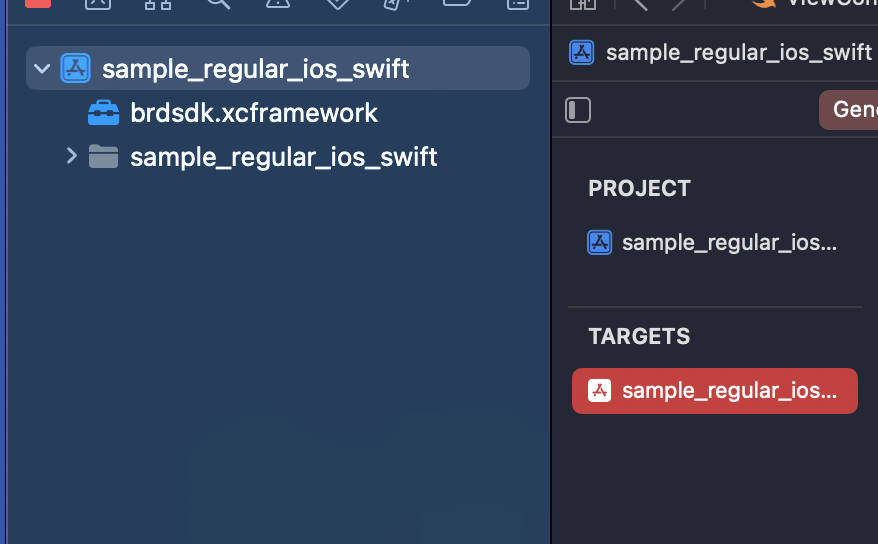
- Go to the General tab → scroll to Frameworks, Libraries, and Embedded Content
- Click + → Add Other… → Add Files
-
Locate and select
brdsdk.xcframework→ click Open -
Confirm that it shows Embed & Sign next to
brdsdk.xcframework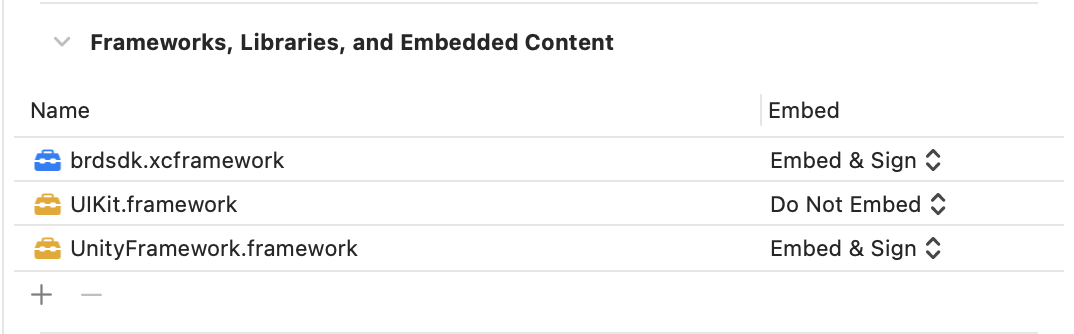
3.2 Integration in Xcode (iOS – Swift)
Reference sample: Presenting the consent screen manually:Opting out:
xcode_swiftui_sample_app, xcode_uikit_sample_appShort steps:- Import the framework:
import brdsdk - Initialize the SDK via the
brd_apiconstructor (see example below). Typically done in the app delegate on the app-launched event. - Show the consent screen:
- Pass
skip_consent: false→ consent screen appears automatically on initialization - Pass
skip_consent: true→ you must callbrd_api.show_consent()manually later
- Pass
- To disable the SDK, call
brd_api.opt_out()
3.3 Integration in Xcode (iOS – Objective-C)
Reference sample: Presenting the consent screen manually:Opting out:
xcode_uikit_sample_appShort steps:- Import the framework:
#import <brdsdk/brdsdk.h> - Initialize the SDK by calling
brd_apiconstructor. Typically done in the app delegate on the app-launched event. - Show the consent screen:
- Pass
NOtoskip_consent→ consent screen appears automatically on initialization - Pass
YEStoskip_consent→ you must call[brd_api show_consent]manually later
- Pass
- To disable the SDK, call
[brd_api opt_out]
3.4 Integration in Xcode (tvOS)
Reference sample: Bright SDK must show a consent screen right after the app is launched. Your app must initialize the main screen first, show the consent screen, and only then pass control to other functions/screens.
sample_tvos_xcodeNote: Please contact our partnership managers to share information about your tvOS app before beginning implementation.
- Embed the framework - follow Step 3.1.
- Open
SampleAppApp.swiftfromsample_tvos_xcodeand implement similar SDK initialization logic in your app. - Open
SettingsView.swiftfromsample_tvos_xcodeand implement the settings screen similarly:- Web Indexing section should have Enable and Disable buttons.
- Button actions delegate to
enableIndexingCallback, then toContentViewModel.setIndexing(enable:, callback:)(defined inContentView.swift), which calls:brd_api.show_consent()- to enable the SDK.brd_api.opt_out()- to disable the SDK.
3.5 Integration in Unity Editor
This section will guide you on how to integrate SDK at Unity level (no code changes in Xcode).Reference sample:
unity_sample_app_2020.2.5, unity_admob_sample_appUse this path if you want to integrate Bright SDK entirely at the Unity level without modifying Xcode. If you prefer to integrate at the Xcode level instead, skip to Step 3.6. Do not follow both - choose one.We recommend Unity Editor 2020.2.5f1. If you encounter issues, use unity_sample_app_2020.2.5 as a reference.3.5.1 Import the SDK Package- In Unity Editor, go to Assets → Import Package → Custom Package
- Select
brdsdk.unitypackagefrom theunity_pluginfolder - In the Import Unity Package dialog, click Import
- This adds
brdsdk.framework,BrdsdkBridge.cs, and other required files
- This adds
- Confirm there are no compilation errors
- Open
BrightDataSDK/BrdsdkBridge.csand review the available SDK API calls - Call
BrdsdkBridge.init(...)from theStart()method of your game object handler (e.g., instead of direct ad initialization) - Implement the
on_choice_callbackmethod properly - seeBrightDataSDK/Sample/SampleBehaviour.csfor an example. The result of consent will be delivered via this callback. - Implement the Settings screen following Step 4: Add Opt-In/Out Settings Option, using
BrightDataSDK/Sample/SettingsBehaviour.csas a reference
- Go to File → Build Settings and switch to the iOS platform
- Click Player Settings:
- Scroll to Other Settings
- Set Target SDK to Device SDK
- Set Target minimum iOS Version to
12or higher - Update Bundle Identifier and other settings as needed
- Close Player Settings
- In Build Settings, click Build and choose the destination folder
- Wait for the Xcode project to be generated
- Select the main project scheme (usually selected by default)
- Connect your iPhone and select it as the target device
- Configure Signing & Capabilities for the main project target
- Confirm New Build System is selected: File → Project Settings → Build System
- Press Product → Run (⌘R)
3.6 Integration in Xcode (Unity)
This section will guide you on how to integrate SDK in Xcode level (no code changes in Xcode).Reference sample: 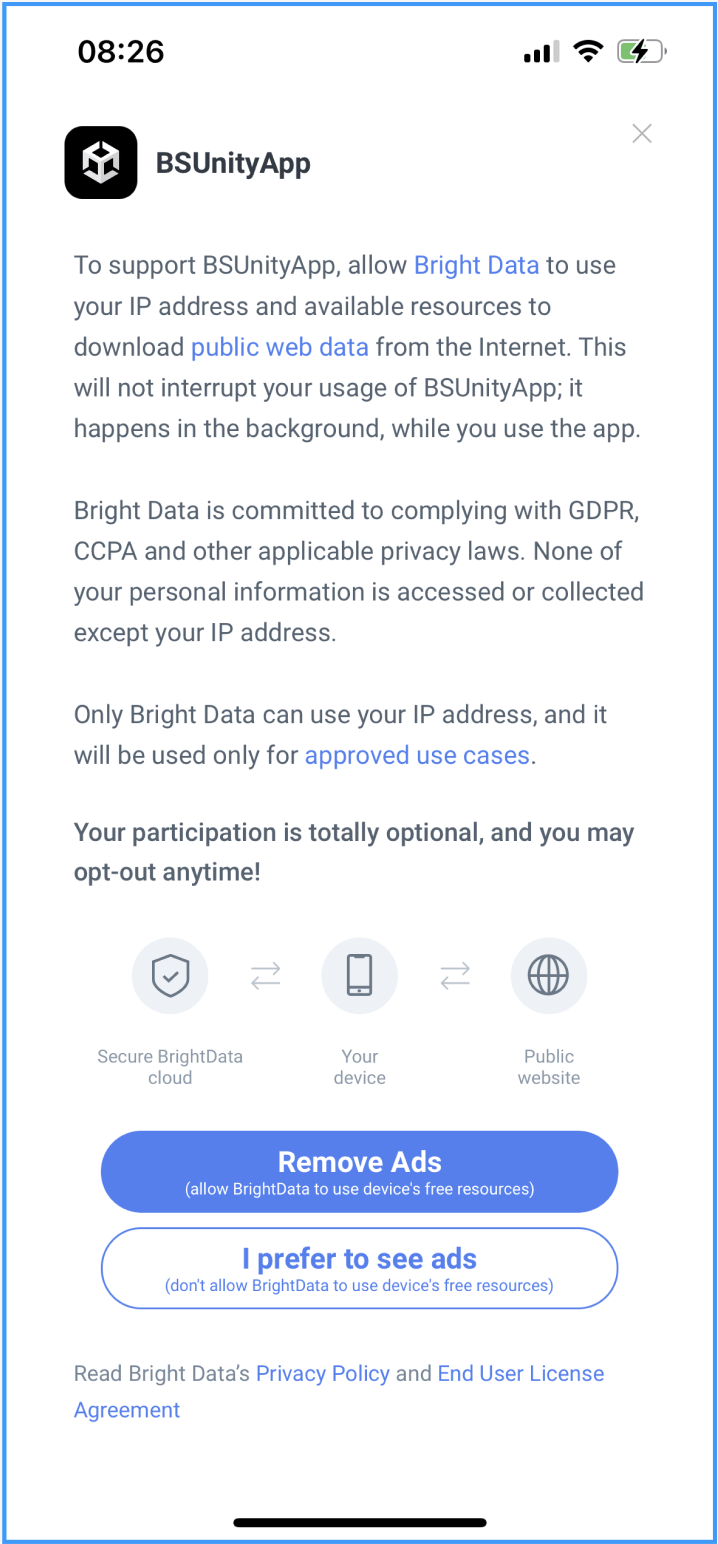
unity_xcode_sample_appUse this path if you want to integrate Bright SDK at the Xcode level for a Unity project. If you already completed Step 3.5, skip this section.Unity generates an Xcode project when building for iOS. The default template passes app lifecycle control to UnityFramework immediately after launch. Bright SDK must show the consent screen before the game launches, so your app must initialize the root view controller, show consent, and only then pass control to UnityFramework.Use unity_xcode_sample_app as reference. This is based on Unity’s official documentation for integrating Unity as a library into a standard iOS app, simplified to the minimum steps needed for Bright SDK.3.6.1 Embed the Bright SDK Framework- Follow Step 3.1 for the main app target.
-
Additionally, link
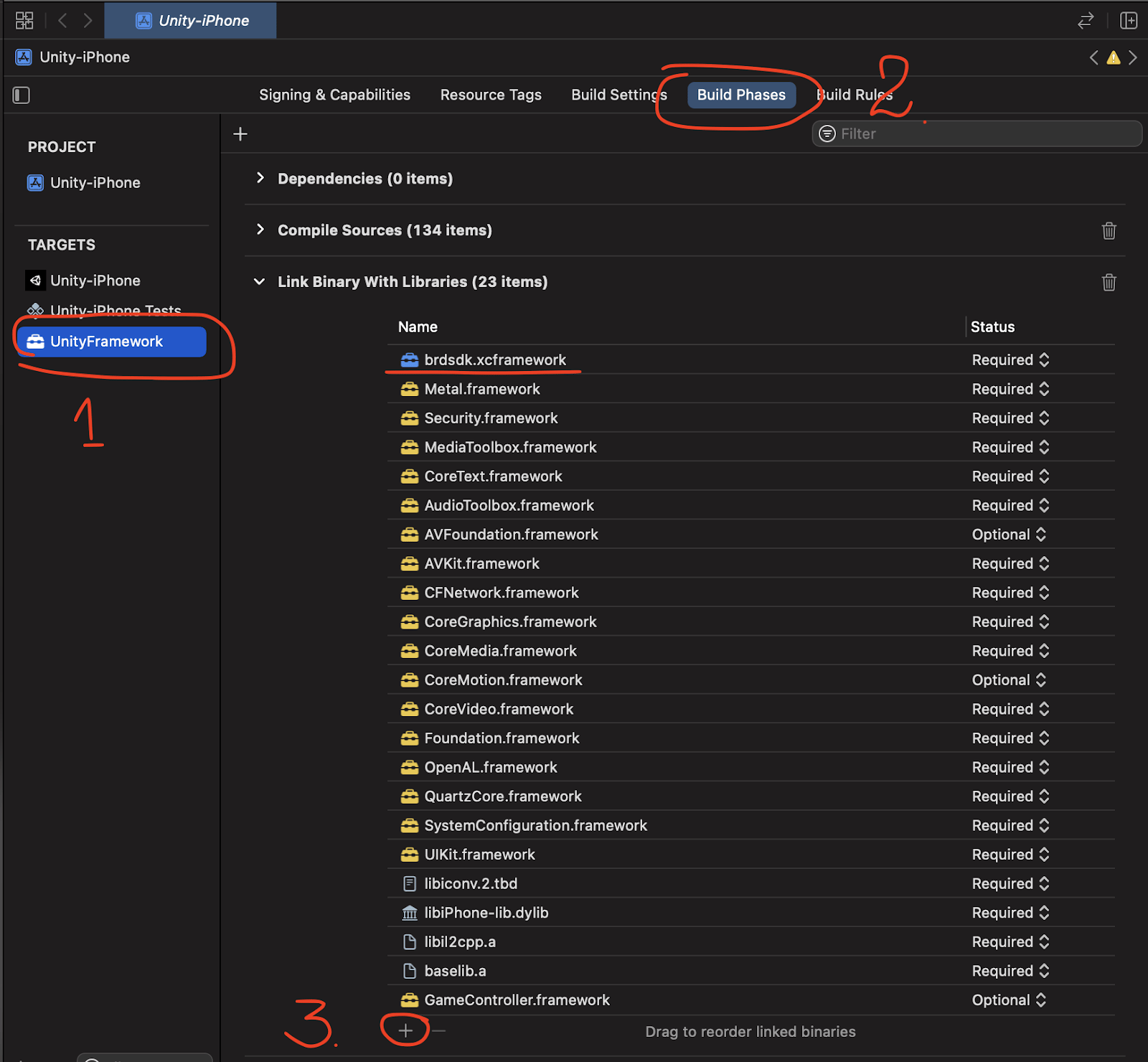
brdsdk.xcframeworkwithUnityFramework:- In Project Navigator, select the project → select UnityFramework under Targets.
- Go to Build Phases → expand Link Binary With Libraries.
- Click +, select
brdsdk.xcframework, click Add.
unity_xcode_sample_app as a reference:-
Copy the contents of
unity_xcode_sample_app/main/main.mintoMainApp/main.mmof your Unity project. -
Open
MainApp/main.mmand locateloadBrightFramework- set appropriate button titles for the consent screen: -
If you offer ads as a monetization fallback, locate
loadUnityFrameworkand enable your ad platform: -
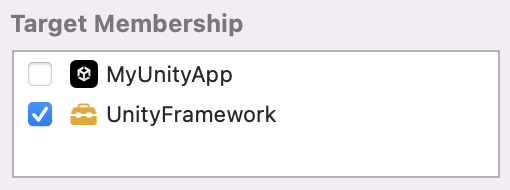
Embed the
Datafolder intoUnityFramework.framework:- Select the
Datafolder in Project Navigator. - In the Inspector pane (right side), find Target Membership.
- Move the checkbox to the
UnityFrameworktarget.
- Select the
App Performance
We prioritize user experience. Ensure your app maintains good performance.Performance Guidelines:
- ✅ No input lag - ensure responsive UI interactions.
- ✅ Average CPU load: ≤ 50%.
- ✅ RAM usage: ≤ 90%.
Important: If system load is too high, we cannot use the device’s free resources. Such devices will not be counted as active and will not generate revenue.
Build & Run Your App
Native iOS / tvOS - Use Xcode to build and run your app. Ensure New Build System is selected under File → Project Settings.Unity After generating the Xcode project
- Select the main project scheme.
- Connect your iPhone/Apple TV and select it as the target device.
- Configure Signing & Capabilities for the main target.
- Press Product → Run (⌘R).
API Documentation
Part 1: Unity Plugin
Class: BrdsdkBridge
Class: BrdsdkBridge
Constants:
Methods:
| Constant | Description |
|---|---|
CHOICE_NONE | Consent screen has not yet been shown |
CHOICE_AGREED | User accepted the consent screen |
CHOICE_DISAGREED | User declined the consent screen |
| Method | Returns | Description |
|---|---|---|
init(...) | void | Initializes the SDK. Must be called at app startup. All other methods are accessible after successful initialization. |
opt_out() | void | Disables Bright SDK (e.g. from Settings screen) |
enqueue_opt_out() | void | Enqueues an opt-out action to be executed once the SDK is loaded and configured |
external_opt_in() | bool | Opts in and starts the Bright SDK process if permitted. ⚠️ NOT allowed by default — always use show_consent() or consult Bright Data first. Returns true if permitted. |
enqueue_external_opt_in() | void | Enqueues an opt-in action once SDK is loaded. Checks authorization status before and after enqueueing. |
show_consent(benefit, agree_btn, disagree_btn, language) | bool | Shows the consent screen (e.g. when user toggles Settings switch to enable SDK) |
get_choice() | int | Returns the user’s current choice |
consent_shown() | bool | Triggers post-actions when a custom consent screen is shown. Must be called when presenting a custom consent screen. Returns false if SDK authorization status is not Authorized. |
authorize_device() | AuthorizationStatus | Checks SDK availability on the device. Required before showing a custom consent screen; optional otherwise. |
get_uuid() | string | Returns the current SDK UUID, or null if SDK is not initialized |
set_on_sdk_ready_callback(callback) | void | Sets a handler for when the SDK is configured and ready |
set_on_consent_presented_callback(callback) | void | Sets a handler for when the consent screen is presented |
set_on_consent_closed_callback(callback) | void | Sets a handler for when the consent screen is dismissed (via close, agree, or disagree) |
Method Details
Method Details
init() Initializes the SDK. Must be called at app startup. All other methods are accessible after successful initialization. Consent screen is shown on first initialization by default - skip by setting skip_consent: true.| Parameter | Type | Description |
|---|---|---|
benefit | string? | Benefit text shown on the consent screen |
agree_btn | string | ”Agree” button text |
disagree_btn | string | ”Disagree” button text |
opt_out_instructions | string? | Instructions for opting out |
appicon | string? | xcassets name or path of the icon image |
on_choice_callback | ChoiceCallback | Callback method reference |
skip_consent | bool | Skip consent screen on init; show later via show_consent |
language | string? | Preferred language (see supported values below) |
colors | ConsentColors? | Consent screen colors |
background_image | ConsentBackgroundImage? | Background images for consent screen |
opt_in_info | ConsentActionInfo? | Opt-in button customization |
opt_out_info | ConsentActionInfo? | Opt-out button customization |
fonts | ConsentFontsInfo? | Font overrides for consent screen |
campaign | string? | Campaign name |
ar_SA, de-DE, en-US, es-ES, fa-AF, fr-FR, he-IL, hi-IN, it-IT, ja-JP, ko-KR, ms-MY, nl-NL, pt-PT, ro-RO, ru-RU, th, tr-TR, vi-VN, zh-CN, zh-TWopt_out() Disables Bright SDK (e.g. from Settings screen).enqueue_opt_out() Enqueues an opt-out action to be executed once the SDK is loaded and configured.external_opt_in() Opts in and starts the Bright SDK process if permitted.Returns true if the operation is permitted by the authorization device.enqueue_external_opt_in() Enqueues an opt-in action to be executed once the SDK is loaded and configured. Also checks authorization status before and after enqueueing.show_consent() Shows the consent screen (e.g. when the user toggles the Settings switch to enable SDK).get_choice() Returns the user’s current choice.consent_shown() Triggers post-actions when a custom consent screen is shown. Must be called when presenting a custom consent screen. Returns false if SDK authorization status is not Authorized.authorize_device() Checks SDK availability on the device. Required before showing a custom consent screen; optional otherwise.get_uuid() Returns the current SDK UUID, or null if SDK is not initialized.set_on_sdk_ready_callback() Sets a handler for when the SDK is configured and ready.set_on_consent_presented_callback() Sets a handler for when the consent screen is presented.set_on_consent_closed_callback() Sets a handler for when the consent screen is dismissed (via close, agree, or disagree).Enums & Classes (Unity)
Enums & Classes (Unity)
Enum:
Class:
Class:
Enum:
Class:
Class:
BrdsdkBridge.AuthorizationStatus| Value | Description |
|---|---|
Authorized | SDK can be used with either SDK’s or custom consent screen |
SDKNotInitialized | SDK has not been initialized |
ParentControlEnabled | Parental controls are enabled — do not use SDK |
OnlySDKConsent | Only the SDK’s built-in consent screen may be used; external_opt_in is not allowed |
PlatformNotSupported | Authorization method called on unsupported platform |
ConsentColors| Property | Type | Description |
|---|---|---|
backgroundColor | Int32 | Consent window background color |
titleColor | Int32 | Title text color |
consentMessageColor | Int32 | Main message text color |
consentLinksColor | Int32 | Main message link color |
privacyColor | Int32 | Privacy/license text color |
privacyLinksColor | Int32 | Privacy/license link color |
iconsForegroundColor | Int32 | Icon foreground color |
iconsBackgroundColor | Int32 | Icon background color |
ConsentBackgroundImage| Property | Type | Description |
|---|---|---|
portraitImage | String | xcassets name or file path for portrait image |
landscapeImage | String? | xcassets name or file path for landscape image. Falls back to portrait if null |
scaleMode | ConsentBackgroundImage.ScaleMode | Scale mode for the image view |
ConsentBackgroundImage.ScaleMode| Value | Description |
|---|---|
ScaleToFill | Scales to fill, may change aspect ratio |
ScaleAspectFit | Scales to fit, maintains aspect ratio, transparent areas remain |
ScaleAspectFill | Scales to fill, maintains aspect ratio, may clip content |
ConsentActionInfo| Parameter | Type | Description |
|---|---|---|
_backgroundImage | string? | Path or xcassets name for button background. Uses backgroundColor if null |
_textImage | string? | Path or xcassets name for button title image. Uses textColor if null |
_backgroundColor | Int32? | Button background color |
_textColor | Int32? | Button text color |
| Property | Type | Description |
|---|---|---|
titleText | ConsentFont | Font for consent title |
mainText | ConsentFont | Font for main description |
licenseText | ConsentFont | Font for license text |
iconsText | ConsentFont | Font for under-icon texts |
buttonsText | ConsentFont | Font for button texts |
ConsentFontsInfo.ConsentFont| Parameter | Type | Description |
|---|---|---|
_nameOrPath | string | Registered font name or path to font file |
size | float | Font size |
Part 2: Swift / Objective-C
The APIs are identical for Swift and Objective-C - they differ in syntax only. For Objective-C, the
init call must be made on a brd_api instance: [[brd_api alloc] init...]Class: brd_api
Class: brd_api
Properties:
Methods:
| Property | Type | Description |
|---|---|---|
onConsentPresented | (() -> Void)? | Handler when consent screen is presented |
onConsentClosed | (() -> Void)? | Handler when consent screen is dismissed |
onSDKReady | (() -> Void)? | Handler when SDK is configured and ready |
| Method | Returns | Description |
|---|---|---|
init(...) | — | Initializes the SDK. Throws brd_api.api_error. |
opt_out() | void | Disables Bright SDK (e.g. from Settings screen) |
enqueue_opt_out() | void | Enqueues opt-out to be executed once SDK is loaded and configured |
external_opt_in() | Bool | Opts in and starts the Bright SDK process if permitted. ⚠️ NOT allowed by default — always use show_consent() or consult Bright Data first. Throws brd_api.api_error. |
enqueue_external_opt_in() | void | Enqueues opt-in action once SDK is loaded. Checks authorization status before and after enqueueing. |
show_consent(_:benefit:agree_btn:disagree_btn:language:) | Bool | Shows the consent screen. Returns true if SDK is initialized and child control is disabled. Result delivered via on_choice_change callback. |
get_choice() | Int | Returns the user’s current choice |
consent_shown() | Bool | Triggers post-actions when a custom consent screen is shown. Returns false if authorization status is not authorized. |
authorizeDevice() | AuthorizationStatus | Checks SDK availability. Required before showing a custom consent screen; optional otherwise. |
get_uuid() | String? | Returns current SDK UUID, or nil if SDK is not initialized |
Method Details
Method Details
init() Initializes the SDK. Throws brd_api.api_error.| Parameter | Type | Description |
|---|---|---|
benefit | String? | Benefit text prefix. Default: "To support <app_name>" |
agree_btn | String? | ”Agree” button text. Default: "I Agree" |
disagree_btn | String? | ”Disagree” button text. Default: "I Disagree" |
opt_out_instructions | String? | Opt-out instructions text |
appicon | UIImage? | Icon image for consent screen |
language | String? | Preferred language (same values as Unity — see above) |
colors | ColorSettings? | Color settings for consent screen |
background_image | ConsentBackgroundImage? | Background images for consent screen |
opt_in_info | ConsentActionInfo? | Opt-in button customization |
opt_out_info | ConsentActionInfo? | Opt-out button customization |
fonts | ConsentFontsInfo? | Font overrides |
skip_consent | Bool | Skip consent on init; show later via show_consent |
campaign | String? | Campaign name |
on_choice_change | ((Int)->Void)? | Callback for choice updates |
opt_out() Disables Bright SDK (e.g. from Settings screen).enqueue_opt_out() Enqueues opt-out to be executed once the SDK is loaded and configured.external_opt_in() Opts in and starts the Bright SDK process if permitted.Returns true if permitted. Throws brd_api.api_error.enqueue_external_opt_in() Enqueues opt-in action once the SDK is loaded. Checks authorization status before and after enqueueing.show_consent() Shows the consent screen (e.g. when user activates the Settings toggle). Returns true if SDK is initialized and child control is disabled. Result delivered via on_choice_change callback.get_choice() Returns the user’s current choice.consent_shown() Triggers post-actions when a custom consent screen is shown. Must be called when presenting a custom consent screen. Returns false if authorization status is not authorized.authorizeDevice() Checks SDK availability. Required before showing a custom consent screen; optional otherwise.get_uuid() Returns current SDK UUID, or nil if SDK is not initialized.Enums & Classes (Swift / Obj-C)
Enums & Classes (Swift / Obj-C)
Enum:
Enum:
Enum:
Class:
Constructors:
Class:
Constructors:Class:
Constructor:
Constructor:Instance Methods (all return
Method signature:
Choice| Value | Description |
|---|---|
none | Consent screen has not yet been shown |
peer | User accepted the consent screen |
notPeer | User declined the consent screen |
brd_api.AuthorizationStatus| Value | Description |
|---|---|
Authorized | SDK can be used with either SDK’s or custom consent screen |
SDKNotInitialized | SDK has not been initialized |
ParentControlEnabled | Parental controls are enabled - do not use SDK |
PlatformNotSupported | Authorization method called on unsupported platform |
brd_api.api_error| Case | Description |
|---|---|
init_error(String) | Non-categorized initialization error |
opt_in_not_allowed | Calling *opt_in is not allowed — use SDK’s consent screen instead |
sdk_not_initialized | Method called before SDK was initialized |
enabled_parent_control | Parental controls enabled — do not use SDK |
ConsentBackgroundImage| Property | Type | Description |
|---|---|---|
portraitImage | UIImage | Image for portrait orientation |
landscapeImage | UIImage | Image for landscape orientation |
scaleMode | UIView.ContentMode | Scale mode for image view |
| Parameter | Type | Description |
|---|---|---|
portrait / portraitName | UIImage / String | Portrait image or xcassets name |
landscape / landscapeName | UIImage? / String? | Landscape image or xcassets name. Falls back to portrait if nil |
scaleMode | UIView.ContentMode | Scale mode. Use .scaleAspectFit or .scaleAspectFill |
bundle | Bundle | Bundle containing xcassets |
ConsentActionInfo| Property | Type | Description |
|---|---|---|
backgroundImage | UIImage? | Button background image. Uses background color if nil |
textImage | UIImage? | Button title image. Uses title text if nil |
backgroundColor | UIColor? | Background color. Falls back to ColorSettings.button_color if nil |
textColor | UIColor? | Text color. Falls back to ColorSettings.button_color if nil |
ColorSettings| Property | Type | Description |
|---|---|---|
background_color | UIColor? | Consent window background color |
title_color | UIColor? | Title text color |
consent_text_color | UIColor? | Main message text color |
consent_links_color | UIColor? | Main message link color |
privacy_text_color | UIColor? | Privacy/license text color |
privacy_links_color | UIColor? | Privacy/license link color |
qr_foreground_color | UIColor? | QR code foreground color (tvOS only) |
qr_background_color | UIColor? | QR code background color (tvOS only) |
icons_foreground_color | UIColor? | Icon foreground color |
icons_background_color | UIColor? | Icon background color |
| Property | Type | Description |
|---|---|---|
titleText | UIFont? | Font for consent title |
mainText | UIFont? | Font for main descriptions |
licenseText | UIFont? | Font for license text |
iconsText | UIFont? | Font for under-icon texts |
buttonsText | UIFont? | Font for button texts |
Self for chaining; all warn on invalid font; all subject to SDK size limits):| Method | Description |
|---|---|
setTitleText(withNameOrPath:size:) | Override title font by name or file path |
setMainText(withNameOrPath:size:) | Override main text font by name or file path |
setLicenseText(withNameOrPath:size:) | Override license text font by name or file path |
setIconsText(withNameOrPath:size:) | Override under-icons text font by name or file path |
setButtonsText(withNameOrPath:size:) | Override buttons font by name or file path |