
Prerequisites
- ✅ Valid Samsung Seller Office account.
- ✅ Tizen Web Application package ready for upload.
- ✅ App assets prepared (icons, screenshots, privacy policy URL).
- ✅ App description presentation (PPTX format).
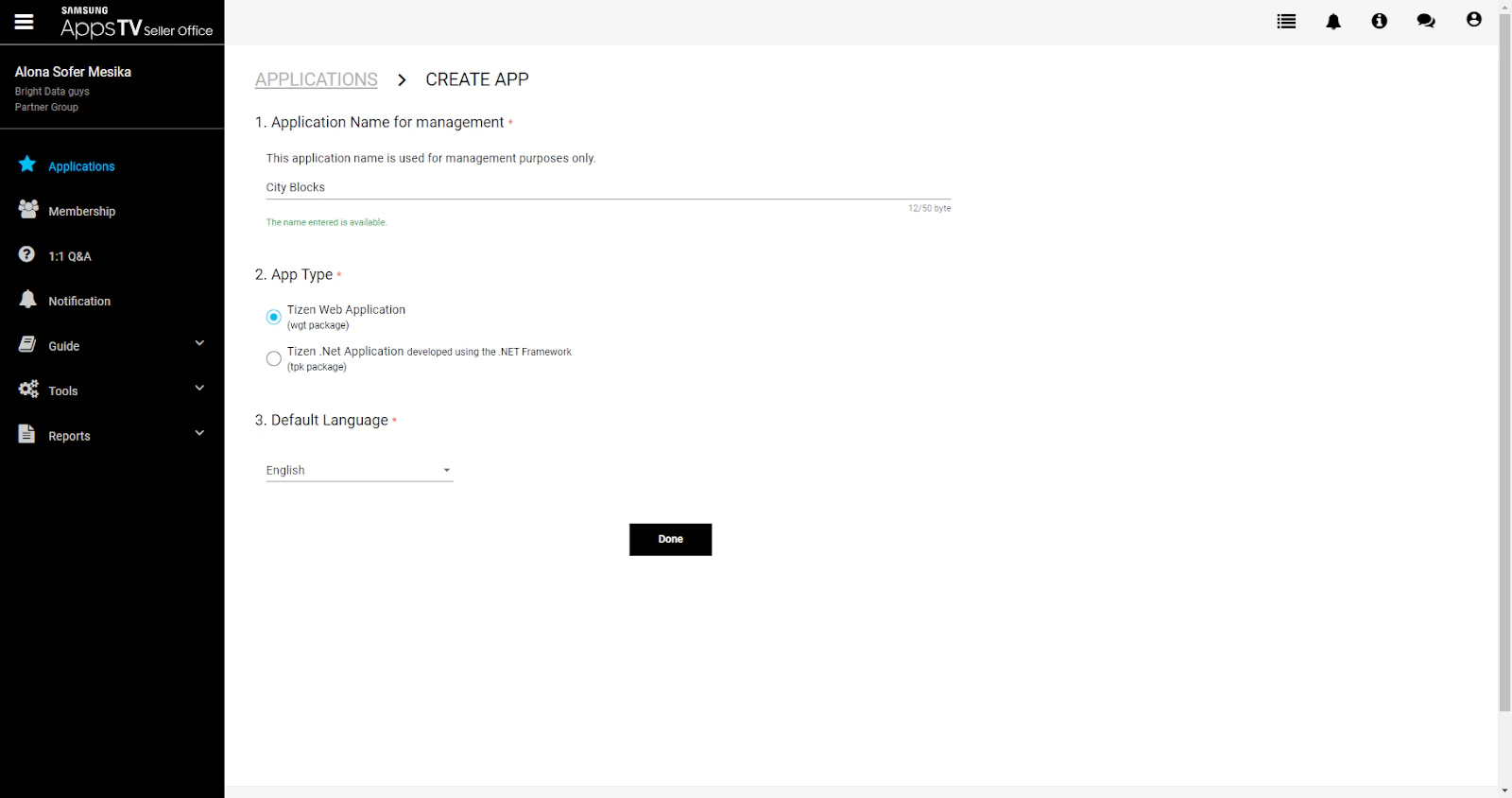
Create New App
- Log in to your Samsung Seller Office.
- Navigate to Applications.
- Click +Create App.
- Application Name for management: Type the name of your app.
- App type: Select Tizen Web Application.
- Default Language: Select English.
- Click DONE.
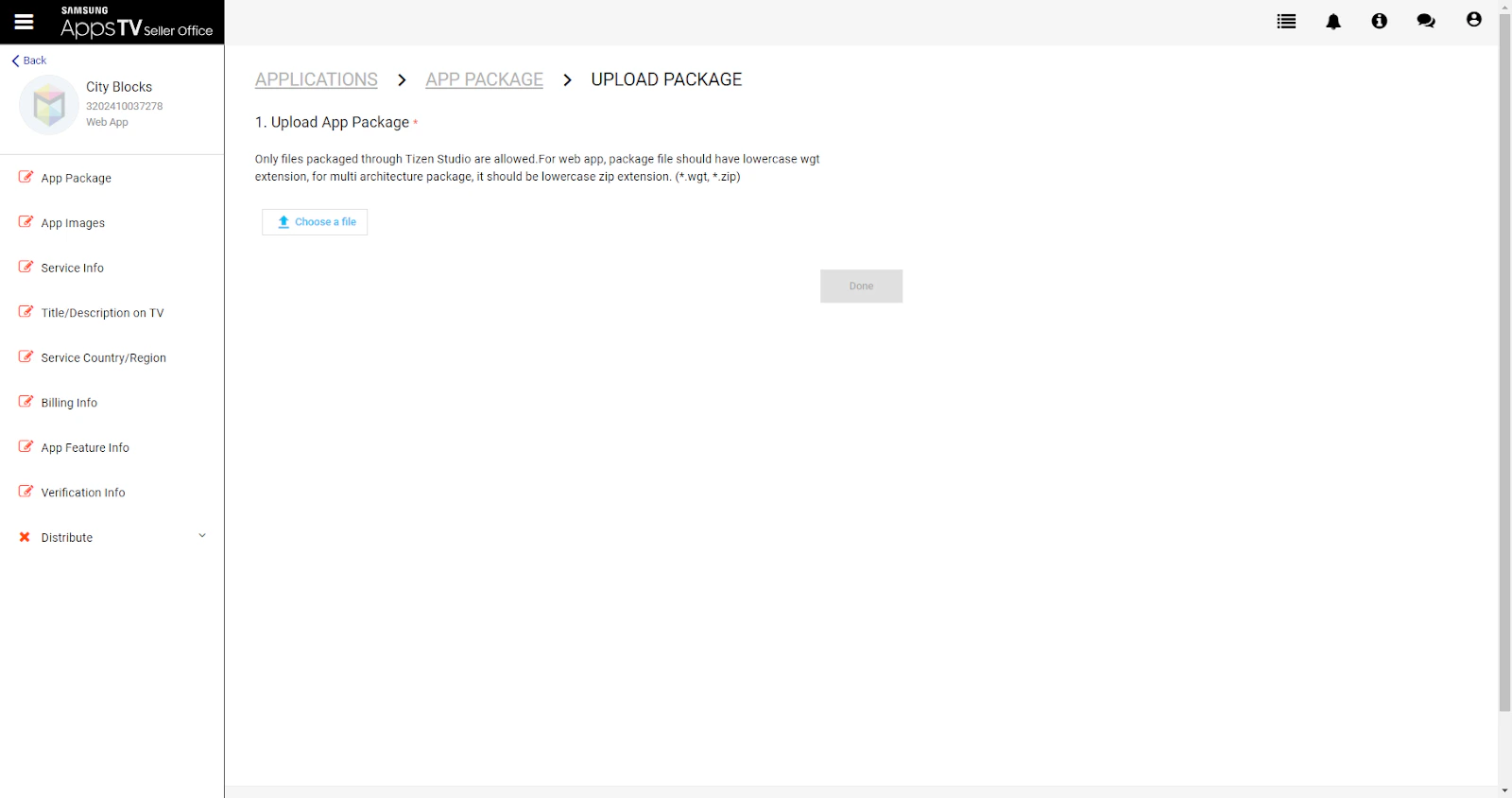
Upload App Package
- Go to Applications > App Package > Upload Package.
- Upload App Package: Click “Choose a file”.
- Select your app package file.
- Click DONE.
Review Pre-Test Results
Wait for Pre-TestingWhen the pre-testing process is finished, you should see: 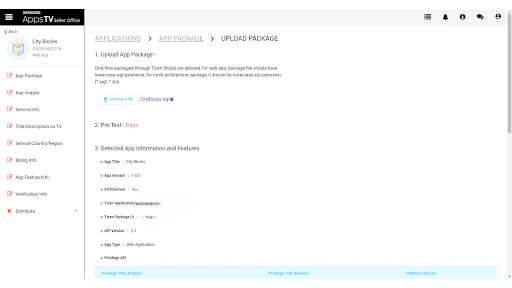
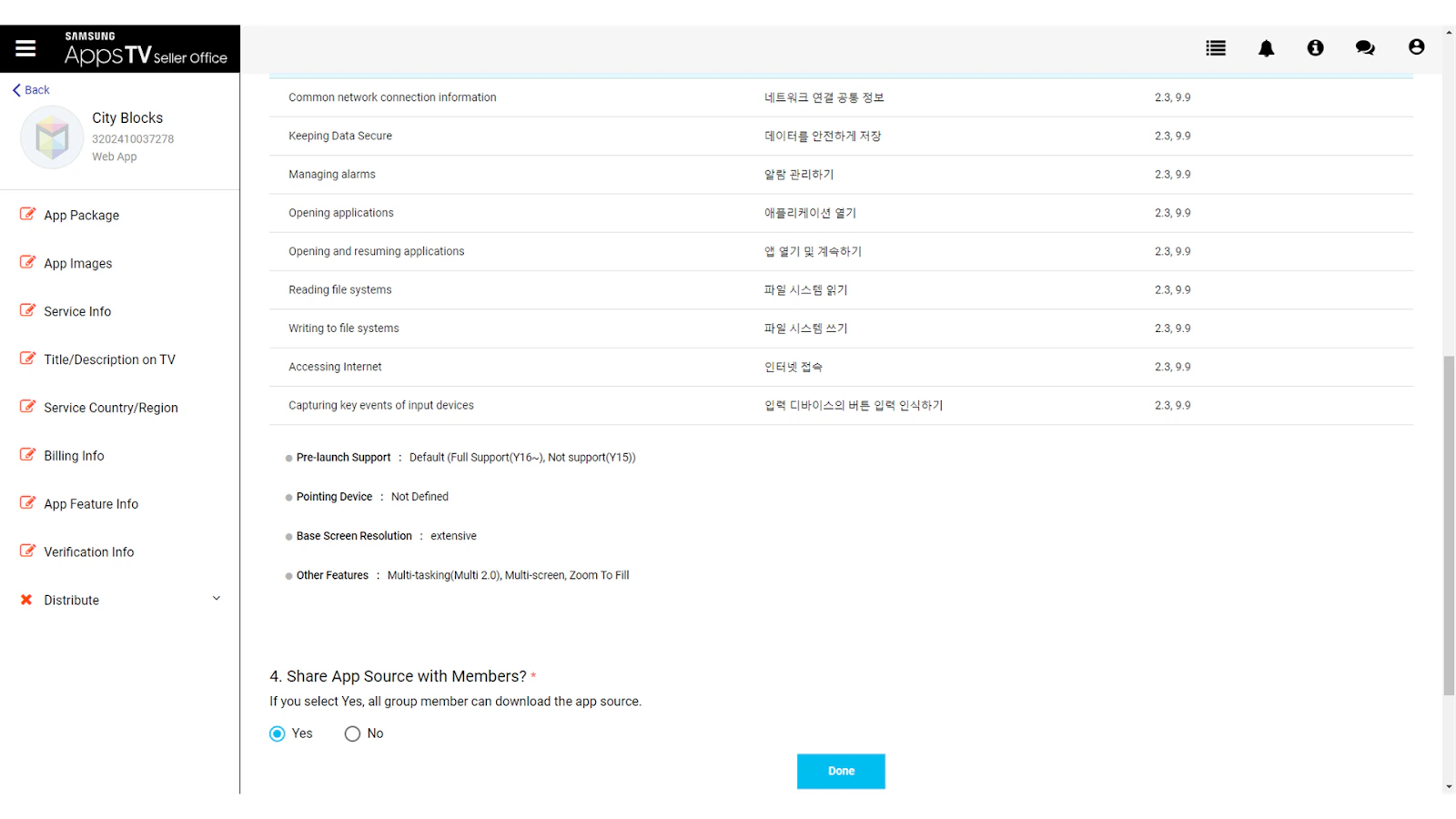
2. Pre-Test: Pass.Review App Information- Review the app information displayed.
- Share App Source with Members? Select YES.
- Click DONE.
Upload App Images
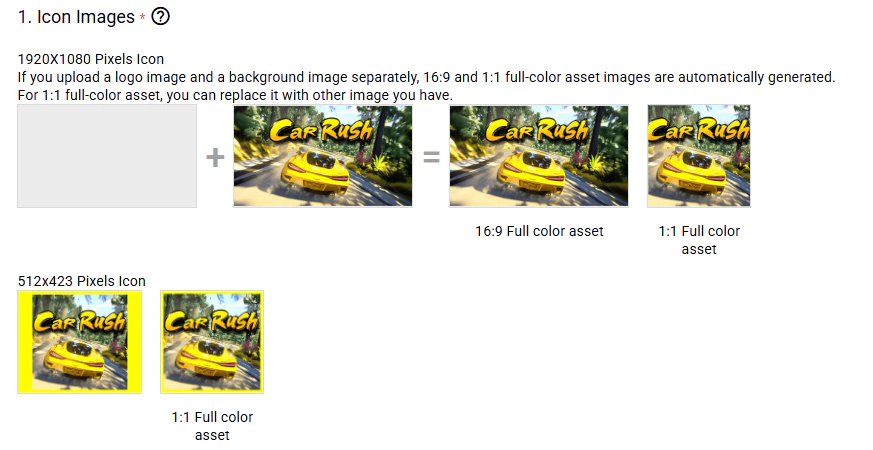
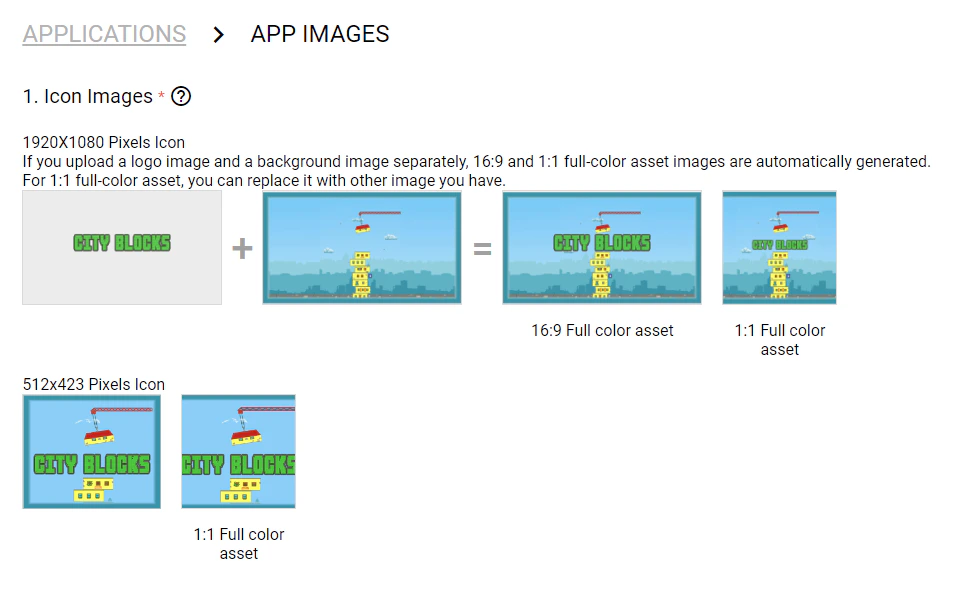
Navigate to Applications > App Images.Required Assets1. Icon Images - 1920x1080 You must provide two files: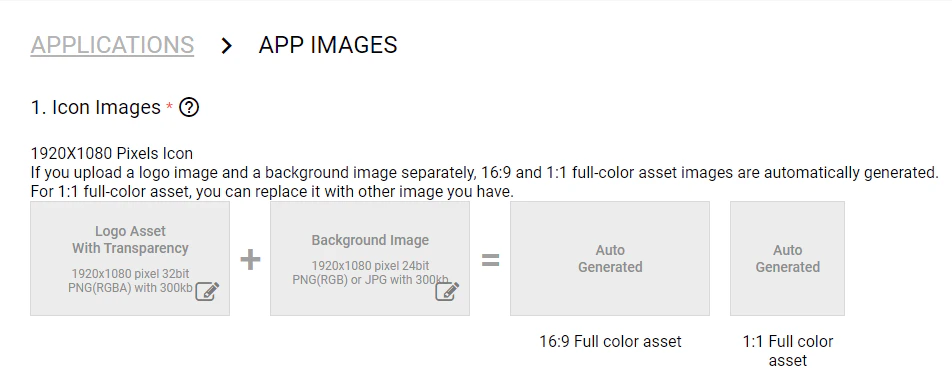
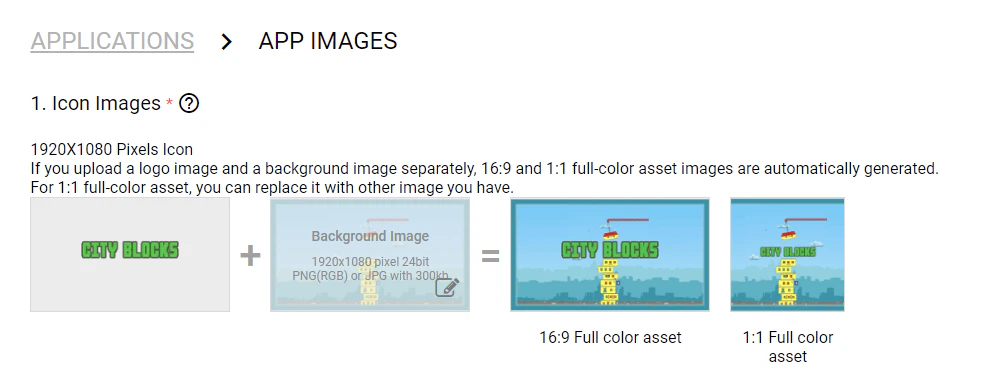
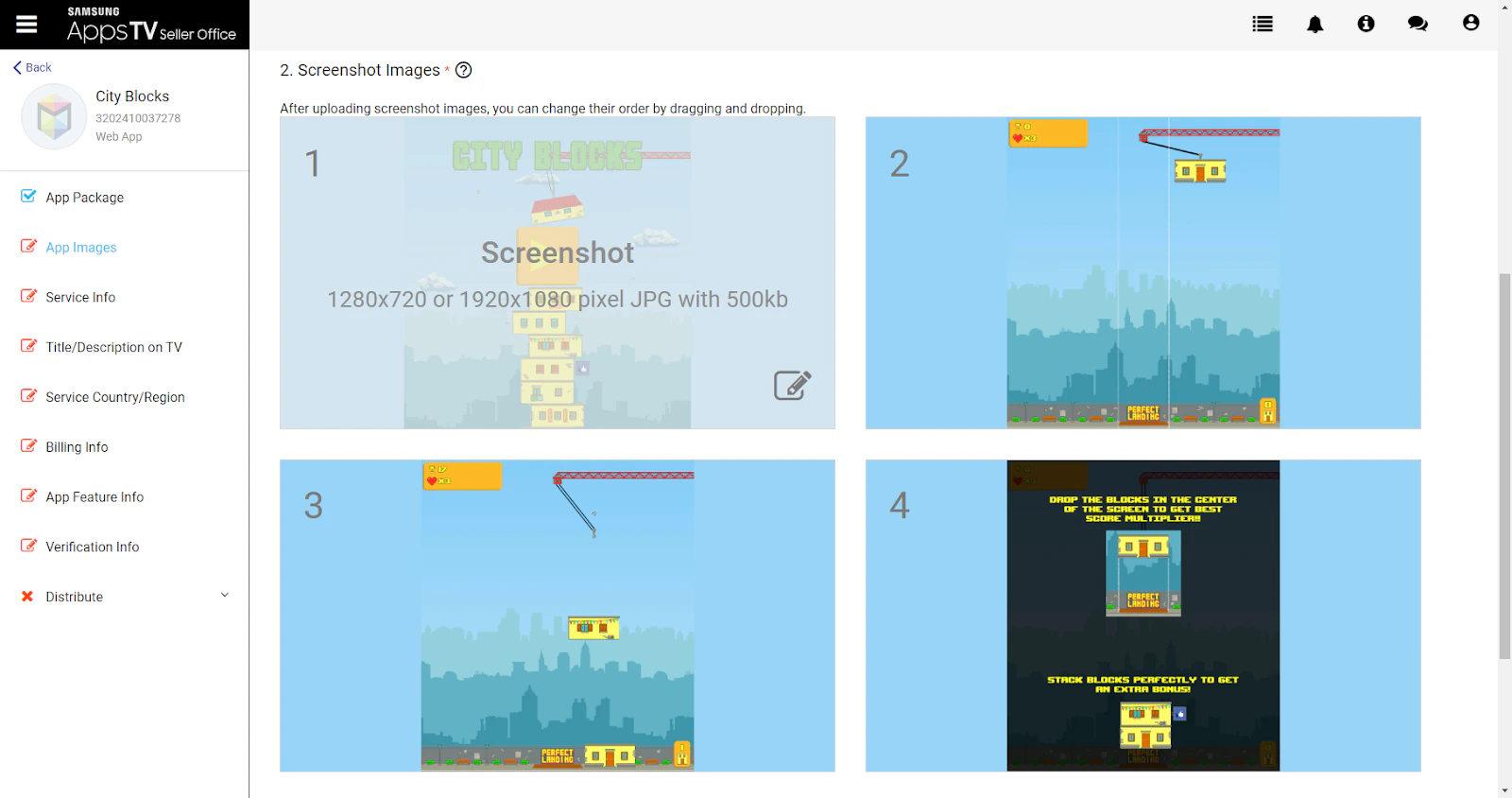
- Logo Asset with Transparency:
- Size: 1920x1080 pixels
- Format: PNG (RGBA), 32-bit
- Max Size: 300KB
- Background Image:
- Size: 1920x1080 pixels
- Format: PNG (RGBA) or JPG, 24-bit
- Max Size: 300KB
Note: 16:9 and 1:1 full-color assets will be auto-generated from these files.
- Size: 512x423 pixels
- Format: PNG
- Max Size: 300KB
- Size: 1280x720 or 1920x1080 pixels
- Format: JPG
- Max Size: 500KB each
- Quantity: 4 screenshots required
- Click SAVE.
- Confirmation pop-up: “Are you sure to save app images?”.
- Click Confirm.
Service Info
Navigate to Applications > Service Info.1. Service Category
Select: Game (Game).2. Rating
Choose the appropriate age rating for your app.3. Language
Select: English.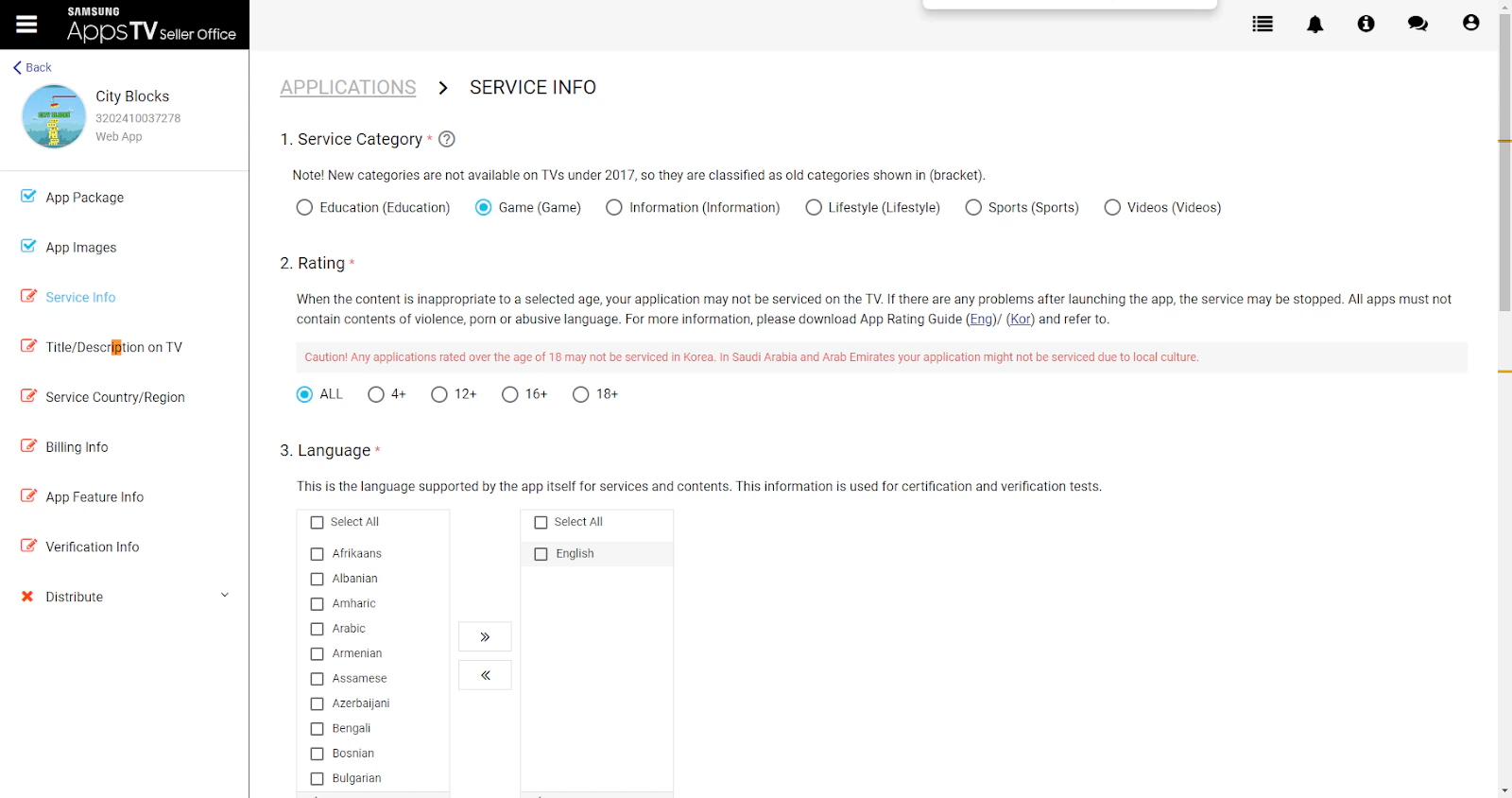
Fill in all required fields.6. Click Save
Select: Game (Game).2. Rating
Choose the appropriate age rating for your app.3. Language
Select: English.
- Collect Personal Information of your user in this application? - YES.
- URL of Privacy Policy in English - Enter your Privacy Policy URL.
- URL of Privacy Policy in Korean - Enter your Privacy Policy URL.
- Did you check “App Development Privacy Guide”? - YES.
Fill in all required fields.6. Click Save
Title/Description on TV
Navigate to Applications > Title/Description on TV.Required Fields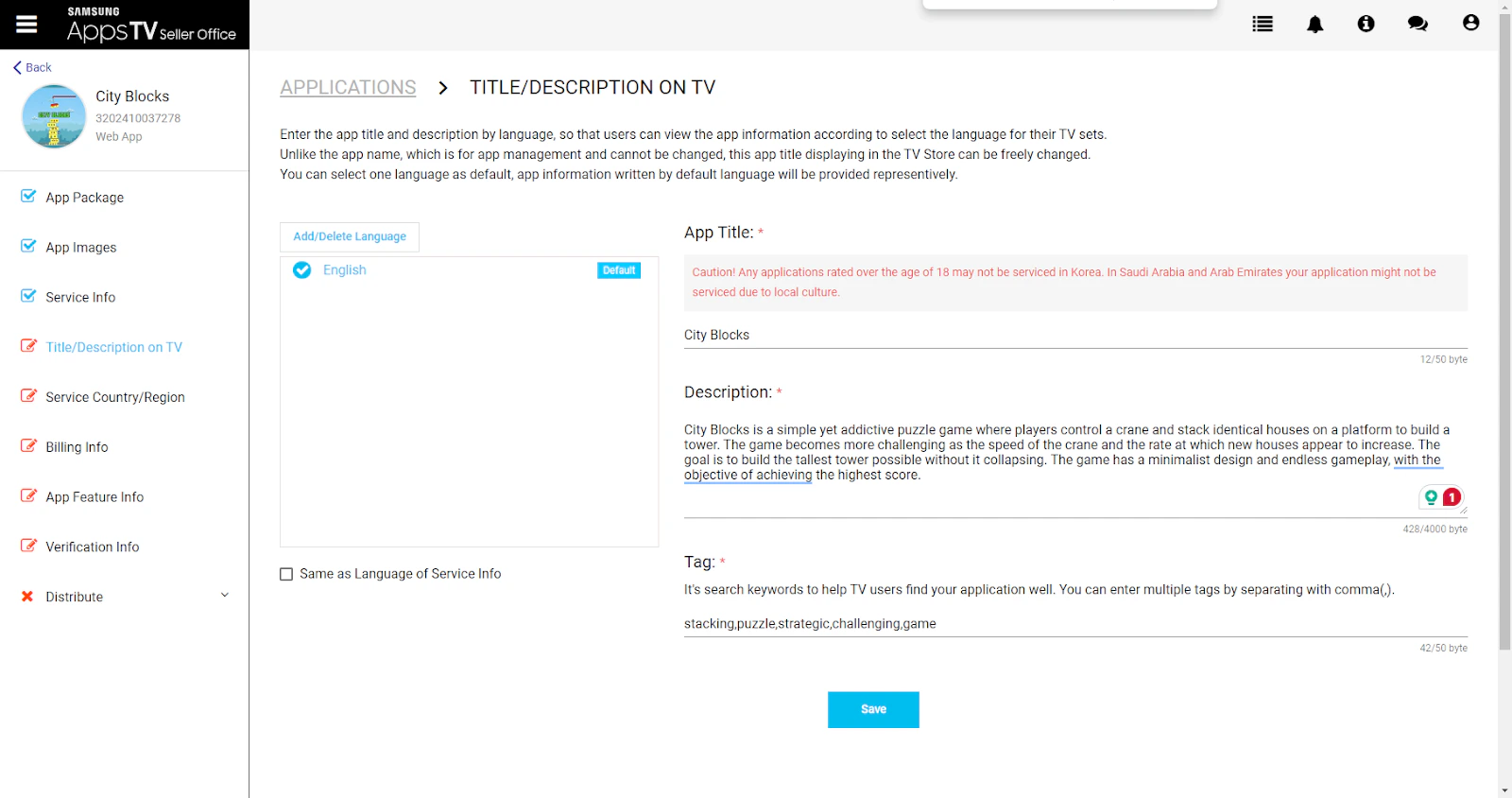
- App Title: Enter your app title.
- Description: Write a description of your app.
- Tags: Add relevant search tags.
Important: App title should match the
<name>xxxx</name> in your config.xml file.- Click Save.
Service Country/Region
Navigate to Applications > Service Country/Region.1. Rating Certification
No change required.2. Service Country or Region
Choose ALL countries EXCEPT: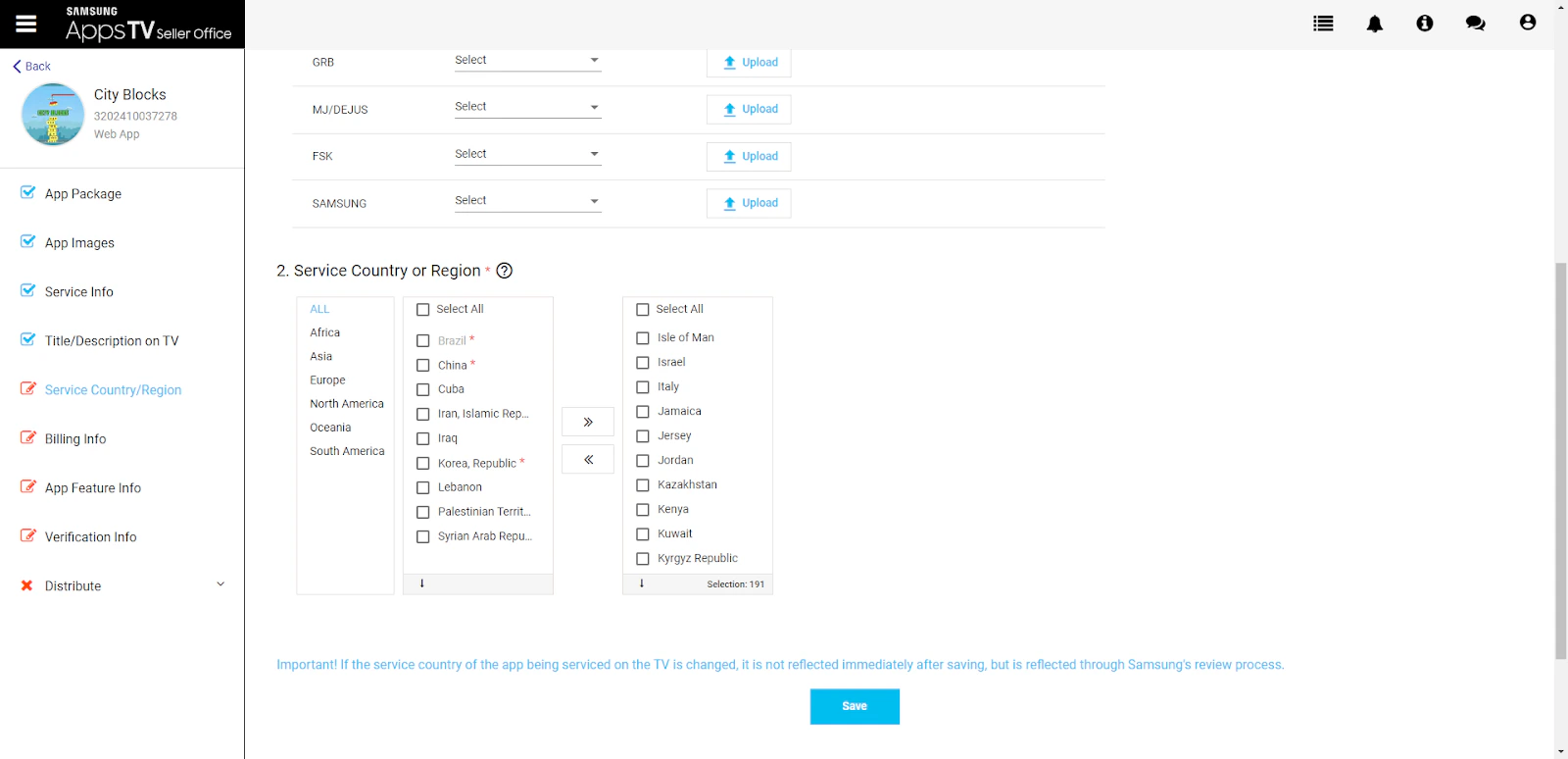
No change required.2. Service Country or Region
Choose ALL countries EXCEPT:
- Brazil
- China
- Cuba
- Iran
- Iraq
- Korea
- Lebanon
- Palestinian Territory
- Syrian Arab Republic
Verification Info
Navigate to Applications > Verification Info.
- App Description File - Upload a PPTX file describing the application.
- Geo IP Block - Select: Unuse.
- Test Account - Enter: “No need”.
- Voucher Code - Enter: “No need”.
- Click Save.
Request New Release
Initiate Release Request
- Navigate to Applications > Distribute.
- Click +Request New Release.
- Select App Version to Release - Mark the relevant package checkbox.
- Select Model Group to be Released the App Version.
BrightSDK works on Tizen 6.5 and above
- Enter Release Information
- What’s new in this version - Add release notes.
These notes are visible to users
- Is mandatory update required for this version? - Select: Optional (Even if user rejects an update, they can still continue to use current version).
- Note for Tester (include what’s new) - Add notes for the tester team.
- Agree to release your application with minor defects? - Select: Yes.
- What’s new in this version - Add release notes.