
Prerequisites
- ✅ Valid LG developer account.
- ✅ IPK file ready for upload.
- ✅ App assets prepared (icon, screenshots, splash screen).
- ✅ Bundle ID matching your Bright SDK dashboard app ID.
Create New App
- Log in to your LG developer account.
- Navigate to Applications from the left menu bar.
- Click + CREATE APP button.
Set App ID
Understanding App IDs:Steps: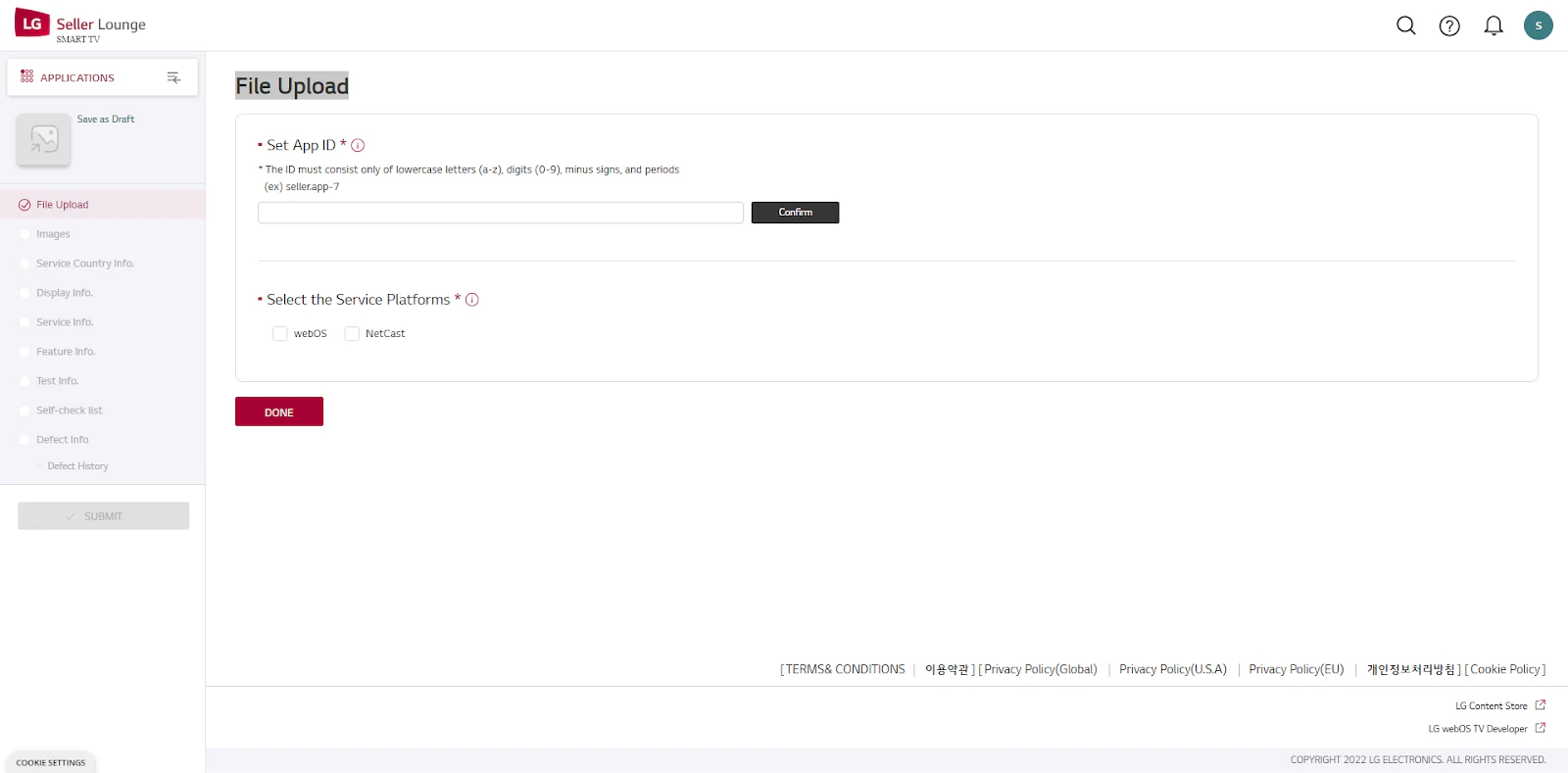
- Your Bundle ID:
com.mycompany.tetris. - Bright SDK App ID:
webos_com.mycompany.tetris.
Important: Enter only your bundle ID (e.g.,
com.mycompany.tetris), NOT the Bright SDK ID.- Enter your bundle ID in the App ID field.
- Click Confirm.
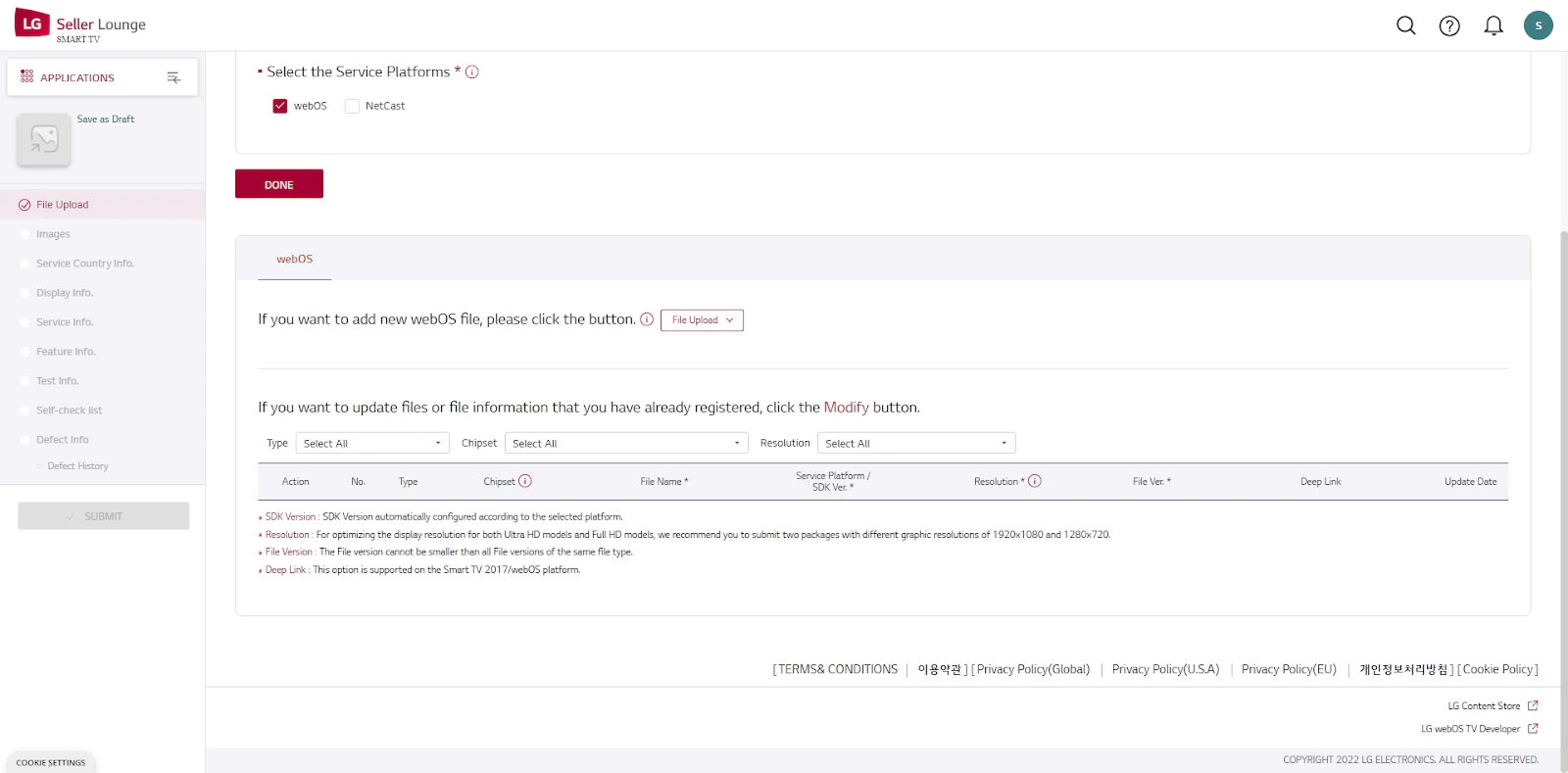
Select Service Platform
- Select WebOS.
- Do
NOTselect “NetCast”. - Click Done.
Upload IPK File
First Upload: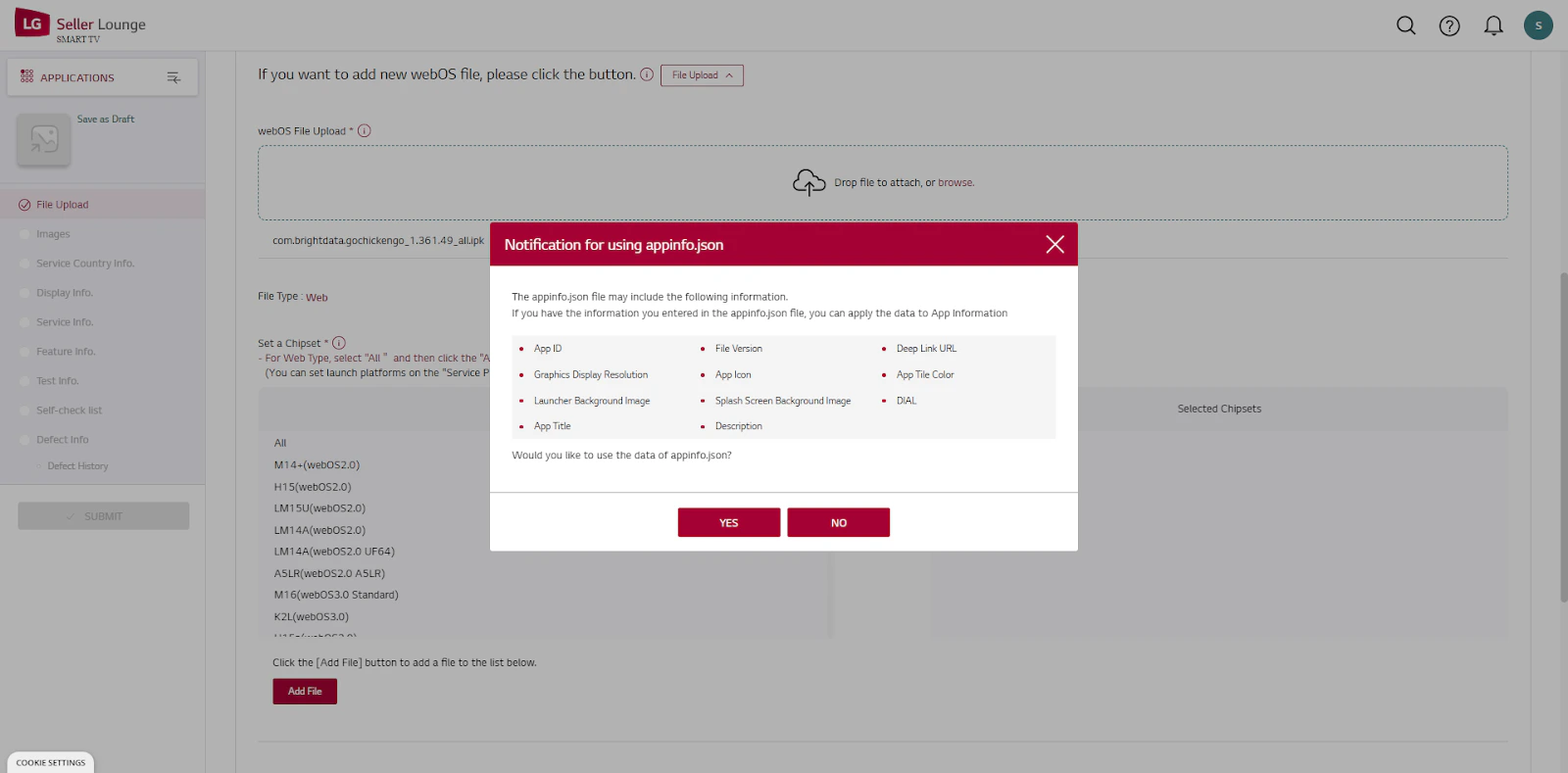
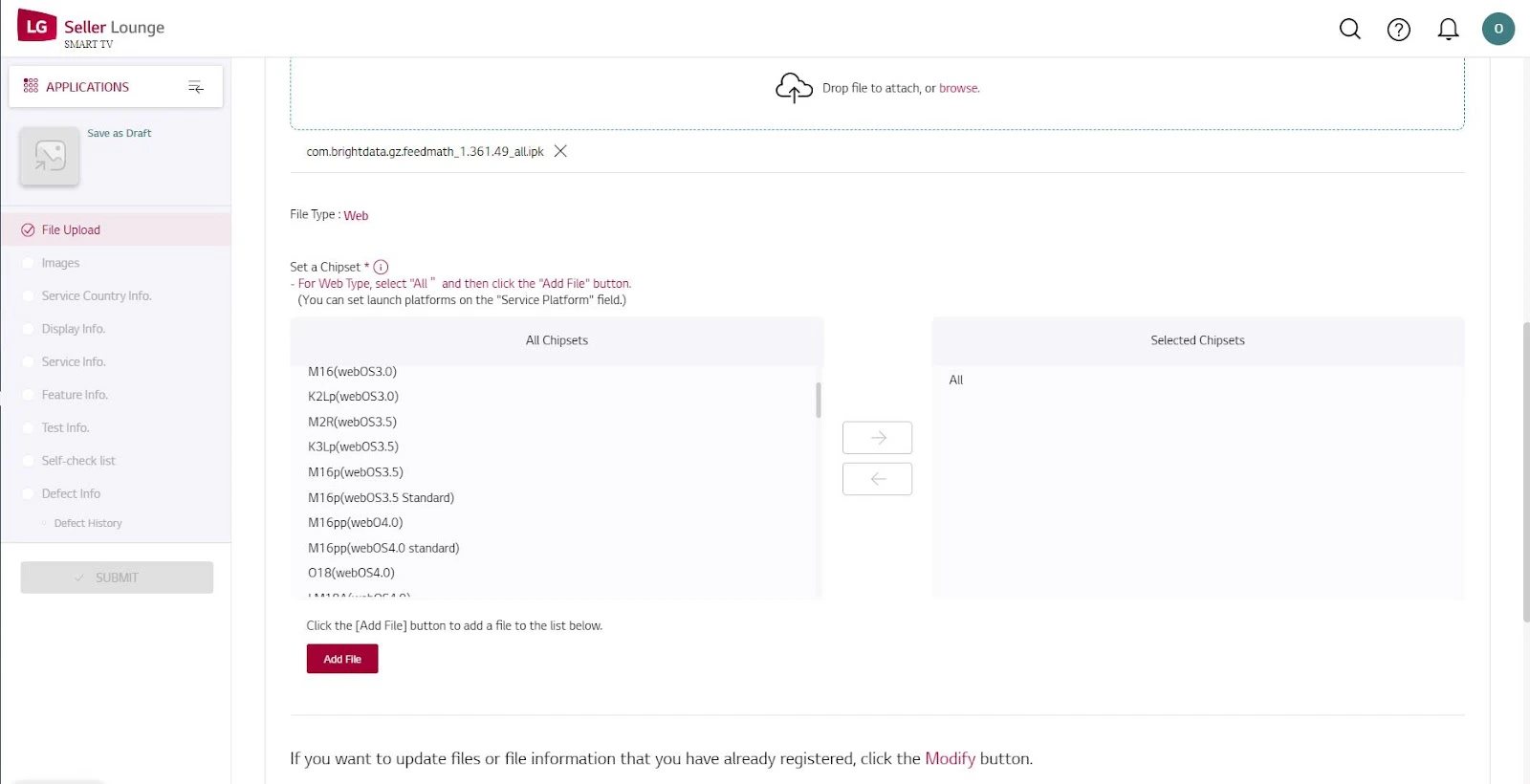
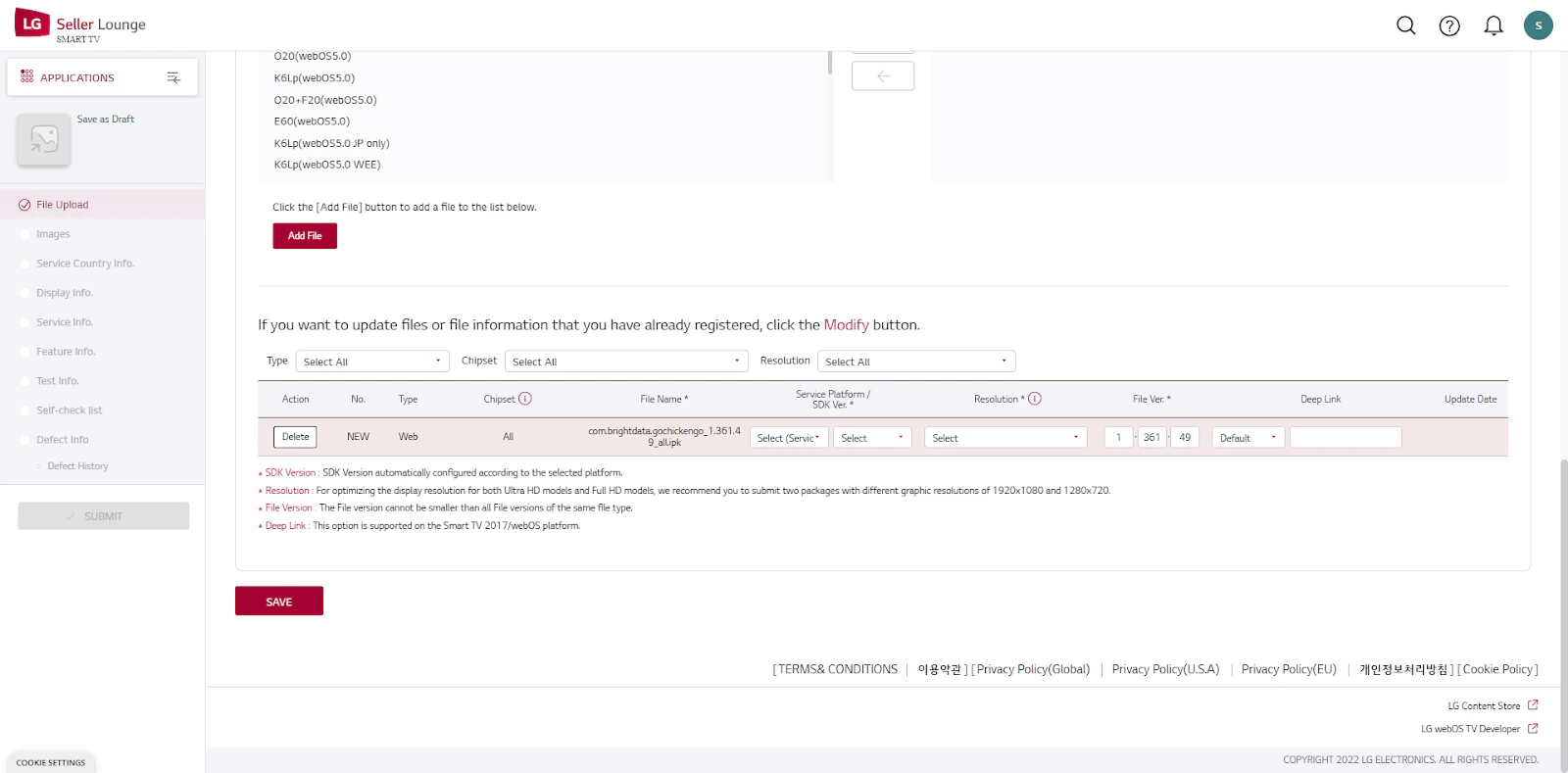
- Click File Upload.
- A pop-up will appear - Click Yes.
- Click Add File.
- Select your IPK file.
A message may appear: “If you want to update files or file information that you have already registered, click the Modify button.”
- In the Select Service drop-down: Choose 2020 and later (version 5.0.0 will auto-update).
- In the Resolution drop-down: Choose 1920,1080 : (UHD device).
- Click Save.
- Upload the same IPK file again.
- In the Select Service drop-down: Choose 2020 and later (version 5.0.0 will auto-update).
- In the Resolution drop-down: Choose 1280,720.
- Click Save.
Images Page
App Icon Image:Requirements:
- Size: 400x400 pixels.
- Must have a solid color border to blend with LG UI elements.
- Upload your icon image.
- If not automatically updated, manually upload.
- Click on the icon picture.
- Click on the picture’s border to match the color.
- Click OK.
- Recommended Size: 1920x1080 or 1280x720 pixels (Square Type Only).
- Available Formats: JPG, PNG (Max 5MB each).
- Recommended Size: 1920x1080 pixels.
- Available Formats: JPG, PNG (Max 10MB).
Service Country Info
Select App Service Countries: Choose all countries EXCEPT: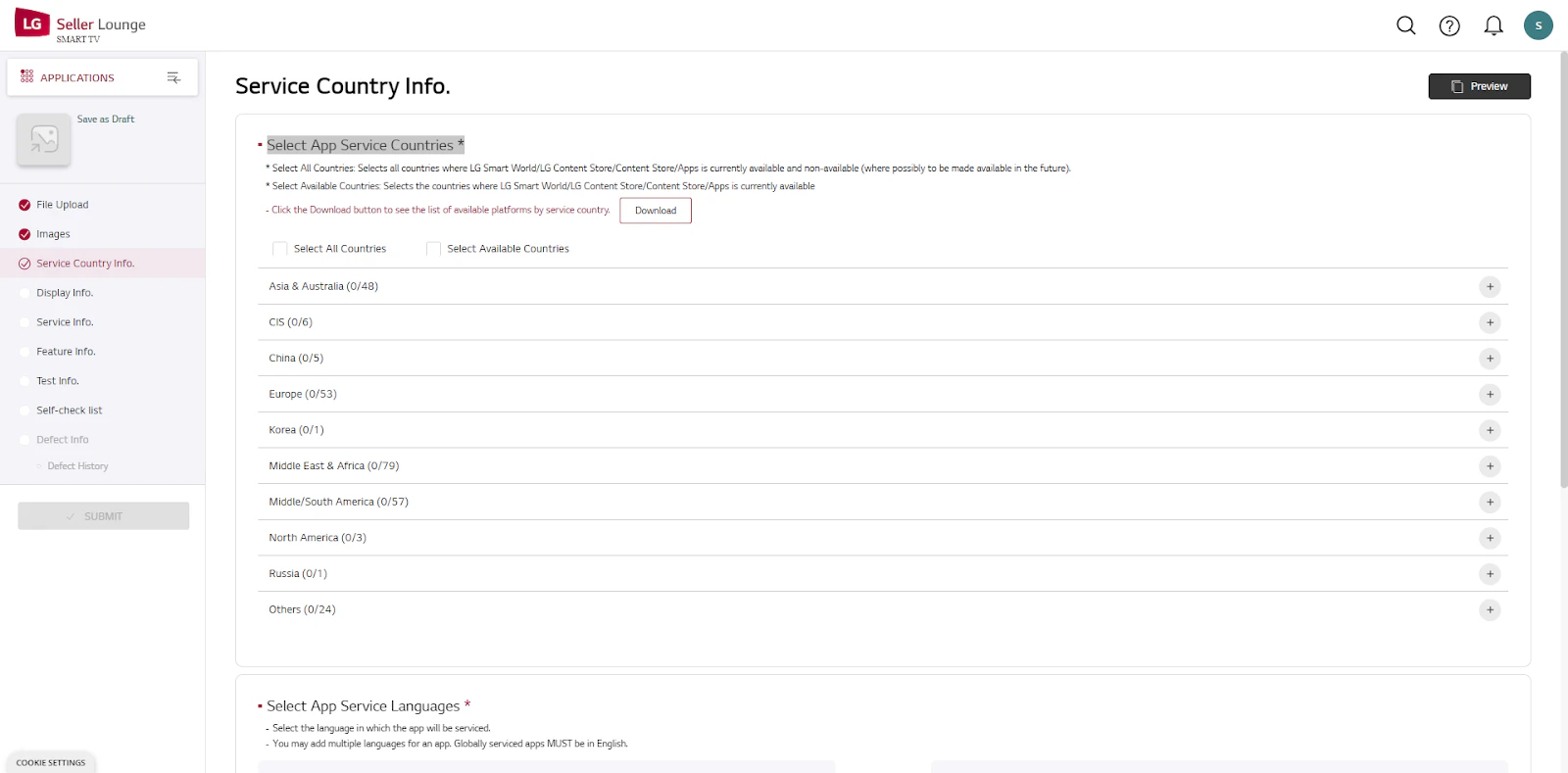
- Iran
- Iraq
- Syrian Arab Republic
- Lebanon
- Occupied Palestinian Territory
- Democratic Republic of the Congo
- Korea
- Cuba
- Sudan
- KR_Others (in “others” section)
- Select English.
- Click the arrow pointing right (→).
- Click Save.
Display Info
Set Default Display on TV:
- English (Default) App Description: Write a short app description.
- Add additional languages if needed.
- Click Save.
Service Info
Set App Category:
Answer: No.Enter Tag Keywords:Guidelines:
- First drop-down: Choose Game.
- Second drop-down: Choose the appropriate subcategory for your game.
- Choose Content Rating Self-Check option.
- Click Assessment of Content Rating.
- Go through each section carefully and tick yes/no.
- Click Complete.
Answer: No.Enter Tag Keywords:Guidelines:
- Enter keywords to help users search for your app.
- Insert spaces between words for multiple keywords (e.g., “car game”).
- Do NOT use special characters - they may cause system errors.
- Enter an email address.
- Click Save.
Test Info
Enter Reference E-mail (for QA Results): Enter your email address to receive App QA results (Max 5 addresses).Upload UX Scenario File (Max 3ea): Purpose: Upload UX Scenario files for App QARequirements:Enter Note for Tester:
- Available Formats: JPG, PNG, PDF, DOC, PPT, XLS, ZIP, XLSX (Max 10MB).
- Download the UX Scenario template.
- Fill it with your app information.
- Upload the completed file.
Tip: See this example of a complete UX Scenario for a Bright Data application.
- Choose “Other information” option.
- Write: “Thanks for reviewing this app”.
- Enter Test IPK File or Test URL: Skip this section.
- Select use Geo IP Block: No.
- Select use Billing: Not applicable.
- Select use In-App Ad: Not applicable.
- Select Player Specification: Not applicable.