
Requirements
- BrightSDK for webOS requires webOS 3.0 or newer ().
- Bright SDK for webOS (latest).
- webOS CLI (latest).
- webOS Emulator/Simulator Recommended.
Create App ID on Dashboard
If you haven’t done this yet, log in to your dashboard and create your app ID first.
Important: IDs must comply with LG naming guidelines
- Avoid numbers in the bundle ID
- Incorrect:
com.game6.nice - Correct:
com.gamesix.nice
Install SDK Files
You can set up the Bright SDK in your webOS app in two ways:
- Using the Bright SDK integration CLI tool Recommended - automatically downloads the SDK, copies the required files into your app directory, and injects the script tags into
index.html. - Manually - Download the SDK from the sdk downloader, copy the files yourself, and add the script tags manually.
Option A - Using the Integration Tool (Recommended)
Option A - Using the Integration Tool (Recommended)
Run the tool using the bright-sdk-integration CLI. See the webOS example for full setup instructions.The tool will:
- Download the latest BrightSDK zip from
cdn.bright-sdk.com/static/. - Extract
brd_api.jsandbrd_api.helper.jsintoapp/. - Extract the
service/directory for the background service. - Inject SDK script tags into
app/index.html. - Save
brd_sdk.config.jsonfor future runs.
Option B - Manual
Option B - Manual
Download the latest Bright SDK using the Bright SDK downloader, unzip it.SDK Structure:SDK Overview: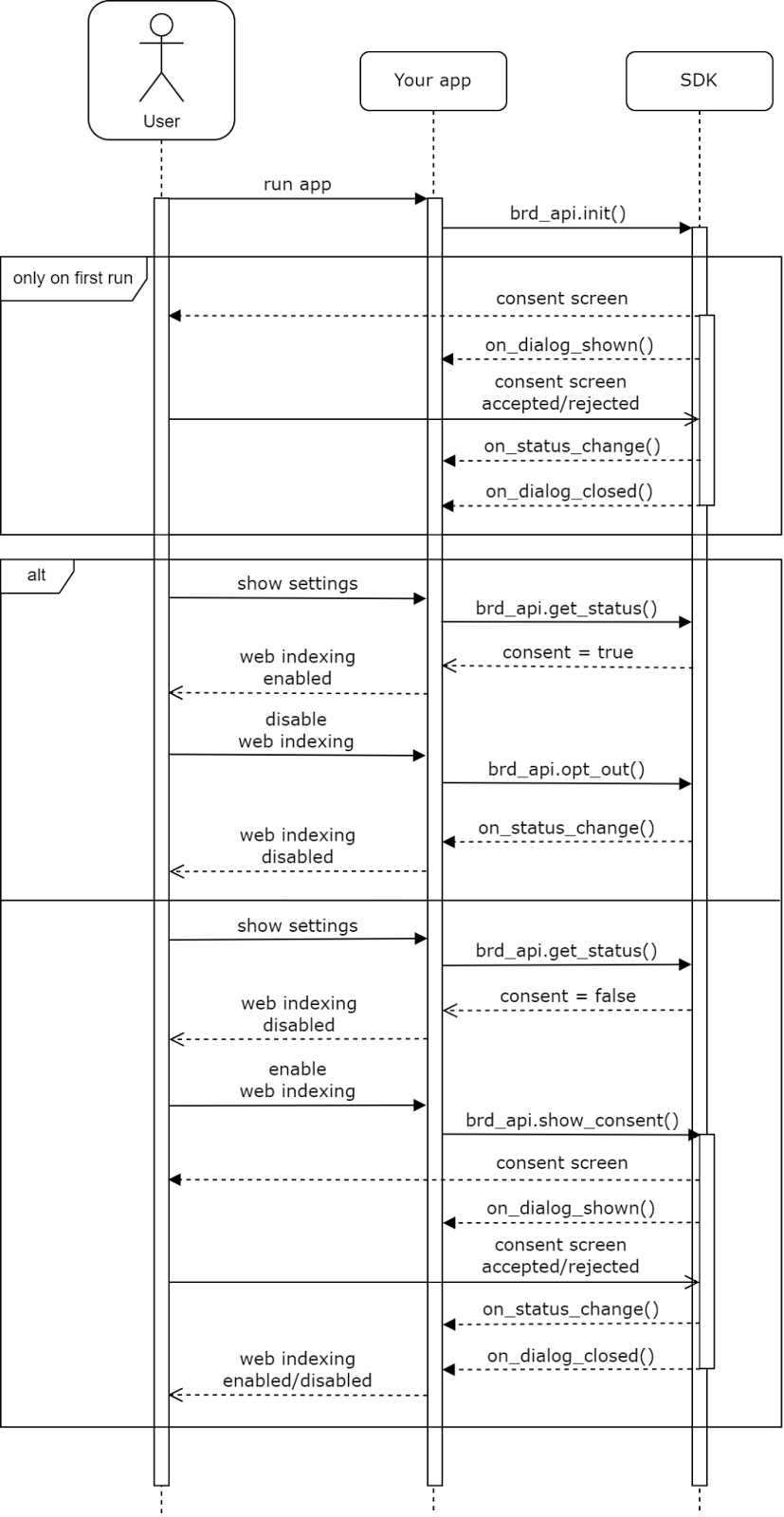
sample_app
iframe_sample_app
sdk
consent
brd_api.js
service
peer_node
util
index.js
package.json
services.json
- sample_app - A standard webOS app architecture example. Can also be used as a reference for Hosted Web Apps.
- iframe_sample_app - Example for apps where the UI is rendered inside an iFrame.
servicedirectory - The main engine containing all logic required to run the SDK. Must be copied next to your other services.brd_api.js- Frontend interface implementing the consent screen. Must be integrated with your application’s frontend.
Configure and Initialize the SDK
You must update IDs in the SDK config files to match your application.Configure app/service identifiersUpdate package.jsonEmbed SDK Dialog in Your CodeYou can use Import brd_api.js
Add SDK InitializationCall Consent behavior:
- Set a correct
nameattribute - Keep the
.brd_sdkpostfix - Leave the rest untouched
- Set
id,services[0].id, andservices[0].name - Keep the
.brd_sdkpostfix - Leave the rest untouched
Example ConfigurationGiven appID from dashboard:
webos_com.example.appappinfo.jsonID should be:com.example.apppackage.json+services.jsonID must be:com.example.app.brd_sdk
The SDK will add the
webos_ prefix automatically.sample_app as a reference.If you used the CLI tool in Option A,
brd_api.js, brd_api.helper.js, and the script tags in index.html are already in place - skip this sub-step.- Copy
brd_api.jsandwebOSTV.jsinto your app directory. - Import it from the main file responsible for app initialization.
- After
brd_api.jsexecution, thebrd_apiglobal object will be available.
SDK embedding in case of iFrame
SDK embedding in case of iFrame
If your app is rendered in an iFrame:
brd_api.jsmust be included in the HTML page that is located on your server.- Add
brd_iframe.json the*.ipkside (iframe_sample_app/lib/brd_iframe.js). - Set
iframe: trueinapi_settings.
| TV (*.ipk) | Server (iframe src) |
|---|---|
webOSTV.js | brd_api.js |
brd_iframe.js | |
service (folder) |
brd_api.init() after page load to access all SDK methods.Example:- On first call,
brd_api.init()will show a consent screen. - The user must agree or disagree.
- Get the result by setting the
on_status_changecallback. - The consent screen handles TV remote control input.
- You must disable your remote input processing when the consent screen is shown.
on_status_changewill be called after the consent screen is closed.
Add Opt-In/Out Settings Option
Critical Requirement: The user must always be able to opt-out of Bright SDK after giving their initial consent.
Requirements: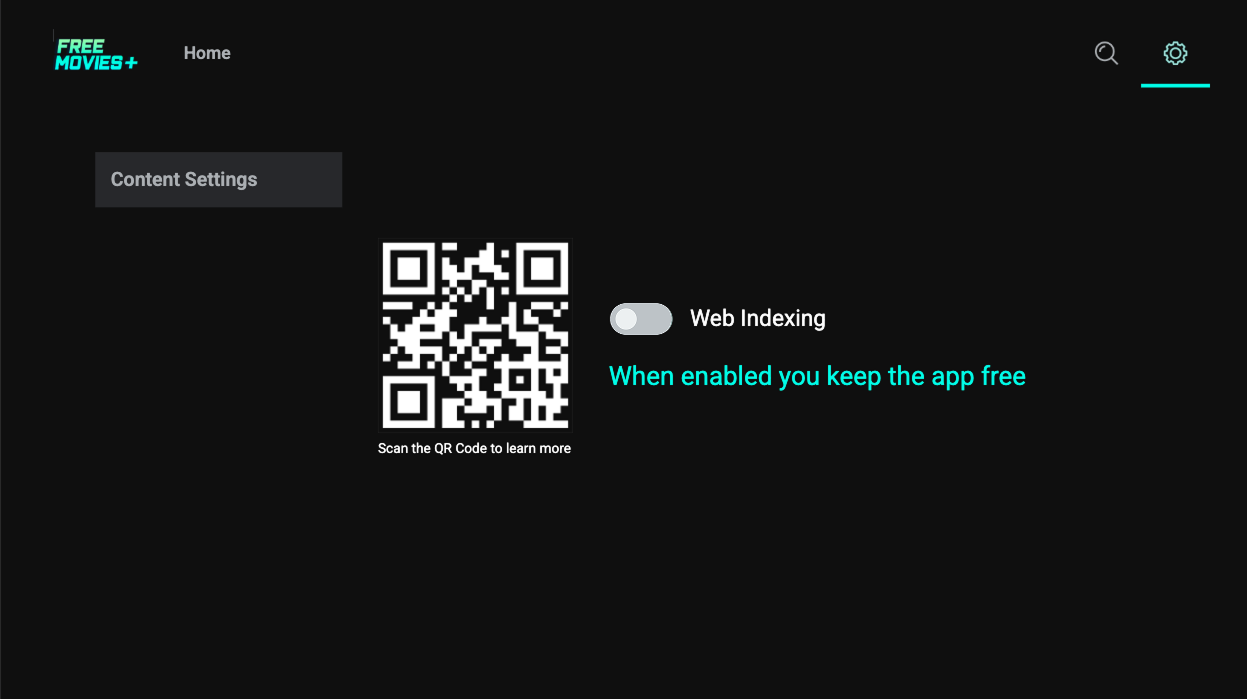
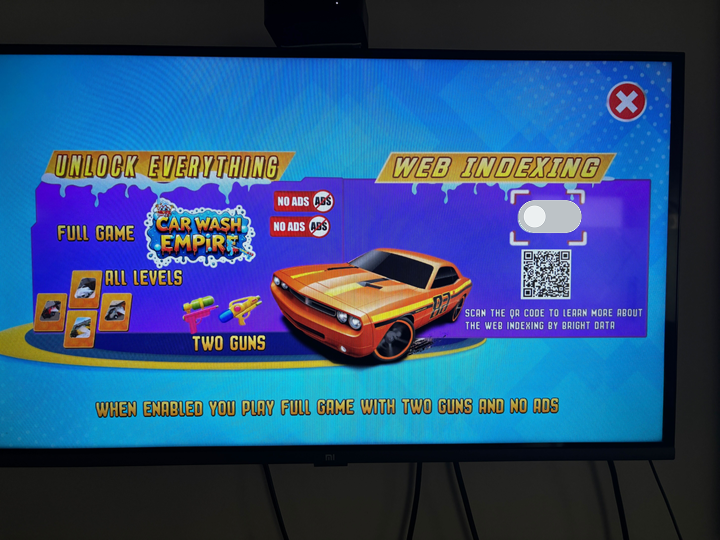
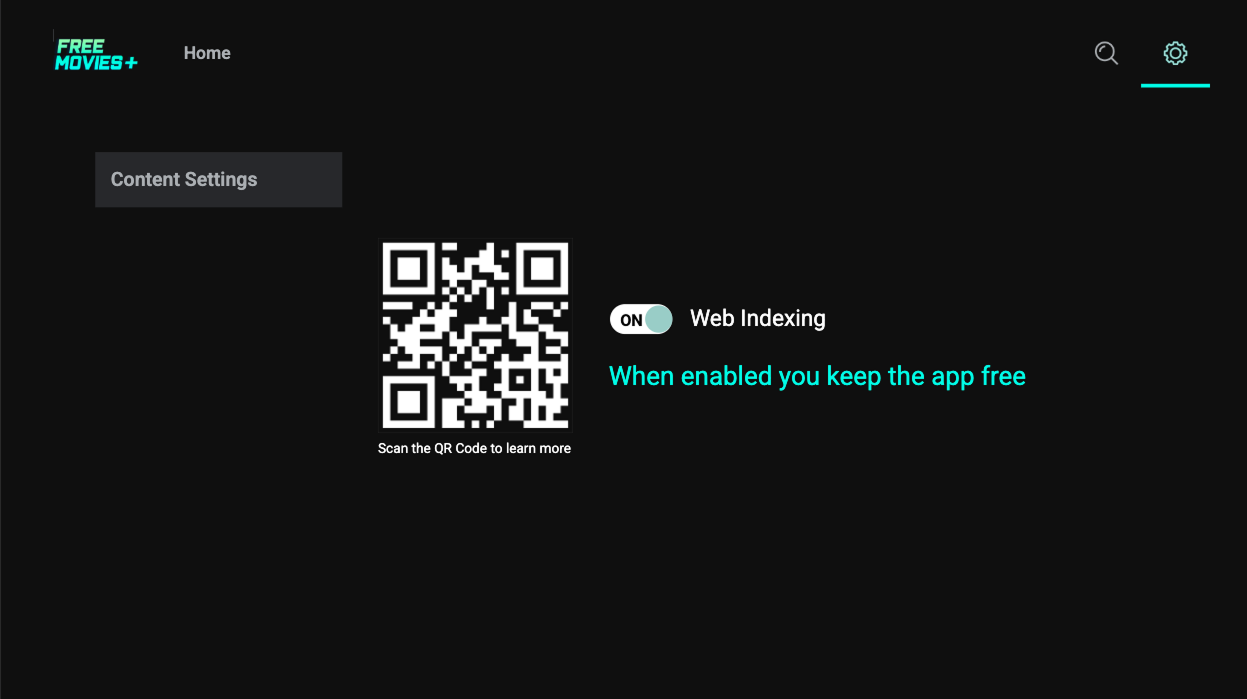
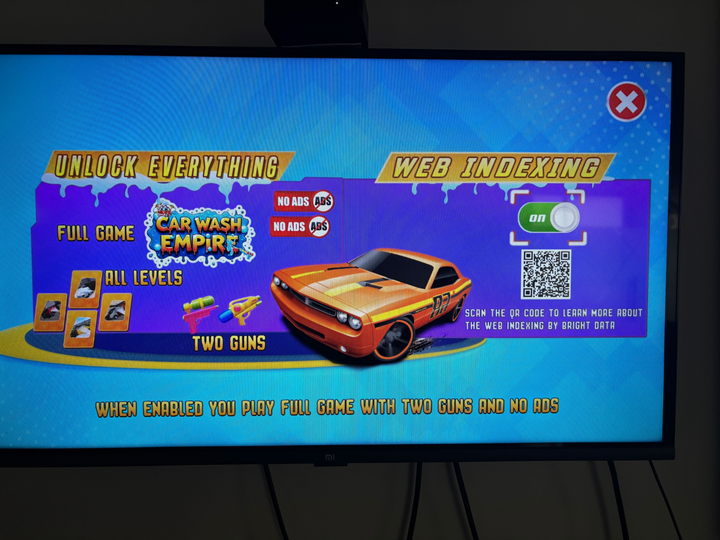 Value Text Examples:
Common Mistakes to Avoid:
Optional: Confirmation Dialogs - You may add pop-up/confirmation dialogs to:Opt-Out Messages examples:

- Add a switch labeled “Web Indexing” Must clearly reflect current status (opted-in or opted-out).
brd_api.get_status().consent === true→ checked/on.brd_api.get_status().consent === false→ unchecked/off.
- Add value text below the switch Emphasize the benefits users get when opting in. (see examples)
- Include a way to give more information
- Best practice: Include a QR code linking to: https://brightdata.com/sdk/information?is_tv=1
- Accompany with text: “Scan the QR Code to learn more about web indexing by Bright Data”.
- You can use:
- Your own branded QR code.
- This QR code (SVG).
- Hosted version: https://media.bright-sdk.com/2023/09/qr-bright-sdk-faq.svg
- UX Guidelines
- You’re free to choose the UX (radio button, switch, etc.).
- The opt-out option must be clearly labeled.
- Users must be able to freely opt-out.
- Behavior
- Turning OFF → call
brd_api.opt_out(). - Turning ON → call
brd_api.show_consent()(user action should open consent). - Every time the user toggles Web Indexing ON, the consent screen must reappear — even if the user has previously opted in.
- Turning OFF → call
| When opted-out: | When opted-in: |
|---|---|
| Enable to see fewer ads | When enabled you see fewer ads |
| Enable to get 100 extra coins | When enabled you get 100 extra coins |
| Enable to enjoy premium features | When enabled you enjoy premium features |
| Enable to get 2 free cars | When enabled you get 2 free cars |
| Enable to unlock more levels | When enabled you unlock more levels |
| Example | Issue |
|---|---|
| Label: “Bright SDK” | ❌ Label should be “Web Indexing”, not “Bright/Bright SDK” |
| Switch without value text | ❌ Missing text emphasizing value to users |
| Switch without status indicator | ❌ Switch should clearly show current opt-in/opt-out status |
| No “Learn More” option | ❌ Missing link/QR code to information page |
- Discourage opt-out: “If you disable Web Indexing, you will start seeing ads. Do you want to see ads?”
- Confirm opt-out: “You have successfully disabled Web Indexing. You may enable it again anytime from the settings menu.”
You are responsible for the text and design. These will be reviewed before publishing.
You can use the ready-to-use simple opt-out UI.
- How It Works:
- Set
simple_opt_outin your settings. - Users can opt-out by pressing
[5]on the remote control. - This reopens the consent screen.
- If user opts out, consent screen will reappear after several app restarts (see
repeat_consent). - Default: Consent screen shows after 3 restarts when using
simple_opt_out.
- Set
- Visual Indicator: After the user closes the consent screen, a small notification appears in the bottom left corner:
- Hidden after 10 seconds.
- Displayed every time the app starts (except the first time).
- Custom Button Text: You can customize button text on the consent screen by passing an object to
simple_opt_out. Example:These settings accept the same values assettings.agree_btnandsettings.disagree_btn. If not overridden, they inherit from the initial consent screen. With custom text, the consent screen looks like: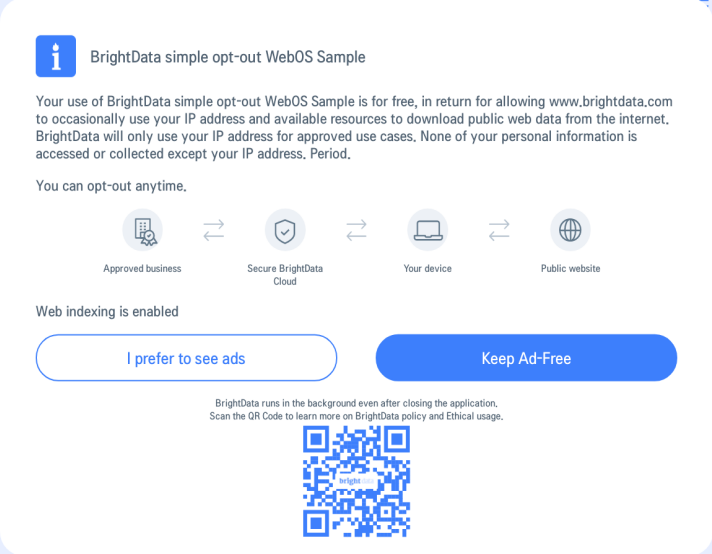
Button Conflicts - When using “simple opt-out”:
- Don’t use button
[5]- reserved for displaying consent screen. - When consent screen is displayed,
[left],[right], and[ok]buttons are used. - Disable these buttons or stop processing their input while consent screen is visible.
Consent Dialog Customization
The consent screen is the foundation of trust between your app and its users. Make sure your implementation keeps users in full control - they should always be able to freely opt in, easily opt out, and ideally receive something of value in return.
Custom Consent Screen
Custom Consent Screen
Subject to Bright SDK approval, you can create and use your own consent screen with Bright SDK. Please follow the following guidelines.
- Mandatory Text
Your screen must include the following text exactly as written:
- QR Code
Include a QR code linking to: https://bright-sdk.com/users#learn-more-about-bright-sdk-web-indexing. You can use your own branded QR code or hosted version, as long as it directs to this URL. Example Custom Screens:
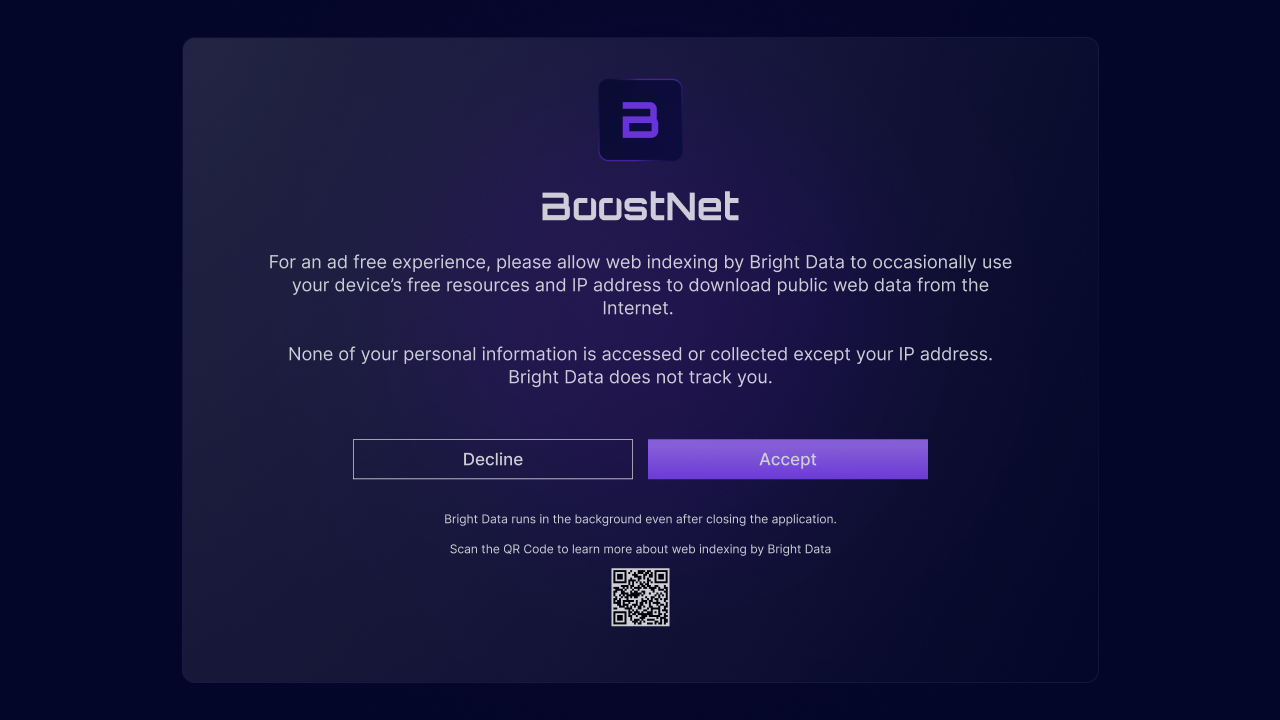
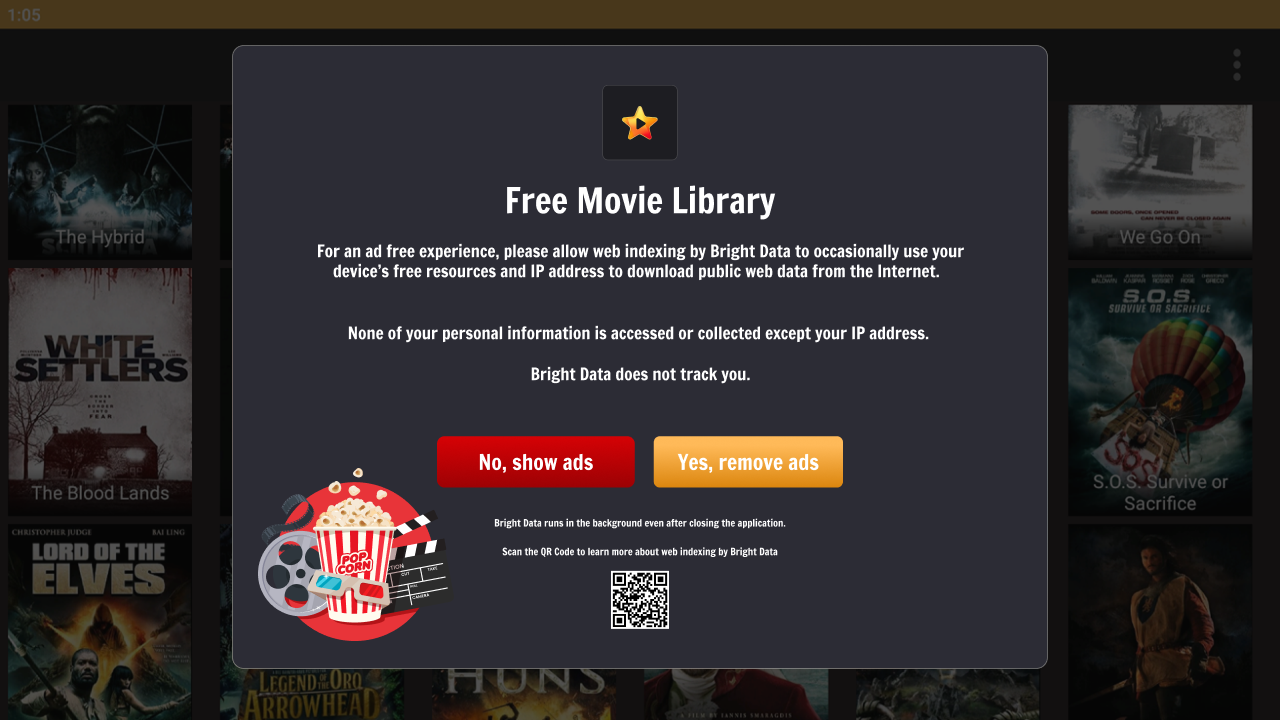
- Localization
If you wish to translate your consent screen into other languages:
- Find pre-approved translations for common languages here.
- If you need a language not listed, contact your partnership manager.
- Use only the provided translations precisely, no additions or omissions allowed.
- Integration Code
- Skip Default Consent Screen: Pass
skip_consent: truein the SDK’s initialization method to prevent showing the default consent screen. - Track Consent Screen Display: When your external consent screen is displayed, call
brd_api.consent_shown(), this ensures statistics are correctly recorded. - Handle User Response:
- The opt-in button (e.g. “I Agree”) should call
brd_api.external_opt_in()method. - The opt-out button (e.g. “I Disagree”) should call
brd_api.opt_out()method.
- The opt-in button (e.g. “I Agree”) should call
- Skip Default Consent Screen: Pass
- Implementation Checklist
- Mandatory text included verbatim.
- QR code linking to correct URL.
- Translations (if any) use only approved versions.
skip_consent: trueset in initialization.consent_shown()called when screen displays.- Opt-in/opt-out buttons properly connected to SDK methods.
Customize the Default Consent Dialog (optional)
Customize the Default Consent Dialog (optional)
You can customize the consent dialog by setting additional parameters in the 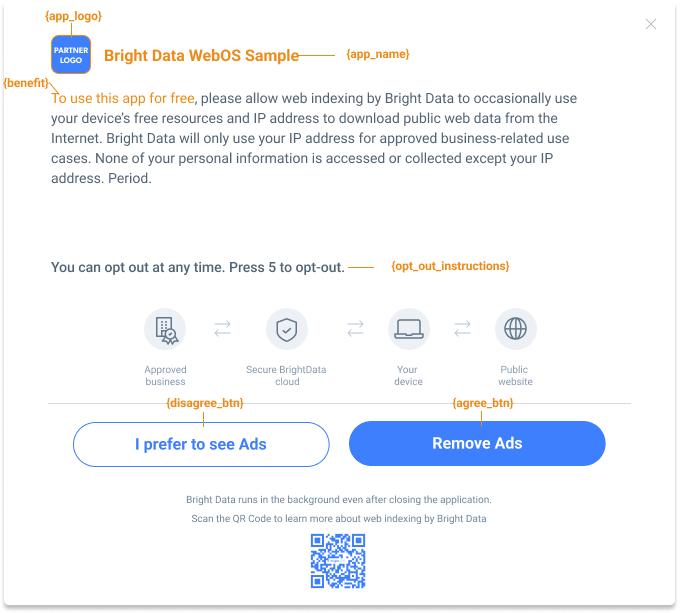 Default appearance (when optional parameters are skipped):
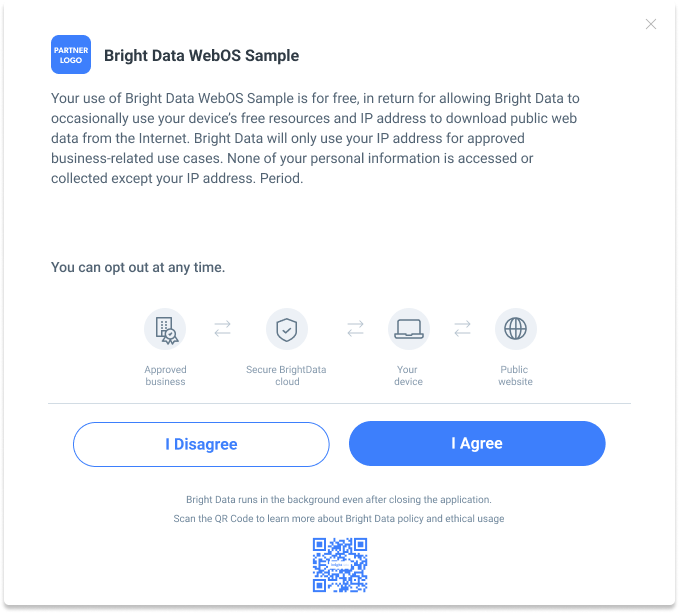 See API Documentation for all customization options.
api_settings object passed to init().Customizable fields:Default appearance (when optional parameters are skipped):See API Documentation for all customization options.App Performance
We prioritize user experience. Ensure your app maintains good performance.Performance Guidelines:
- ✅ No input lag - ensure responsive UI interactions.
- ✅ Average CPU load: ≤ 50%.
- ✅ RAM usage: ≤ 90%.
Important: If system load is too high, we cannot use the device’s free resources. Such devices will not be counted as active and will not generate revenue.
- Use Beanviser (LG’s diagnostic tool) to monitor system load on webOS devices.
Build Your App
Build your app using the ares-package CLI command (part of the webOS CLI).Build Command: Use the -n flag to disable source code minification, example:
Important: Clean BuildRemove all dynamic files from the app and service folders before building. Examples: logs,
service/data/*.*Self-check your integration
Complete this verification checklist to ensure your integration works correctly before submitting for review.Test Checklist:
- Test 1: On first
init()call, consent dialog is shown. - Test 2: Press “Disagree” button.
- Consent dialog closes.
get_status()->consentreturnsfalse.
- Test 3: Close and reopen app, call
init().- Consent screen should NOT be shown.
get_status()->consentreturnsfalse.
- Test 4: Call
show_consent()from settings menu.- Consent dialog is shown.
- Test 5: Press “Agree” button.
get_status()->consentreturnstrue.
- Test 6: Restart app, call
init().- Consent screen should NOT be shown.
get_status()->consentreturnstrue.
- Test 7: Call
opt_out()from settings menu.get_status()->consentreturnsfalse.
- Test 8: Checkbox state matches
get_status()->consentvalue.- Must call
init()andget_status()before displaying checkbox.
- Must call
If the SDK isn’t initializing / peer not connecting:
- Verify the correct App ID is used, confirm the SDK service is running.
- Check there aren’t multiple SDK apps running from the same IP — that can interfere.
- If nothing helps, check with our team.
Update Your Terms of Service
Bright Data ensures users are fully informed about joining the peer network.Add the following text to your Terms of Service web page (TOS, EULA, or Privacy Policy):In return for premium features of ‘[Your App Name]’, you may choose to be a peer on the Bright Data network. By doing so, you agree to have read and accepted the Bright SDK EULA and Bright Data’s Privacy Policy.You may opt out of the Bright Data network by [add clear opt-out instructions].Requirements:
- Include all text and links as provided above.
- Any additional Bright SDK-related content must be shared during the app review process for approval.
API Documentation
Methods
Methods
| Method | Parameters | Description |
|---|---|---|
brd_api.init() | settings, callbacks | Initializes the API. Must be called at app startup. All other methods are accessible only after successful initialization. Consent screen is shown on first initialization by default - skip by setting skip_consent: true in settings. |
brd_api.show_consent() | callbacks | Displays the consent screen on user action. Use when a user tries to close an ad or clicks a checkbox to activate Bright SDK. |
brd_api.external_opt_in() | callbacks | Call this after the user agrees on your own custom consent screen. See Custom Consent Screen (optional) for more details. |
brd_api.opt_out() | callbacks | Disables Bright SDK. |
brd_api.get_status() | — | Returns the current status object. |
Status Object
Status Object
| Property | Type | Description |
|---|---|---|
consent | bool | Current SDK status |
ver | string | Current SDK version (e.g. "1.285.476") |
tracking_id | string | The app’s tracking ID - can be set via brd_api.init |
consent possible values:| Value | Meaning |
|---|---|
true | SDK is enabled and working |
false | SDK is disabled and disconnected |
null | User has not passed the consent screen yet |
Settings Object
Settings Object
General
Consent Repeat Behavior
Consent Screen Buttons
Callbacks (in Settings)
| Property | Type | Required | Description |
|---|---|---|---|
app_name | string | ✅ | Your app name — shown on the consent screen |
app_logo | string | ✅ | Path to your app logo — shown on the consent screen |
tracking_id | string | ❌ | Unique tracking ID for reports and debugging |
skip_consent | boolean | ❌ | If true, skips showing the consent screen on initialization. Use show_consent() to show it later. |
benefit | string | ❌ | Description of the benefit the user receives when opting in |
opt_out_instructions | string | ❌ | Instructions shown to users on how to disable Bright SDK in your app |
| Property | Type | Description |
|---|---|---|
simple_opt_out | boolean or object | Allows users to opt out by pressing [5] — this reopens the consent screen. If opted out, the consent screen will reappear after several app restarts (see repeat_consent). You can pass an object to redefine the consent button text. (see 4.2 If You Don’t Have a Settings Menu) |
repeat_consent | integer (≥ 3) | Shows the consent screen again after the specified number of app restarts. Only active when simple_opt_out is true. |
simple_opt_out object example:agree_btn (string/enum) Sets the agree button text. Default: I_AGREE| Value | Button Text |
|---|---|
I_AGREE | I Agree |
REMOVE_ADS | Remove Ads |
PREMIUM_VER | Premium version |
FREE_APP | Get the app for free |
disagree_btn (string/enum) Sets the disagree button text. Default: Keep Ads| Value | Button Text |
|---|---|
I_DISAGREE | I Disagree |
ADS | I prefer to see ads |
LIMITED | I prefer limited use |
PAY | I prefer to pay |
NOT_AGREE | I Don’t Agree |
NO_THANK_YOU | No, Thank You |
| Property | Type | Description |
|---|---|---|
on_status_change | function | Called every time the consent status changes |
on_dialog_shown | function | Called when the consent dialog is shown |
on_dialog_closed | function | Called when the consent dialog is closed |
Style Object
Style Object
Use the
Buttons
Button style example:Typography
Icons & QR Code
style property to customize the visual appearance of the consent screen.Background| Property | Type | Description |
|---|---|---|
custom_background_image | false or string | Path to a background image for the consent screen |
custom_background_color | string | CSS background-color value. Set to 'none' for transparent with background image |
| Property | Type | Description |
|---|---|---|
agree_btn_styles | string | CSS styles for the agree button |
disagree_btn_styles | string | CSS styles for the disagree button |
agree_btn_focus_styles | string | CSS styles for the agree button on focus |
disagree_btn_focus_styles | string | CSS styles for the disagree button on focus |
custom_background_button_color | string | CSS background-color for buttons |
custom_focus_background_button_color | string | CSS background-color for buttons on focus |
| Property | Type | Description |
|---|---|---|
custom_font_family | string | CSS font-family value |
custom_font_size | string | CSS font-size for general text (e.g. '1.2vw') |
custom_title_font_size | string | CSS font-size for the title |
custom_bottom_text_font_size | string | CSS font-size for bottom text |
custom_button_font_size | string | CSS font-size for button text |
custom_text_color | string | CSS color for general text |
custom_text_button_color | string | CSS color for button text |
custom_focus_text_button_color | string | CSS color for button text on focus |
| Property | Type | Description |
|---|---|---|
custom_icon_color | string | Icon image color |
custom_qr_code_color | string | QR code foreground color |
custom_qr_code_bg_color | string | QR code background color |
shadow | boolean | Enables shadow on the consent popup |
Callbacks Object
Callbacks Object
The
callbacks object can be passed to any method that accepts it.| Property | Type | Description |
|---|---|---|
on_success | function | Called when the method completes successfully |
on_failure | function | Called when an error occurs |