
For the full Android integration reference, see the Android SDK Integration Guide. This document covers only Unity-specific steps and should be used in conjunction with that guide.
Requirements
- Latest Bright SDK AAR for Android.
- Unity Editor (latest recommended).
- Android build support installed in Unity.
Important Notes
- Users must always voluntarily decide to opt in after seeing the consent screen, and must always have an easy way to opt out.
- Bright Data reviews SDK integration after initial release and regularly thereafter. Your account will be terminated if you violate the guidelines in this document.
- Bright Data recommends offering value in exchange for opting in (e.g., fewer ads, bonus coins, premium features). However, simply asking for user support is also acceptable.
- Do not upload your APK with Bright SDK to the Google Play Store without prior approval.
Create App ID on Dashboard
If you haven’t done this yet, log in to your dashboard and create your app ID first.
Install SDK Files
You can set up the Bright SDK AAR in your Unity project in two ways:
- Using the Bright SDK Unity Plugin Recommended - automatically downloads, extracts, and places the latest
bright_sdk.aarinto the correct Unity directory before every build. - Manually - download the AAR from the dashboard and copy it yourself into the project.
Option A - Using the Unity Plugin Recommended
Option A - Using the Unity Plugin Recommended
Install the plugin by following the Bright SDK Unity Plugin guide.The plugin will:
- Fetch the latest
bright_sdk.aarvia the authenticated BrightSDK API (SDK_API_KEY) and place it intoAssets/Plugins/Android/. - Cache the file locally to avoid redundant re-downloads.
- Run automatically on every build (File → Build Settings → Build).
Option B - Manual
Option B - Manual
Download the latest Bright SDK AAR using the Bright SDK downloader.In the Drag the 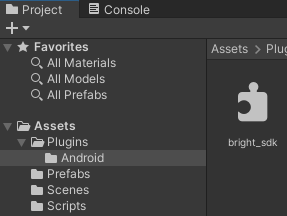
Assets folder, create a sub-folder named Plugins and inside it a sub-folder named Android:bright_sdk.aar file into the Android folder.Add Main Gradle and Gradle Properties Files
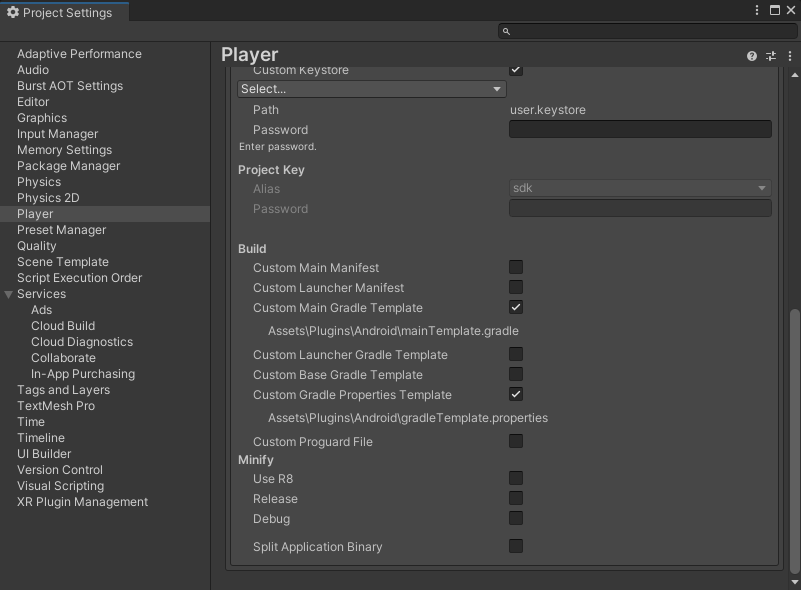
Regardless of which option you chose above, the following Gradle steps must be done manually.
- Editor → Player → Publishing Settings → Build → Custom Main Gradle Template
- Editor → Player → Publishing Settings → Build → Custom Gradle Properties Template
Assets > Plugins > Android:mainTemplate.gradlegradleTemplate.properties
Update Dependencies in mainTemplate
Add the following dependencies to the
dependencies section of mainTemplate.gradle:Implement ChoiceListener Interface
Create a
ChoiceListener class to handle the user’s consent choice callback:Consent Dialog Customization (optional)
While the standard Bright SDK consent screen is always available, we highly encourage customization to match your app’s look & feel - this typically leads to higher conversion rates.There are two customization options:
| Option | Description |
|---|---|
CustomConsentSettings | Modify the built-in Bright SDK consent screen |
| External consent screen | Build your own consent UI entirely |
Option 1 - External Consent Screen
Option 1 - External Consent Screen
Option 2 - CustomConsentSettings
Option 2 - CustomConsentSettings
Use 📖 See the full list of available
CustomConsentSettings to customize colors, fonts, backgrounds, and button styles:CustomConsentSettings properties in the API Documentation.Custom Images
Custom Images
To use custom images in the consent screen, copy them to the The following example loads custom images for the consent icon, background, and buttons:
StreamingAssets folder of the app.On Android, images in
StreamingAssets are not directly accessible - they must be loaded via a local web request.Unity Editor Customization Example
Unity Editor Customization Example
The following is a complete end-to-end example of setting up the custom consent screen using Unity’s editor-exposed fields, which is the recommended approach for designer-friendly customization.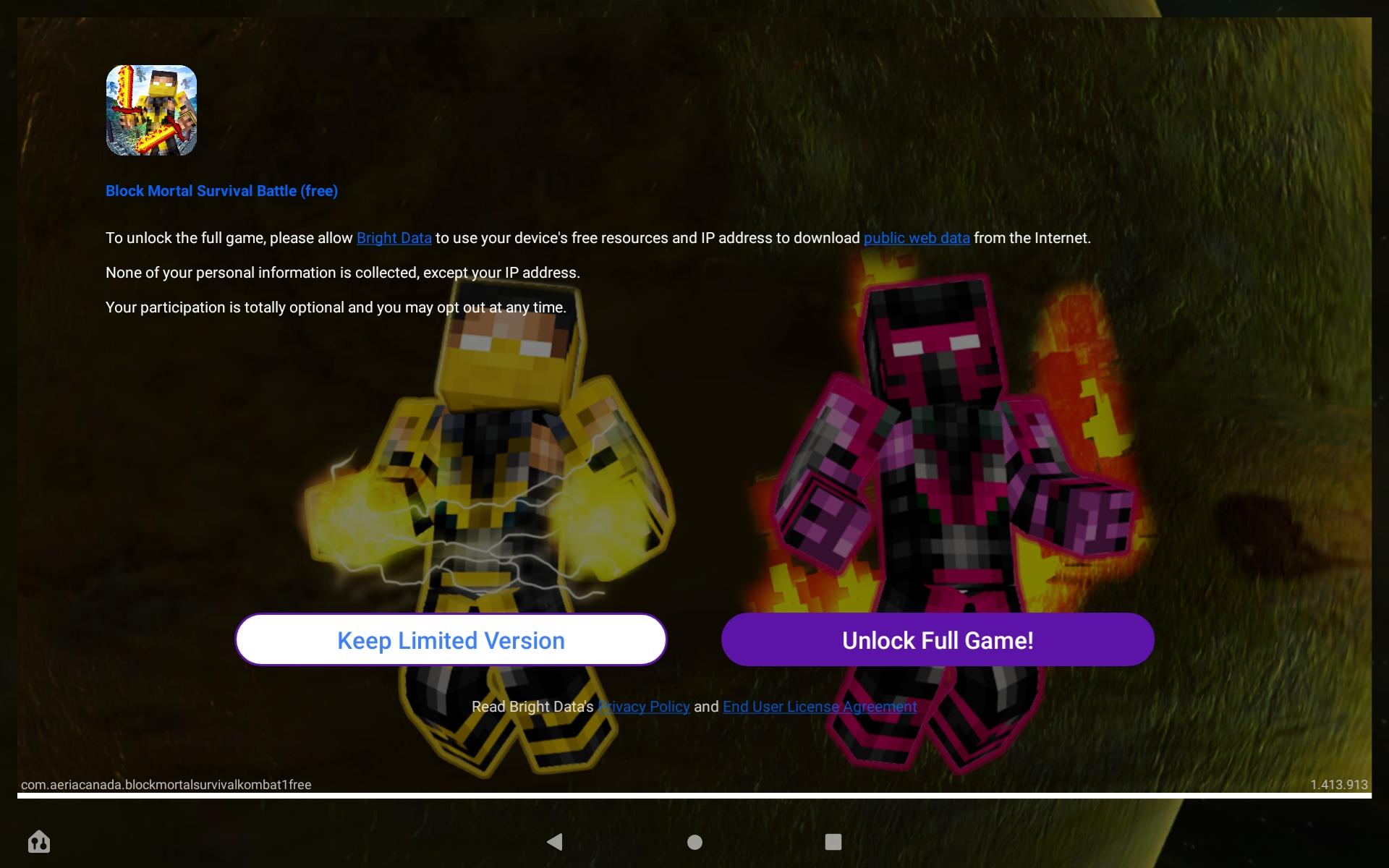
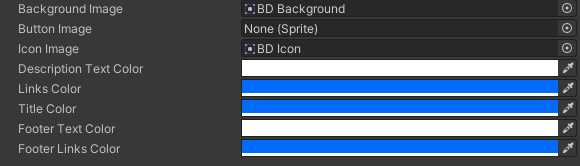
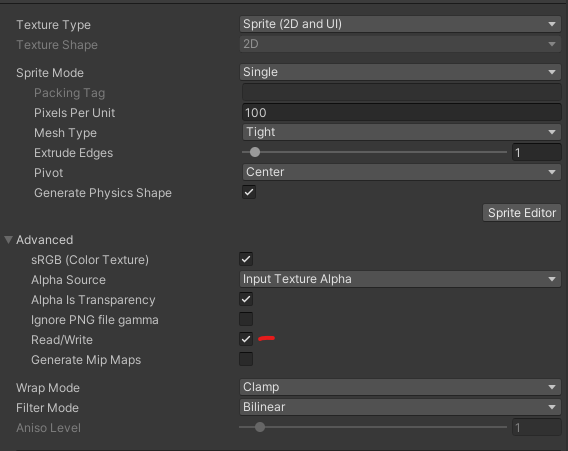
Awake()In the Awake() function, convert Sprites and Colors to the formats required by Bright SDK:init()Before calling brightApi.CallStatic("init", ...), configure and apply the CustomConsentSettings:Add Opt-In/Out Settings Option
Your app must include a settings option allowing users to opt in or out at any time. This is typically placed in a Settings menu.Mobile AppsRequirements: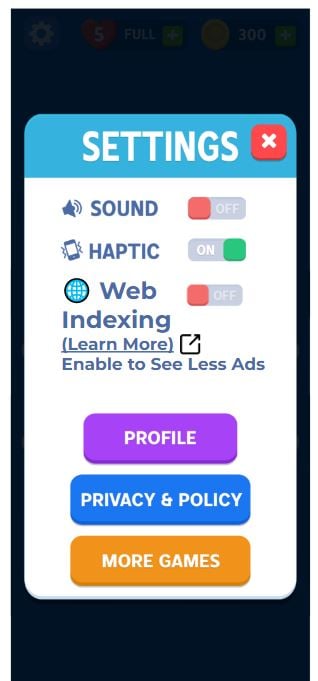
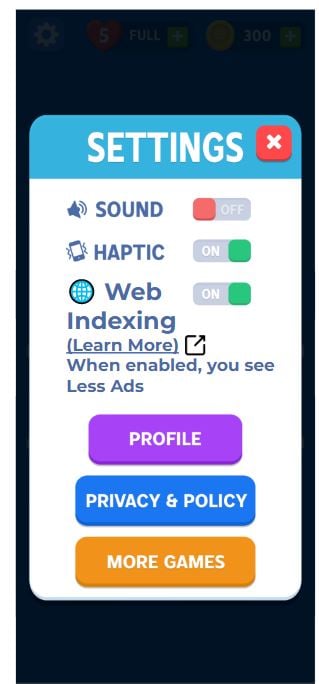

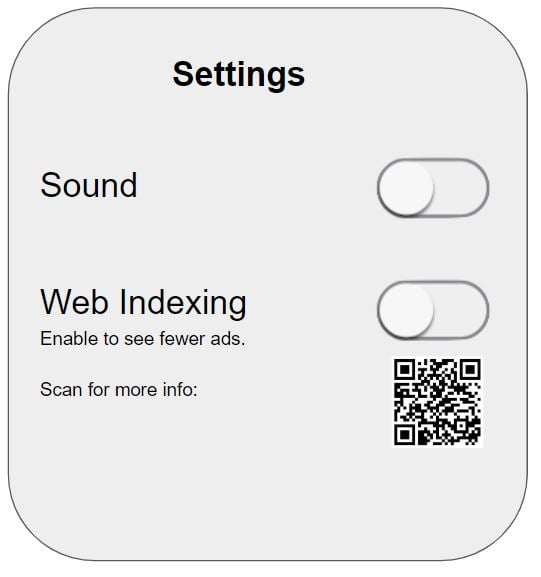
Refrain from using technical terms like “opt in” / “opt out” — always speak in terms of user value.Opt-Out Messages (Optional but highly recommended):
Every time the user toggles Web Indexing ON, the consent screen must reappear — regardless of any previous opt-in.
- Add a toggle/switch labeled “Web Indexing” that clearly reflects the current status (opted in or out)
- Below the switch, add text emphasizing the value users receive when opting in
- Include a “Learn more” link that opens: https://bright-sdk.com/users#learn-more-about-bright-sdk-web-indexing
brightApi.CallStatic("showConsent", currentActivity) to show the consent screen.There is no way to directly opt in. Only the user can decide. You must show the consent screen - opt-in happens automatically only if the user agrees.
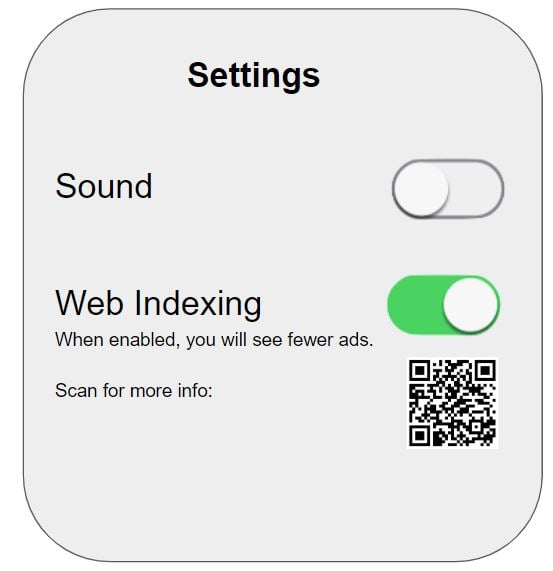
- Add a toggle/switch labeled “Web Indexing” that clearly reflects the current status
- Below the switch, add text emphasizing the value users receive when opting in
- Include a QR code linking to: https://bright-sdk.com/users#learn-more-about-bright-sdk-web-indexing
- Must be accompanied by: “Scan the QR Code to learn more.”
- You may use your own branded QR code, or the hosted version provided
You may add a confirmation dialog to discourage opting out (e.g., “If you disable Web Indexing, you will start seeing ads. Continue?”)
| State | Example text |
|---|---|
| Opted out | ”Enable to see fewer ads” |
| Opted out | ”Enable to get 100 extra coins” |
| Opted out | ”Enable to enjoy premium features” |
| Opted in | ”When enabled you see fewer ads” |
| Opted in | ”When enabled you get 100 extra coins” |
| Example | Comments |
|---|---|
| Bad | Avoid using technical terms “opt in” / “opt out” |
| Bad | Default choice should be the green checkmark (Web Indexing enabled) |
| Good | Dialog box discouraging opt-out, reminding user of value they lose |
| Good | Correct messaging, correct default choice |
| Good | Dialog box validating user’s choice, reminding how to opt back in |
How to Update the SDK
Option A - Using the Unity Plugin Recommended
Option A - Using the Unity Plugin Recommended
The Bright SDK Unity Plugin handles updates automatically. As long as the version in
Assets/Editor/BrightSDK/BrightSDK.json is set to null (latest), the plugin will fetch and replace the SDK on every build. No manual file replacement needed.To trigger an update manually, simply build your project again:- Open File → Build Settings
- Click Build or Build and Run
Option B - Manual
Option B - Manual
- Delete
bright_sdk.aarfromAssets > Plugins > Android - Copy the new
bright_sdk.aarintoAssets > Plugins > Android
Migrating from API V1 to V2
The V2 API introduces new capabilities and a customizable consent screen. All main V1 methods are deprecated and replaced by Initialize with Settings object:Show the consent screen manually:
BrightApi methods.Instantiate BrightApi (V1 → V2):API Documentation
BrightApi
Public Methods:
| Method | Description |
|---|---|
static void init(Context context, Settings settings) | Initializes the SDK. Call once in your first activity. Shows consent dialog automatically unless setSkipConsent(true) is set. |
static void showConsent(Activity activity) | Displays the consent dialog. Use when a user tries to close an ad or re-enables Bright SDK from Settings. |
static void showConsent(Activity activity, Settings settings) | Displays the consent dialog with a new settings object. |
static void optOut(Context context) | Revokes the user’s consent and sets Choice.NOT_PEER. Triggers OnStatusChange callback. |
static Boolean getConsentChoice(Context context) | Returns true if user is peer, false if not peer, null if no choice has been made yet. |
static boolean isSvcProcess() | Returns true if the current process is the SDK service process. |
static void setTrackingId(String trackingId) | Adds a unique tracking ID for reports and debugging. Must be called beforeBrightApi.init. |
static void reportConsentShown(Context context) | |
static void reportConsentBackPress(Context context) | |
static void reportConsentOptOut(Context context) |
Settings
Constructor:Public Methods:
| Method | Description |
|---|---|
String getAppId() | Returns Application ID as defined in ApplicationInfo.packageName |
String getAppName() | Returns app name as defined in ApplicationInfo.loadLabel |
void setSkipConsent(boolean skipConsent) | Set true to prevent consent dialog from showing automatically |
void setLanguage(ConsentLanguage language) | Override the device default language |
void setBenefit(String benefit) | Prefix text for the consent dialog (e.g., “To use the app with no ads”) |
void setAgreeBtn(String agreeBtn) | Text for the agree button. Default text used if not set. |
void setDisagreeBtn(String disagreeBtn) | Text for the disagree button. Default text used if not set. |
void setOnStatusChange(OnStatusChange onStatusChange) | Register a callback for user choice changes |
void setMinJobId(int minJobId) | Min job ID for JobScheduler. Default range: 1–1000 |
void setMaxJobId(int maxJobId) | Max job ID for JobScheduler. Default range: 1–1000 |
void setCustomConsentSettings(CustomConsentSettings ccs) | Apply custom consent screen settings |
void setShowAppIcon(boolean showAppIcon) | Show the default app icon on the consent screen |
void setShowAppIcon(boolean showAppIcon, int appLogoResourceId) | Show a custom image resource as the app icon |
void setShowAppIcon(boolean showAppIcon, byte[] imageBytes) | Show a custom image (bytes) as the app icon |
void setOptOutInstructions(String optOutInstructions) | Custom opt-out instructions text |
void setCampaignId(String campaignId) | Set a campaign ID |
void setBackPressListener(Runnable backPressListener) | Listener for back press on consent screen |
CustomConsentSettings
| Method | Description |
|---|---|
setConsentTitle(String) | Set the consent screen title |
setAppTitleTextColor(String) | App title text color |
setAppTitleTypeface(CustomTypeface) | App title font |
setBodyBackgroundColor(String) | Body background color |
setBodyBackgroundImageResource(int) | Body background image (resource ID) |
setBodyBackgroundImageBytes(byte[]) | Body background image (bytes) |
setBodyBackgroundShadow(boolean) | Enable/disable body background shadow |
setScreenBackgroundColor(String) | Screen background color |
setScreenBackgroundImageResource(int) | Screen background image (resource ID) |
setScreenBackgroundImageResource(int, boolean fillScreen) | Screen background image with fill option |
setScreenBackgroundImageBytes(byte[]) | Screen background image (bytes) |
setScreenBackgroundImageBytes(byte[], boolean fillScreen) | Screen background image (bytes) with fill option |
setConsentTextColor(String) | Consent main text color |
setConsentTextTypeface(CustomTypeface) | Consent main text font |
setAgreeButtonImageResource(int) | Agree button image (resource ID) |
setDisagreeButtonImageResource(int) | Disagree button image (resource ID) |
setAgreeButtonImageBytes(byte[]) | Agree button image (bytes) |
setDisagreeButtonImageBytes(byte[]) | Disagree button image (bytes) |
setAgreeButtonTextColor(String) | Agree button text color |
setDisagreeButtonTextColor(String) | Disagree button text color |
setAgreeButtonTypeface(CustomTypeface) | Agree button font |
setDisagreeButtonTypeface(CustomTypeface) | Disagree button font |
setConsentTextLinksColor(String) | Consent text links color |
setAgreeButtonBackgroundColor(String) | Agree button background color |
setDisagreeButtonBackgroundColor(String) | Disagree button background color |
setPrivacyMessageTextColor(String) | Privacy message text color |
setPrivacyMessageLinksColor(String) | Privacy message links color |
setPrivacyMessageTextTypeface(CustomTypeface) | Privacy message font |
setNetworkIconsColorFilter(String) | Network icons color filter |
setNetworkIconsTextColor(String) | Network icons text color |
setNetworkIconsTextTypeface(CustomTypeface) | Network icons text font |
setHideNetworkIcons(boolean) | Show/hide network icons |
setQrCodeColorFilter(String) | QR code foreground color |
setQrCodeBackgroundColor(String) | QR code background color |
setCustomTypeface(CustomTypeface) | Apply font to all text elements (specific overrides take precedence) |
setTopIconColorFilter(String) | Top icon color filter |
setHideConsentIcon(boolean) | Show/hide the consent icon |
CustomTypeface
Constructors:Methods:
| Method | Description |
|---|---|
void setTypeface(Typeface typeface) | Set a Typeface object directly |
void setFontFamily(CustomConsentSettings.CustomFontFamily fontFamily) | Set font family |
void setTextStyle(CustomConsentSettings.CustomTextStyle textStyle) | Set text style |
Choice
| Value | Int | Description |
|---|---|---|
Choice.NONE | 0 | Consent screen not shown yet, or user hasn’t made a choice |
Choice.PEER | 1 | User agreed — reflect in settings so user can opt out |
Choice.NOT_PEER | 4 | User declined — reflect in settings so user can opt in |
CustomFontFamily
Supported values:
casual, cursive, monospace, sans_serif, sans_serif_black, sans_serif_light, sans_serif_medium, sans_serif_smallcaps, sans_serif_thin, sans_serif_condensed, sans_serif_condensed_light, sans_serif_condensed_medium, serif, serif_monospace