> ## Documentation Index
> Fetch the complete documentation index at: https://docs.bright-sdk.com/llms.txt
> Use this file to discover all available pages before exploring further.
# Bright SDK for Android - Integration Guide
> This guide is for developers who want to monetize Android applications with Bright SDK.
export const CustomConsent = ({platform}) => <>
Subject to Bright SDK approval. Please contact Bright SDK before implementing to get pre-approved.
Design Requirements
Your custom consent screen must include the following mandatory elements:
Mandatory text:
{`"To [Benefit to user], please allow Web Indexing by Bright Data to use your device's free resources and IP address to download public web data from the Internet. None of your personal information is collected, except your IP address. Bright Data does not track you."`}
Required links:
For Android TV:
Replace links with:
{`Scan the QR Code to learn more about Bright Data policy and ethical usage`}
Use your own branded QR code or a hosted version pointing to: https://bright-sdk.com/users#learn-more-about-bright-sdk-web-indexing
Interactive element:
Translations:
- If you wish to translate your screen, use only the provided official translations. Contact your partnership manager for any missing languages.
{platform === "android" && <>
Integration Code
Skip the default consent screen:
{`Settings settings = new Settings(context);
settings.setSkipConsent(true);`}
When showing your custom screen, notify the SDK:
{`BrightApi.reportConsentShown(context);`}
Opt-in button (e.g., "I Agree"):
{`BrightApi.externalOptIn(context);`}
Opt-out button (e.g., "I Disagree"):
{`BrightApi.optOut(context);`}
If the user pressed back without making a choice:
(Only call this if you allow closing via the back button)
{`BrightApi.reportConsentBackPress(context);`}
If you disable closing the consent screen via the back button, do not call reportConsentBackPress.
}
{platform === "unity" && <>
Integration Code
Skip the default consent screen:
{`// Create a Settings object
AndroidJavaObject settings = new AndroidJavaObject("com.android.eapx.Settings", currentActivity);
// Prevent consent screen from showing automatically
settings.Call("setSkipConsent", true);`}
When showing your custom screen, notify the SDK:
{`brightApi.CallStatic("reportConsentShown", currentActivity);`}
Opt-in button (e.g., "I Agree"):
{`brightApi.CallStatic("externalOptIn", currentActivity);`}
Opt-out button (e.g., "I Disagree"):
{`brightApi.CallStatic("optOut", currentActivity);`}
If the user pressed back without making a choice:
(Only call this if you allow closing via the back button)
{`brightApi.CallStatic("reportConsentBackPress", currentActivity);`}
If you disable closing the consent screen via the back button, do not call reportConsentBackPress.
}
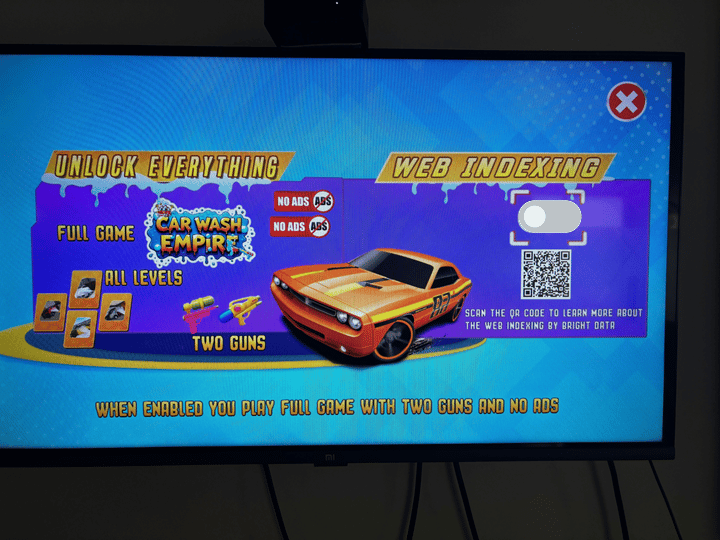
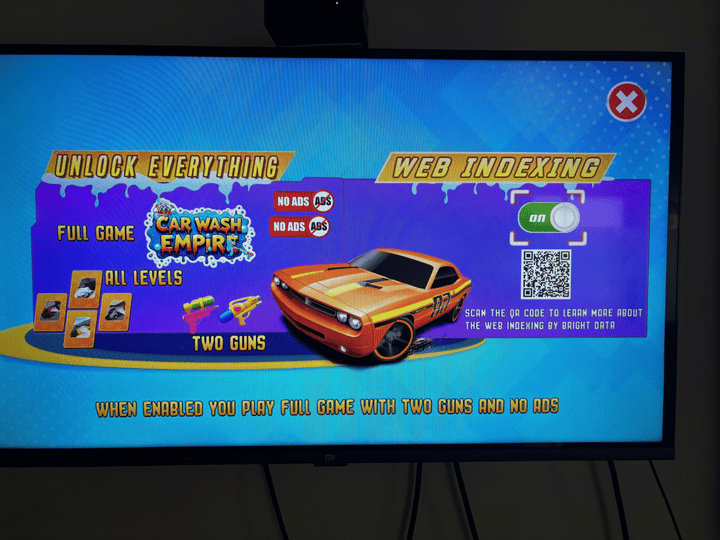
See below some examples of possible custom consent screens:
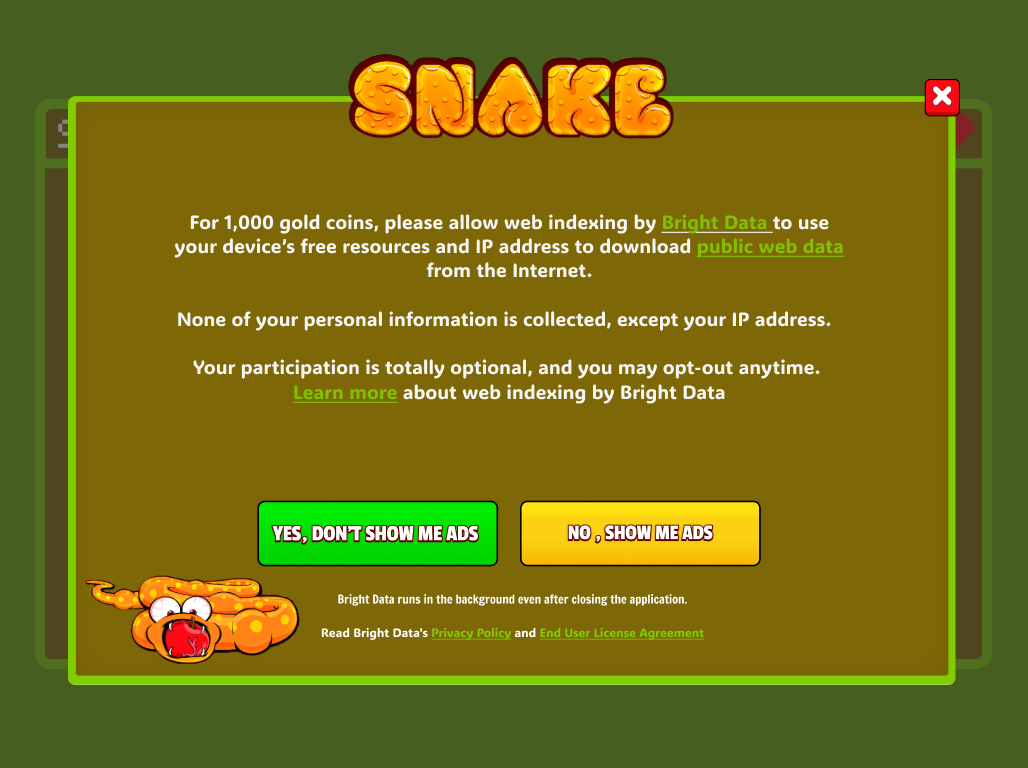

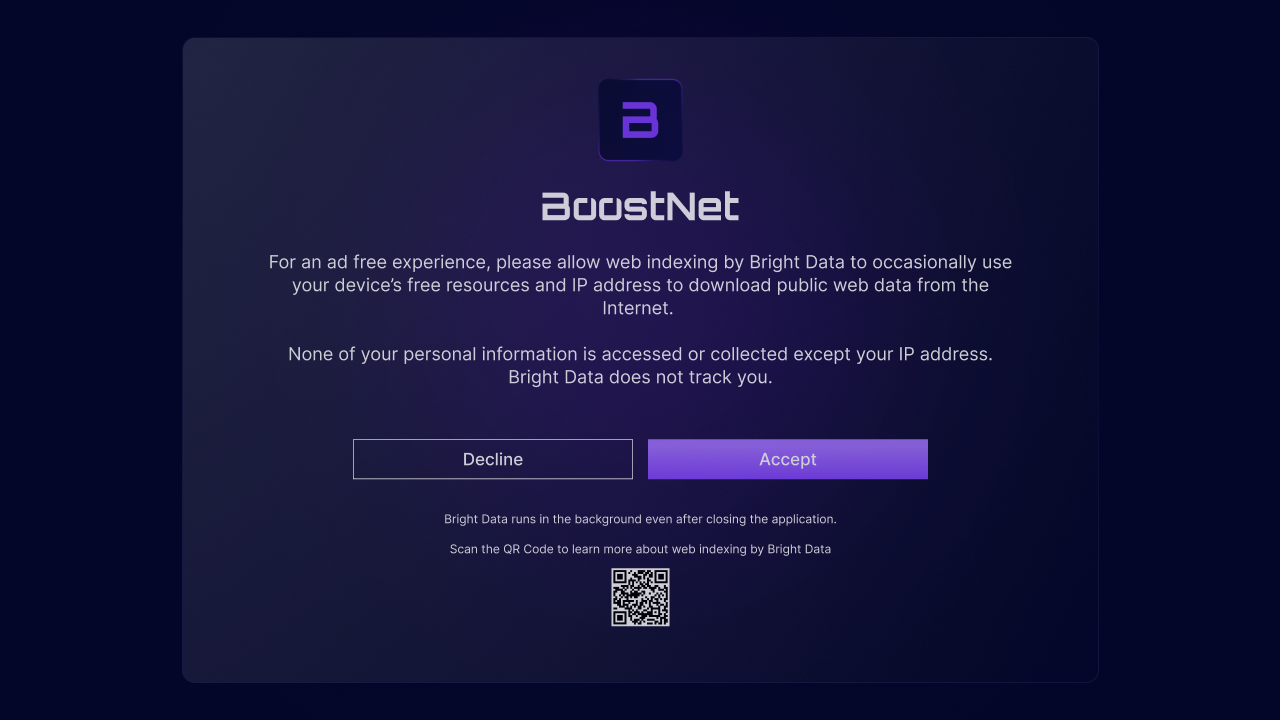
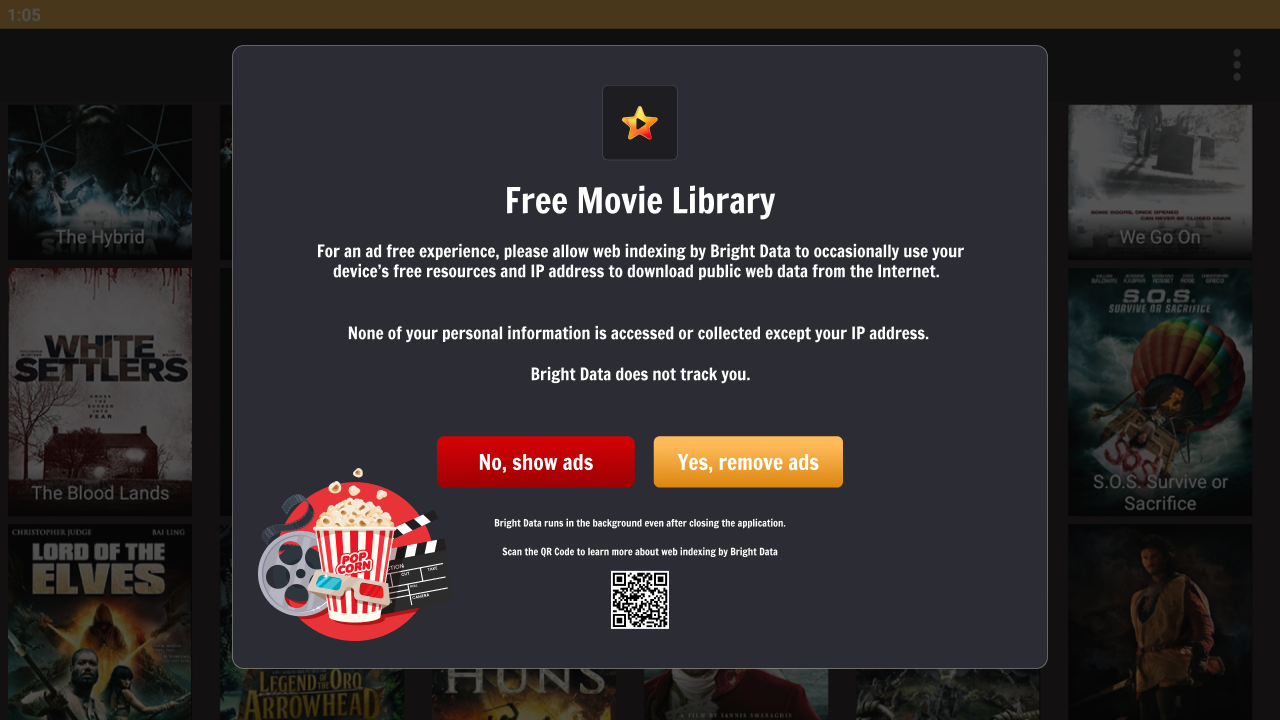 ;
export const SubmitIntegrationReview = ({platform}) => <>
;
export const SubmitIntegrationReview = ({platform}) => <>
Pre-Submission Requirements
The Bright Data SDK compliance team will verify:
- SDK integration UX and functionality.
- Consent screen implementation.
- Opt-out mechanism.
- User value proposition.
-
Submission Process
Self-check using an emulator/simulator is not yet supported. Currently, self-check can only be performed on a real device.
-
Run Self-Check (takes a few minutes) — Complete the self-check verification to identify potential issues before submission:
- Navigate to the Bright SDK Dashboard and click your appID.
- Scroll down to "Implementation self-check", click "Get started".
- Install the app on the test device and follow the instructions.
- If the self-check passed successfully, submit it for review!
If the SDK isn't initializing / peer not connecting:
- Verify the correct App ID is used, confirm the SDK service is running.
- Check there aren't multiple SDK apps running from the same IP — that can interfere.
- If nothing helps, check with our team.
-
Submit for review via Dashboard
- Navigate to the Bright SDK Dashboard.
- Select your app ID.
- Click "Submit for Review".
- Complete the compliance checklist to validate adherence to guidelines.
- Upload your package.
-
Store submission — You will be notified by email once your app is approved for release. The app status in the dashboard will also be changed to "Approved".
{platform !== "ios" && platform !== "macos" && platform !== "android" && <>
Guides to help you through the store review:
}
-
Review Resources
{platform === "ios" && <>
For iOS/tvOS — How to submit your build:
- Paste a public link in the "Submit for Review" window on the dashboard, OR
- Send via TestFlight to all 4 addresses below (one invite per address):
| Email |
| sdk@brightdata.com |
| sdk+1@brightdata.com |
| sdk+2@brightdata.com |
| sdkcompliance@brightdata.com |
}
We will review each app up to 3 times. 3 rejections or failure to meet minimum quality standards may result in final rejection.
;
Bright SDK supports Android native apps written in **Java** and **Kotlin**, and also cross-platform development frameworks such as **Unity**, **Flutter**, and **Xamarin**.
For Unity-specific integration help, refer to the [Unity Android SDK Integration Guide](https://docs.bright-sdk.com/integration-guides/unity-sdk).\
Adding Bright SDK to most apps takes 15 to 20 minutes.
### Requirements
* [Latest](https://bright-sdk.com/cp/docs/sdk/android) Bright SDK version for Android.
* Java 8 or higher (`JavaVersion.VERSION_1_8`).
* Android Studio (latest recommended).
If you are using Java \< v8, please [contact](mailto:sales_sdk@brightdata.com) our technical support.
### Important Notes
* Users must **always** voluntarily decide to opt in after seeing the consent screen, and must **always** have an easy way to opt out.
* Bright Data reviews SDK integration after initial release and regularly thereafter. Your account **will be terminated** if you violate the guidelines in this document.
* Bright Data recommends offering value in exchange for opting in (e.g., fewer ads, bonus coins, premium features). However, simply asking for user support is also acceptable.
* **Do not upload** your APK with Bright SDK to the Google Play Store **without prior approval**.
If you haven't done this yet, log in to [your dashboard](https://bright-sdk.com/cp/apps) and create your app ID first.
You can set up the Bright SDK AAR in your Android app in two ways:
* [**Using the Bright SDK Gradle Plugin**](https://brightsdk.github.io/bright-sdk-gradle-plugin-guide/) Recommended - automatically authenticates, fetches, downloads, and places the latest `bright_sdk.aar` into your `/libs` directory before every build.
* **Manually** - download the SDK using the [BrightSDK Downloader](https://brightsdk.github.io/bright-sdk-downloader-rs/), unzip it, and copy `bright_sdk.aar` into your project's `/libs` directory yourself.
Either way, you will still need to configure your `build.gradle` dependencies and add the SDK initialization code to your app.
Option A - Using the Gradle Plugin Recommended}>
Add the plugin to your project by following the [Bright SDK Gradle Plugin guide](https://brightsdk.github.io/bright-sdk-gradle-plugin-guide/).
The plugin will:
* Fetch the latest `bright_sdk.aar` via the authenticated BrightSDK API and place it into your `libs/` directory
* Cache the file locally to avoid redundant re-downloads
* Auto-inject the SDK and its dependencies (when `useMavenLocal: true`), removing the need to manually configure `flatDir` and `fileTree`
* Run automatically before `preBuild` via the `installBrightSdk` Gradle task
Once the plugin is set up, skip to [Step 3 - Configure and Initialize the SDK](https://docs.bright-sdk.com/integration-guides/android-sdk#configure-and-initialize-the-sdk).
Download the latest Bright SDK using the [Bright SDK downloader](https://brightsdk.github.io/bright-sdk-downloader-rs/), and unzip it.
**SDK Structure**
```text theme={null}
all/
bright_sdk.aar ← SDK AAR file (obfuscated)
```
**SDK Overview**
| Component | Description |
| :--------------- | :--------------------------------------------------- |
| `bright_sdk.aar` | The main Bright SDK library for Android. Obfuscated. |
Copy `bright_sdk.aar` into your project's `/libs` directory.
**Gradle Plugin users:** If you used the plugin with `useMavenLocal: true`, the `flatDir` and `fileTree` configurations are already handled - skip this sub-step.
In your **app-level** `build.gradle` file, make the following additions:
**Add to `android` block:**
```groovy theme={null}
compileOptions {
sourceCompatibility JavaVersion.VERSION_1_8
targetCompatibility JavaVersion.VERSION_1_8
}
```
**Add `implementation fileTree(dir: 'libs', include: ['*.aar'])` to `dependencies` block:**
```groovy theme={null}
dependencies {
implementation fileTree(dir: 'libs', include: ['*.jar'])
implementation 'com.android.support:appcompat-v7:26.1.0'
implementation 'androidx.core:core:1.9.0'
implementation 'androidx.constraintlayout:constraintlayout:2.1.4'
implementation fileTree(dir: 'libs', include: ['*.aar'])
}
```
**Add `flatDir { dirs "$rootProject.projectDir/libs" }` to `allprojects.repositories` block:**
```groovy theme={null}
allprojects {
repositories {
jcenter()
maven { url "https://maven.google.com" }
flatDir { dirs "$rootProject.projectDir/libs" }
}
}
```
In your `MainActivity` (or equivalent entry point), import Bright SDK:
```java theme={null}
package ...
import ...
import ...
import com.android.eapx;
```
Create a dedicated function `startBrightSdk` to set up the SDK. This should be **invoked only once** on first run.
```java theme={null}
void startBrightSdk(Context context) {
// Create a Settings object
Settings settings = new Settings(context);
// Set the language for the consent screen
// If not set, the device's default language will be used
settings.setLanguage(Settings.ConsentLanguage.en);
// Set to true to prevent the consent screen from showing automatically
settings.setSkipConsent(true);
// Benefit text appears at the start of the consent text
settings.setBenefit("To play for free");
// Set button texts (defaults will be used if not set)
settings.setAgreeBtn("YES, NO ADS!");
settings.setDisagreeBtn("SHOW ME ADS");
// If you are using JobScheduler, set job id range to avoid collisions
settings.setMinJobId(1);
settings.setMaxJobId(1000);
// Handle user selection
settings.setOnStatusChange(choice -> {
switch (choice) {
case BrightApi.Choice.PEER:
// User agreed — e.g. update local settings
setBrightSdkEnabled(context);
break;
case BrightApi.Choice.NOT_PEER:
// User declined — e.g. start subscription process
startSubscriptionProcess(context);
break;
case BrightApi.Choice.NONE:
// Consent not shown yet or no choice made
break;
}
});
// Initialize the SDK
BrightApi.init(this, settings);
// Show the consent dialog
BrightApi.showConsent(this);
}
```
The consent screen will be shown automatically when you call `BrightApi.init()`, unless you set `setSkipConsent(true)`. To show it manually later, call `BrightApi.showConsent(context)`.
`startBrightSdk` must only be called **once**. Use `savedInstanceState` to guard against repeated calls:
```java theme={null}
@Override
protected void onCreate(Bundle savedInstanceState) {
super.onCreate(savedInstanceState);
setContentView(R.layout.activity_main);
// Ensure startBrightSdk is called only on first run
if (savedInstanceState != null)
return;
startBrightSdk(this);
}
```
This section only applies if you have extended the `Application` class or its descendants (e.g., `MultiDexApplication`). If not, skip to the next section.
The SDK runs in a **separate process**. If your `Application.onCreate()` code crashes, it will also crash the SDK service and impact your revenue. To prevent this, exit early when inside the SDK service process:
Option 1 - Using SDK helper method Recommended}>
```java theme={null}
public class MyApplication extends Application {
@Override
public void onCreate() {
super.onCreate();
if (BrightApi.isSvcProcess())
return;
// rest of your application code
}
}
```
```java theme={null}
public void onCreate() {
super.onCreate();
String processName = this.getProcessName();
if (processName != null
&& (processName.endsWith("srvh")
|| processName.endsWith("srvj"))) {
return;
}
// rest of your application code
}
```
See [this article](https://developer.android.com/reference/android/app/Application#getProcessName\(\)) for reference on detecting process names in Android.
When a user cancels their subscription, show the Bright SDK consent screen as an alternative:
```java theme={null}
void startSubscriptionProcess(Context context) {
// other subscription code
if (!subscribed) // show dialog on subscription cancel
BrightApi.showConsent(context);
}
```
To show the consent dialog at any point (e.g., from Settings, on opt-in request):
```java theme={null}
// Show with existing settings:
BrightApi.showConsent(Context context);
// Show with updated settings:
BrightApi.showConsent(Context context, Settings settings);
```
If you are using ProGuard, add the following to your `proguard-rules.pro` to avoid known build issues:
```text theme={null}
-dontnote brdat.sdk.**
```
Read and implement this section carefully. **The user must always be able to opt out of Bright SDK after giving their initial consent.**
Your app must include a settings option allowing users to opt in or out at any time. This is typically placed in a **Settings** menu.
**Opt-Out for Mobile Apps**
**Requirements:**
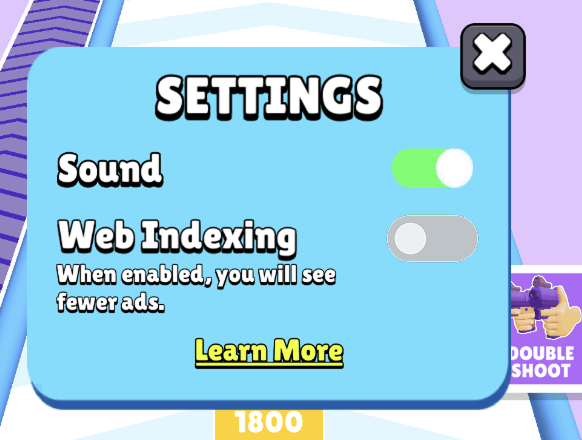
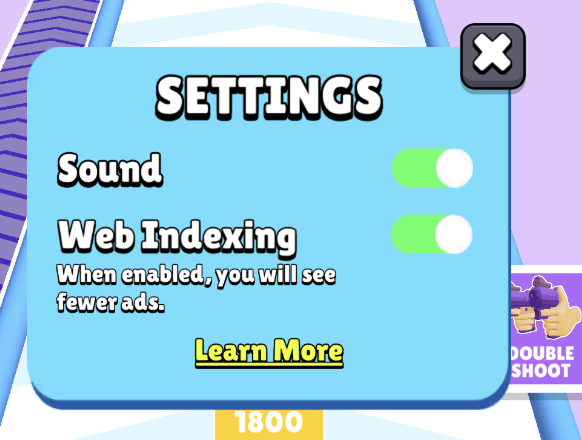
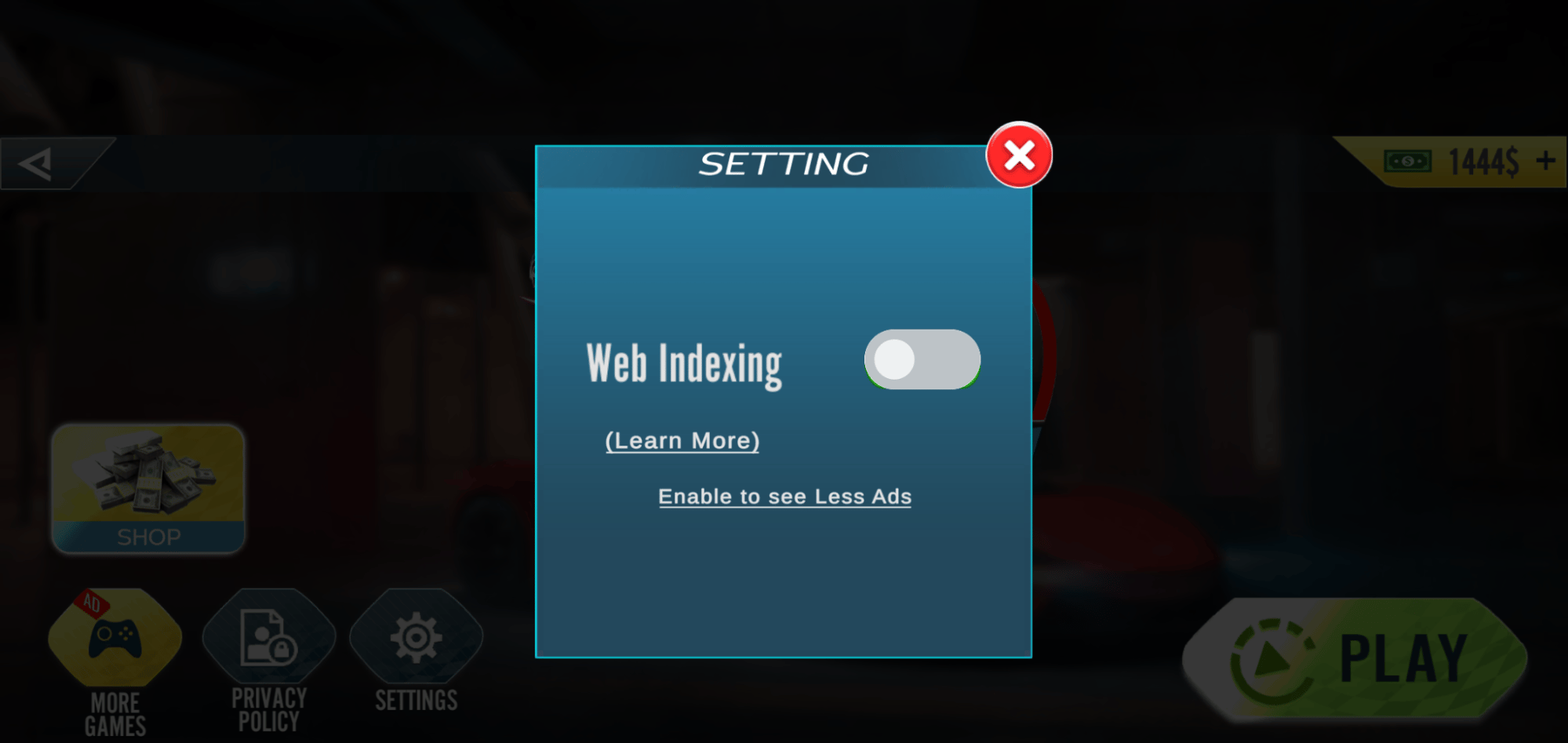
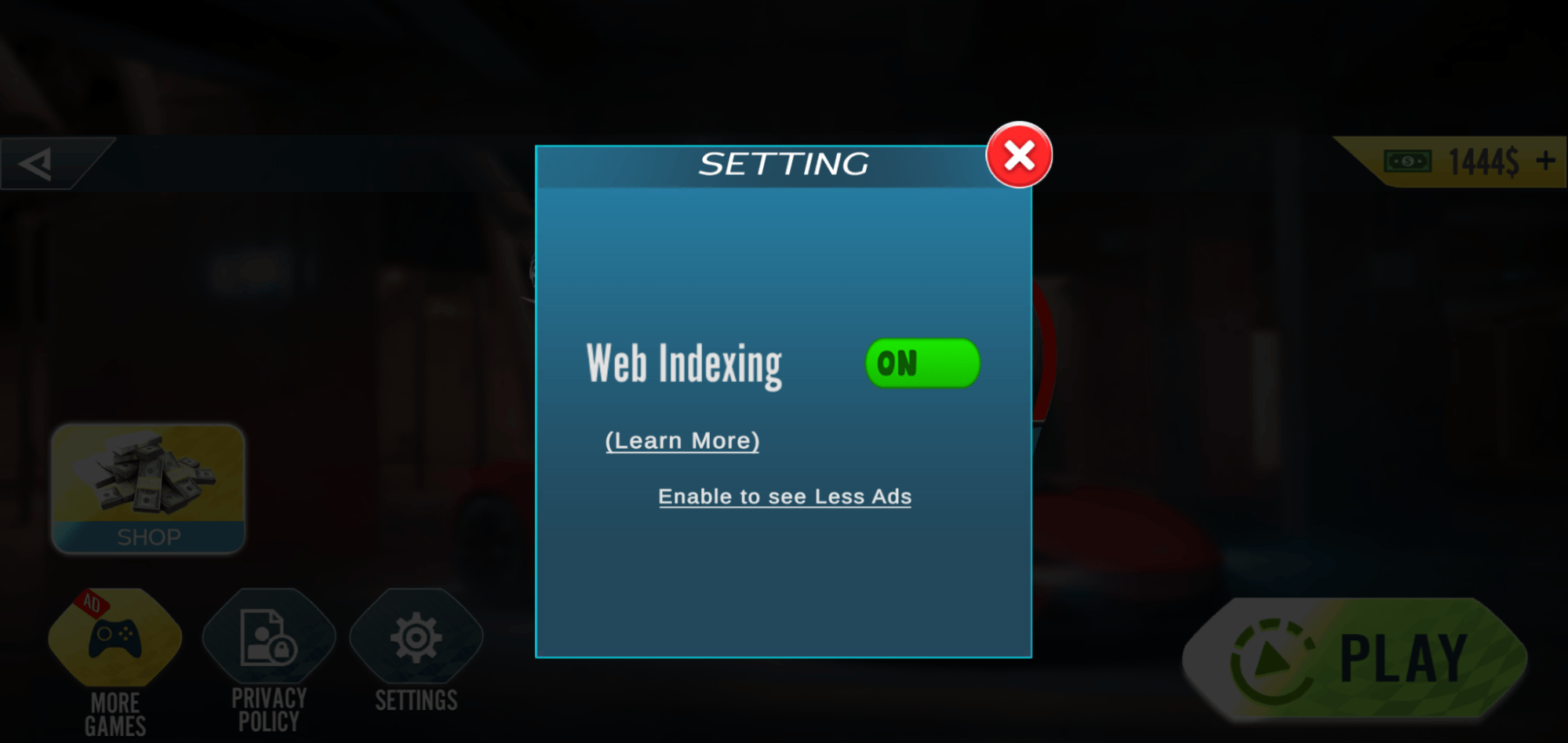
* Add a toggle/switch labeled **"Web Indexing"** that clearly reflects the current status (opted in or out).
* Below the switch, add text emphasizing the value users receive when opting in ([see examples](#add-opt-in/out-settings-option)).
* Include a **Learn more** link that opens: [https://bright-sdk.com/users#learn-more-about-bright-sdk-web-indexing](https://bright-sdk.com/users#learn-more-about-bright-sdk-web-indexing).
**Implementation:**
When the user toggles **off**:
```java theme={null}
void userRequestedToTurnOffBrightSdkFromOptions(Context context) {
BrightApi.optOut(context);
}
```
When the user toggles on → call `BrightApi.showConsent(context)` to show the consent screen.
Note: There is no way to directly opt in. Only the user can decide. You must show the consent screen - opt-in happens automatically only if the user agrees.
**Opt-Out for TV Apps**
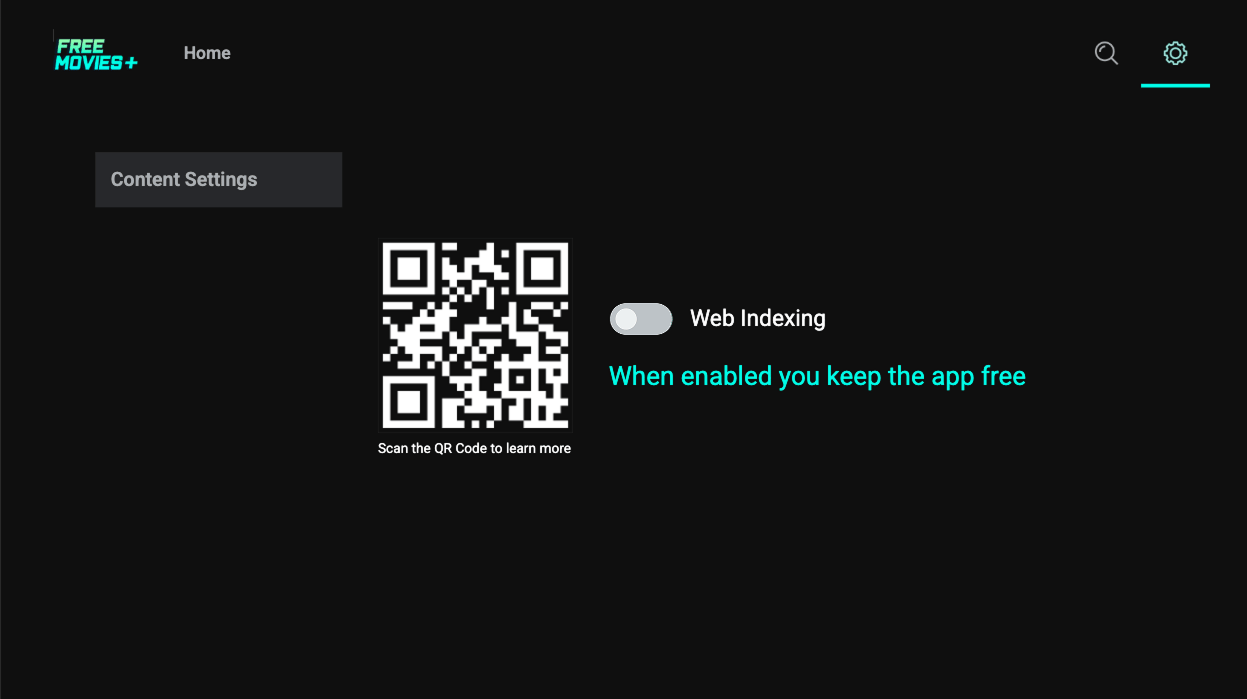
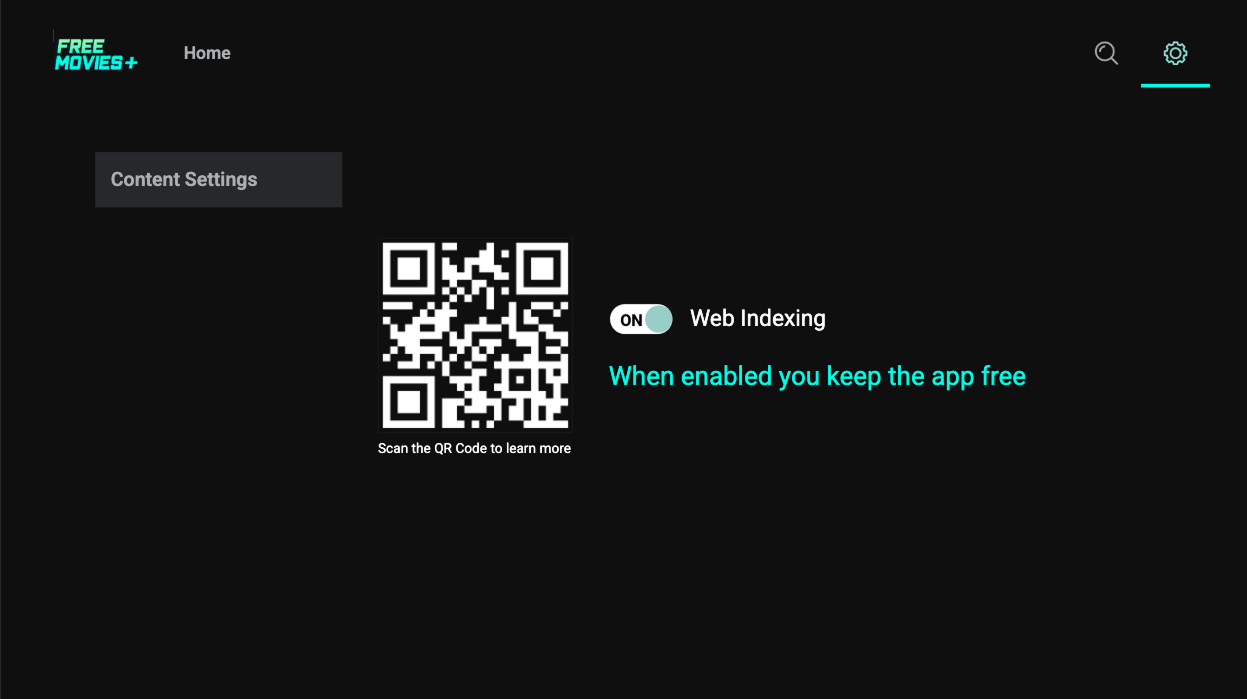
**Requirements:**
* Add a toggle/switch labeled "**Web Indexing**" that clearly reflects the current status.
* Below the switch, add text emphasizing the value users receive when opting in.
* Include a QR code linking to: [https://bright-sdk.com/users#learn-more-about-bright-sdk-web-indexing](https://bright-sdk.com/users#learn-more-about-bright-sdk-web-indexing).
* The QR code **must** be accompanied by the instruction: *"Scan the QR Code to learn more about web indexing by Bright Data.".*
* You may use your own branded QR code, or the [hosted version](https://media.bright-sdk.com/2023/09/qr-bright-sdk-faq.svg).
 You may add a confirmation dialog to discourage opting out (e.g., "If you disable Web Indexing, you will start seeing ads. Continue?")
**Value text suggestions (both mobile and TV):**
| State | Example text |
| --------- | -------------------------------------- |
| Opted out | "Enable to see fewer ads" |
| Opted out | "Enable to get 100 extra coins" |
| Opted out | "Enable to enjoy premium features" |
| Opted in | "When enabled you see fewer ads" |
| Opted in | "When enabled you get 100 extra coins" |
Refrain from using technical terms like "opt in" / "opt out" — always speak in terms of user value.
See the examples below, illustrating both opted-in and opted-out scenarios:
**Mobile:**
**TV:**
**Common mistakes to avoid:**
| Issue | Guidance |
| ------------------------------------ | -------------------------------------------------- |
| Label reads "Bright" or "Bright SDK" | Label must read "Web Indexing" |
| No value text | Always include text describing what the user gains |
| No "Learn more" link / QR code | Required — must link to the URL above |
| Switch doesn't reflect current state | Switch must always show the true current status |
While the standard Bright SDK consent screen is always available, we **highly encourage customization** to match your app's look & feel - this typically leads to higher conversion rates.
There are two customization options:
| Option | Description |
| :---------------------- | :-------------------------------------------- |
| `CustomConsentSettings` | Modify the built-in Bright SDK consent screen |
| External consent screen | Build your own consent UI entirely |
This is what it looks like on the default Bright SDK screen:
You may add a confirmation dialog to discourage opting out (e.g., "If you disable Web Indexing, you will start seeing ads. Continue?")
**Value text suggestions (both mobile and TV):**
| State | Example text |
| --------- | -------------------------------------- |
| Opted out | "Enable to see fewer ads" |
| Opted out | "Enable to get 100 extra coins" |
| Opted out | "Enable to enjoy premium features" |
| Opted in | "When enabled you see fewer ads" |
| Opted in | "When enabled you get 100 extra coins" |
Refrain from using technical terms like "opt in" / "opt out" — always speak in terms of user value.
See the examples below, illustrating both opted-in and opted-out scenarios:
**Mobile:**
**TV:**
**Common mistakes to avoid:**
| Issue | Guidance |
| ------------------------------------ | -------------------------------------------------- |
| Label reads "Bright" or "Bright SDK" | Label must read "Web Indexing" |
| No value text | Always include text describing what the user gains |
| No "Learn more" link / QR code | Required — must link to the URL above |
| Switch doesn't reflect current state | Switch must always show the true current status |
While the standard Bright SDK consent screen is always available, we **highly encourage customization** to match your app's look & feel - this typically leads to higher conversion rates.
There are two customization options:
| Option | Description |
| :---------------------- | :-------------------------------------------- |
| `CustomConsentSettings` | Modify the built-in Bright SDK consent screen |
| External consent screen | Build your own consent UI entirely |
This is what it looks like on the default Bright SDK screen:
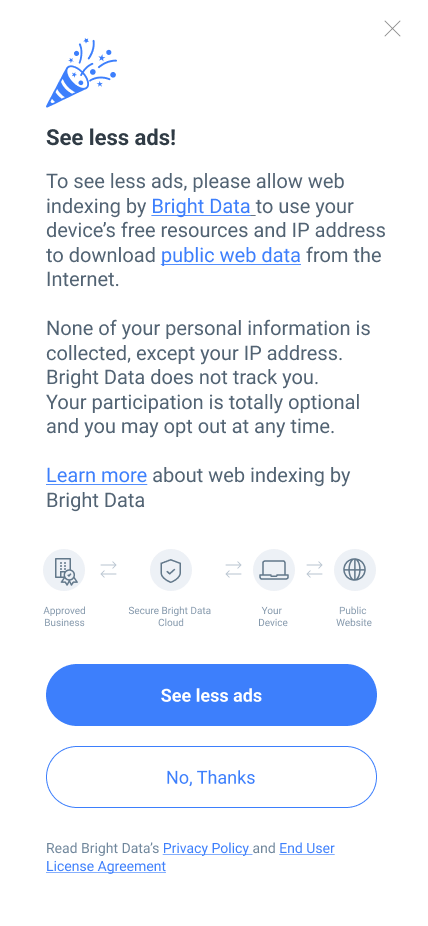 Use `CustomConsentSettings` to customize colors, fonts, backgrounds, and button styles:
```java theme={null}
@Override
protected void onCreate(Bundle savedInstanceState) {
super.onCreate(savedInstanceState);
setContentView(R.layout.activity_main);
CustomConsentSettings customConsentSettings = new CustomConsentSettings();
// Title color
customConsentSettings.setAppTitleTextColor("#facd00");
// Custom background image
customConsentSettings.setBodyBackgroundImageResource(R.drawable.your_custom_background);
// Or use a background color instead
customConsentSettings.setBodyBackgroundColor("#D5E6FF");
// Custom font using system fonts
CustomTypeface customTypeface = new CustomTypeface();
customTypeface.setFontFamily(CustomConsentSettings.CustomFontFamily.cursive);
customTypeface.setTextStyle(CustomConsentSettings.CustomTextStyle.bold);
// Or using a premade Typeface object
Typeface typeface = ResourcesCompat.getFont(this, R.font.pretendo);
customTypeface.setTypeface(typeface);
// Apply to a specific element
customConsentSettings.setConsentTextTypeface(customTypeface);
// Or apply to all text elements at once
// (specific element settings always take precedence)
customConsentSettings.setCustomTypeface(customTypeface);
// Other customizations
customConsentSettings.setTopIconColorFilter("#00ADB5");
customConsentSettings.setNetworkIconsColorFilter("#00ADB5");
customConsentSettings.setAgreeButtonBackgroundColor("#00ADB5");
customConsentSettings.setDisagreeButtonTextColor("#00ADB5");
customConsentSettings.setConsentTextLinksColor("#393E46");
customConsentSettings.setPrivacyMessageLinksColor("#00ADB5");
customConsentSettings.setAgreeButtonImageResource(R.drawable.your_custom_button);
customConsentSettings.setDisagreeButtonImageResource(R.drawable.your_custom_button);
settings.setCustomConsentSettings(customConsentSettings);
BrightApi.showConsent(this, settings);
}
```
See the full list of available `CustomConsentSettings` properties in the [API Documentation](#api-documentation).
We prioritize user experience. Ensure your app maintains good performance.
Performance Guidelines:
1. ✅ No input lag - ensure responsive UI interactions.
2. ✅ Average CPU load: ≤ 50%.
3. ✅ RAM usage: ≤ 90%.
**Important:** If system load is too high, we cannot use the device's free resources. Such devices will not be counted as active and will not generate revenue.
1. Compile and run your application on a device or emulator
2. Click **I Agree** in the SDK consent dialog
3. After a few minutes, search your logs for `cskd/cid`
4. You should see a line similar to:
```text theme={null}
2021-06-16 15:36:59.960 11557-11629/your.app.id I/cskd/cid:
54.221.207.68-33f08a02/1s17c2p443_54.221.207.68_64377 [radio0]
```
Use `CustomConsentSettings` to customize colors, fonts, backgrounds, and button styles:
```java theme={null}
@Override
protected void onCreate(Bundle savedInstanceState) {
super.onCreate(savedInstanceState);
setContentView(R.layout.activity_main);
CustomConsentSettings customConsentSettings = new CustomConsentSettings();
// Title color
customConsentSettings.setAppTitleTextColor("#facd00");
// Custom background image
customConsentSettings.setBodyBackgroundImageResource(R.drawable.your_custom_background);
// Or use a background color instead
customConsentSettings.setBodyBackgroundColor("#D5E6FF");
// Custom font using system fonts
CustomTypeface customTypeface = new CustomTypeface();
customTypeface.setFontFamily(CustomConsentSettings.CustomFontFamily.cursive);
customTypeface.setTextStyle(CustomConsentSettings.CustomTextStyle.bold);
// Or using a premade Typeface object
Typeface typeface = ResourcesCompat.getFont(this, R.font.pretendo);
customTypeface.setTypeface(typeface);
// Apply to a specific element
customConsentSettings.setConsentTextTypeface(customTypeface);
// Or apply to all text elements at once
// (specific element settings always take precedence)
customConsentSettings.setCustomTypeface(customTypeface);
// Other customizations
customConsentSettings.setTopIconColorFilter("#00ADB5");
customConsentSettings.setNetworkIconsColorFilter("#00ADB5");
customConsentSettings.setAgreeButtonBackgroundColor("#00ADB5");
customConsentSettings.setDisagreeButtonTextColor("#00ADB5");
customConsentSettings.setConsentTextLinksColor("#393E46");
customConsentSettings.setPrivacyMessageLinksColor("#00ADB5");
customConsentSettings.setAgreeButtonImageResource(R.drawable.your_custom_button);
customConsentSettings.setDisagreeButtonImageResource(R.drawable.your_custom_button);
settings.setCustomConsentSettings(customConsentSettings);
BrightApi.showConsent(this, settings);
}
```
See the full list of available `CustomConsentSettings` properties in the [API Documentation](#api-documentation).
We prioritize user experience. Ensure your app maintains good performance.
Performance Guidelines:
1. ✅ No input lag - ensure responsive UI interactions.
2. ✅ Average CPU load: ≤ 50%.
3. ✅ RAM usage: ≤ 90%.
**Important:** If system load is too high, we cannot use the device's free resources. Such devices will not be counted as active and will not generate revenue.
1. Compile and run your application on a device or emulator
2. Click **I Agree** in the SDK consent dialog
3. After a few minutes, search your logs for `cskd/cid`
4. You should see a line similar to:
```text theme={null}
2021-06-16 15:36:59.960 11557-11629/your.app.id I/cskd/cid:
54.221.207.68-33f08a02/1s17c2p443_54.221.207.68_64377 [radio0]
```
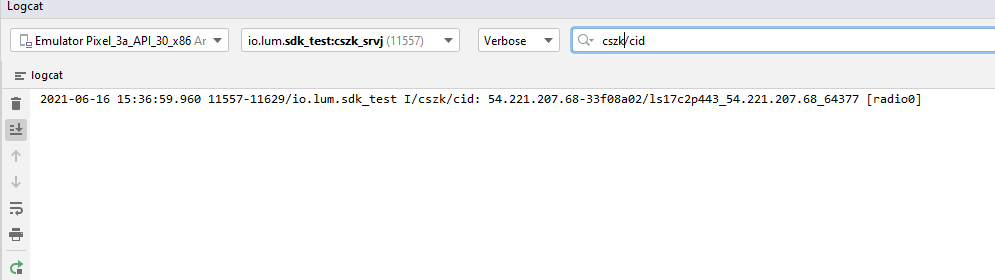 If this line appears, the integration is complete. If not, ensure you are not suppressing application output, then contact support.
Bright Data ensures users are fully informed about joining the peer network.
**Add the following text to your Terms of Service web page (TOS, EULA, or Privacy Policy):**
*In return for premium features of '\[Your App Name]', you may choose to be a peer on the Bright Data network. By doing so, you agree to have read and accepted the [Bright SDK EULA](https://bright-sdk.com/eula) and [Bright Data's Privacy Policy](https://bright-sdk.com/privacy-policy).*
*You may opt out of the Bright Data network by \[add clear opt-out instructions].*
**Requirements:**
1. Include all text and links as provided above.
2. Any additional Bright SDK-related content must be shared during the app review process for approval.
Run your Gradle build as usual. As long as `version` is set to `"latest"` (default), the plugin will automatically detect, download, and replace `bright_sdk.aar` with the latest version. To force a fresh check, run:
```bash theme={null}
./gradlew build --refresh-dependencies
```
1. Download the latest Bright SDK using the [Bright SDK downloader](https://bright-sdk.com/cp/docs/sdk/android), and unzip it.
2. Replace `bright_sdk.aar` in your `/libs` folder with the updated version.
3. If some methods are not available after updating, use **File → Invalidate Caches** in Android Studio.
The V2 API introduces a customizable consent screen. All main V1 methods are deprecated and replaced by `BrightApi`.
| V1 | V2 |
| -------------------------------- | --------------------------------------------------------- |
| `main.set_tos_url(...)` | Handled automatically |
| `main.set_decline_option(...)` | `settings.setDisagreeBtn(...)` |
| `main.set_jobid_range(min, max)` | `settings.setMinJobId(min)` + `settings.setMaxJobId(max)` |
| `main.set_choice_listener(...)` | `settings.setOnStatusChange(...)` |
| `main.start(ctx)` | `BrightApi.init(context, settings)` |
| `main.show_dialog(ctx, false)` | `BrightApi.showConsent(context)` |
**Full V1 example:**
```java theme={null}
void start_bright_sdk(Context ctx) {
main.set_tos_url("http://mysite.com/tos.html");
main.set_decline_option(main.DECLINE_OPTION.NO_THANK_YOU);
main.set_jobid_range(1, 1000);
main.set_choice_listener(new main.choice_listener() {
public void on_change(int choice) {
switch (choice) {
case main.choice.PEER:
set_bright_sdk_enabled(ctx);
break;
case main.choice.NOT_PEER:
start_subscription_process(ctx);
break;
}
}
});
main.start(ctx); // must be called after all main.set* calls
main.show_dialog(ctx, false); // dialog will be shown once
}
```
**Full V2 example:**
```java theme={null}
void startBrightSdk(Context ctx) {
Settings settings = new Settings(context);
settings.setAgreeBtn("Yes, sure!");
settings.setDisagreeBtn("No, thank you");
settings.setMinJobId(1);
settings.setMaxJobId(1000);
settings.setOnStatusChange(choice -> {
switch (choice) {
case BrightApi.Choice.PEER:
// User agreed
break;
case BrightApi.Choice.NONE:
// Consent not shown or no choice made
break;
case BrightApi.Choice.NOT_PEER:
// User declined
break;
}
});
// Init — consent screen shown automatically unless setSkipConsent(true)
BrightApi.init(context, settings);
}
```
**Public Methods:**
| Method | Description |
| --------------------------------------------------------------- | ----------------------------------------------------------------------------------------------------------------------------------- |
| `static void init(Context context, Settings settings)` | Initializes the SDK. Call **once** in your first activity. Shows consent dialog automatically unless `setSkipConsent(true)` is set. |
| `static void showConsent(Activity activity)` | Displays the consent dialog. Use when a user tries to close an ad or re-enables Bright SDK from Settings. |
| `static void showConsent(Activity activity, Settings settings)` | Displays the consent dialog with a new settings object. |
| `static void optOut(Context context)` | Revokes the user's consent and sets `Choice.NOT_PEER`. Triggers `OnStatusChange` callback. |
| `static Boolean getConsentChoice(Context context)` | Returns `true` if user is peer, `false` if not peer, `null` if no choice has been made yet. |
| `static boolean isSvcProcess()` | Returns `true` if the current process is the SDK service process. |
| `static void setTrackingId(String trackingId)` | Adds a unique tracking ID for reports and debugging. Must be called **before**`BrightApi.init`. |
| `static void reportConsentShown(Context context)` | |
| `static void reportConsentBackPress(Context context)` | |
| `static void reportConsentOptOut(Context context)` | |
**Constructor:**
```java theme={null}
Settings(Context context)
```
**Public Methods:**
| Method | Description |
| ----------------------------------------------------------------- | ----------------------------------------------------------------------- |
| `String getAppId()` | Returns Application ID as defined in `ApplicationInfo.packageName` |
| `String getAppName()` | Returns app name as defined in `ApplicationInfo.loadLabel` |
| `void setSkipConsent(boolean skipConsent)` | Set `true` to prevent consent dialog from showing automatically |
| `void setLanguage(ConsentLanguage language)` | Override the device default language |
| `void setBenefit(String benefit)` | Prefix text for the consent dialog (e.g., "To use the app with no ads") |
| `void setAgreeBtn(String agreeBtn)` | Text for the agree button. Default text used if not set. |
| `void setDisagreeBtn(String disagreeBtn)` | Text for the disagree button. Default text used if not set. |
| `void setOnStatusChange(OnStatusChange onStatusChange)` | Register a callback for user choice changes |
| `void setMinJobId(int minJobId)` | Min job ID for JobScheduler. Default range: 1–1000 |
| `void setMaxJobId(int maxJobId)` | Max job ID for JobScheduler. Default range: 1–1000 |
| `void setCustomConsentSettings(CustomConsentSettings ccs)` | Apply custom consent screen settings |
| `void setShowAppIcon(boolean showAppIcon)` | Show the default app icon on the consent screen |
| `void setShowAppIcon(boolean showAppIcon, int appLogoResourceId)` | Show a custom image resource as the app icon |
| `void setShowAppIcon(boolean showAppIcon, byte[] imageBytes)` | Show a custom image (bytes) as the app icon |
| `void setOptOutInstructions(String optOutInstructions)` | Custom opt-out instructions text |
| `void setCampaignId(String campaignId)` | Set a campaign ID |
| `void setBackPressListener(Runnable backPressListener)` | Listener for back press on consent screen |
| Method | Description |
| ----------------------------------------------------------- | -------------------------------------------------------------------- |
| `setConsentTitle(String)` | Set the consent screen title |
| `setAppTitleTextColor(String)` | App title text color |
| `setAppTitleTypeface(CustomTypeface)` | App title font |
| `setBodyBackgroundColor(String)` | Body background color |
| `setBodyBackgroundImageResource(int)` | Body background image (resource ID) |
| `setBodyBackgroundImageBytes(byte[])` | Body background image (bytes) |
| `setBodyBackgroundShadow(boolean)` | Enable/disable body background shadow |
| `setScreenBackgroundColor(String)` | Screen background color |
| `setScreenBackgroundImageResource(int)` | Screen background image (resource ID) |
| `setScreenBackgroundImageResource(int, boolean fillScreen)` | Screen background image with fill option |
| `setScreenBackgroundImageBytes(byte[])` | Screen background image (bytes) |
| `setScreenBackgroundImageBytes(byte[], boolean fillScreen)` | Screen background image (bytes) with fill option |
| `setConsentTextColor(String)` | Consent main text color |
| `setConsentTextTypeface(CustomTypeface)` | Consent main text font |
| `setAgreeButtonImageResource(int)` | Agree button image (resource ID) |
| `setDisagreeButtonImageResource(int)` | Disagree button image (resource ID) |
| `setAgreeButtonImageBytes(byte[])` | Agree button image (bytes) |
| `setDisagreeButtonImageBytes(byte[])` | Disagree button image (bytes) |
| `setAgreeButtonTextColor(String)` | Agree button text color |
| `setDisagreeButtonTextColor(String)` | Disagree button text color |
| `setAgreeButtonTypeface(CustomTypeface)` | Agree button font |
| `setDisagreeButtonTypeface(CustomTypeface)` | Disagree button font |
| `setConsentTextLinksColor(String)` | Consent text links color |
| `setAgreeButtonBackgroundColor(String)` | Agree button background color |
| `setDisagreeButtonBackgroundColor(String)` | Disagree button background color |
| `setPrivacyMessageTextColor(String)` | Privacy message text color |
| `setPrivacyMessageLinksColor(String)` | Privacy message links color |
| `setPrivacyMessageTextTypeface(CustomTypeface)` | Privacy message font |
| `setNetworkIconsColorFilter(String)` | Network icons color filter |
| `setNetworkIconsTextColor(String)` | Network icons text color |
| `setNetworkIconsTextTypeface(CustomTypeface)` | Network icons text font |
| `setHideNetworkIcons(boolean)` | Show/hide network icons |
| `setQrCodeColorFilter(String)` | QR code foreground color |
| `setQrCodeBackgroundColor(String)` | QR code background color |
| `setCustomTypeface(CustomTypeface)` | Apply font to all text elements (specific overrides take precedence) |
| `setTopIconColorFilter(String)` | Top icon color filter |
| `setHideConsentIcon(boolean)` | Show/hide the consent icon |
**Constructors:**
```java theme={null}
CustomTypeface()
CustomTypeface(Typeface typeface)
CustomTypeface(CustomConsentSettings.CustomFontFamily fontFamily,
CustomConsentSettings.CustomTextStyle textStyle)
```
**Methods:**
| Method | Description |
| ----------------------------------------------------------------------- | -------------------------------- |
| `void setTypeface(Typeface typeface)` | Set a `Typeface` object directly |
| `void setFontFamily(CustomConsentSettings.CustomFontFamily fontFamily)` | Set font family |
| `void setTextStyle(CustomConsentSettings.CustomTextStyle textStyle)` | Set text style |
| Value | Int | Description |
| ----------------- | --- | ---------------------------------------------------------- |
| `Choice.NONE` | 0 | Consent screen not shown yet, or user hasn't made a choice |
| `Choice.PEER` | 1 | User agreed — reflect in settings so user can opt out |
| `Choice.NOT_PEER` | 4 | User declined — reflect in settings so user can opt in |
Supported values: `en`, `de`, `es`, `fr`, `it`, `ja`, `pt`, `ru`, `tr`
Supported values: `casual`, `cursive`, `monospace`, `sans_serif`, `sans_serif_black`, `sans_serif_light`, `sans_serif_medium`, `sans_serif_smallcaps`, `sans_serif_thin`, `sans_serif_condensed`, `sans_serif_condensed_light`, `sans_serif_condensed_medium`, `serif`, `serif_monospace`
Supported values: `bold`, `bold_italic`, `italic`, `normal`
If this line appears, the integration is complete. If not, ensure you are not suppressing application output, then contact support.
Bright Data ensures users are fully informed about joining the peer network.
**Add the following text to your Terms of Service web page (TOS, EULA, or Privacy Policy):**
*In return for premium features of '\[Your App Name]', you may choose to be a peer on the Bright Data network. By doing so, you agree to have read and accepted the [Bright SDK EULA](https://bright-sdk.com/eula) and [Bright Data's Privacy Policy](https://bright-sdk.com/privacy-policy).*
*You may opt out of the Bright Data network by \[add clear opt-out instructions].*
**Requirements:**
1. Include all text and links as provided above.
2. Any additional Bright SDK-related content must be shared during the app review process for approval.
Run your Gradle build as usual. As long as `version` is set to `"latest"` (default), the plugin will automatically detect, download, and replace `bright_sdk.aar` with the latest version. To force a fresh check, run:
```bash theme={null}
./gradlew build --refresh-dependencies
```
1. Download the latest Bright SDK using the [Bright SDK downloader](https://bright-sdk.com/cp/docs/sdk/android), and unzip it.
2. Replace `bright_sdk.aar` in your `/libs` folder with the updated version.
3. If some methods are not available after updating, use **File → Invalidate Caches** in Android Studio.
The V2 API introduces a customizable consent screen. All main V1 methods are deprecated and replaced by `BrightApi`.
| V1 | V2 |
| -------------------------------- | --------------------------------------------------------- |
| `main.set_tos_url(...)` | Handled automatically |
| `main.set_decline_option(...)` | `settings.setDisagreeBtn(...)` |
| `main.set_jobid_range(min, max)` | `settings.setMinJobId(min)` + `settings.setMaxJobId(max)` |
| `main.set_choice_listener(...)` | `settings.setOnStatusChange(...)` |
| `main.start(ctx)` | `BrightApi.init(context, settings)` |
| `main.show_dialog(ctx, false)` | `BrightApi.showConsent(context)` |
**Full V1 example:**
```java theme={null}
void start_bright_sdk(Context ctx) {
main.set_tos_url("http://mysite.com/tos.html");
main.set_decline_option(main.DECLINE_OPTION.NO_THANK_YOU);
main.set_jobid_range(1, 1000);
main.set_choice_listener(new main.choice_listener() {
public void on_change(int choice) {
switch (choice) {
case main.choice.PEER:
set_bright_sdk_enabled(ctx);
break;
case main.choice.NOT_PEER:
start_subscription_process(ctx);
break;
}
}
});
main.start(ctx); // must be called after all main.set* calls
main.show_dialog(ctx, false); // dialog will be shown once
}
```
**Full V2 example:**
```java theme={null}
void startBrightSdk(Context ctx) {
Settings settings = new Settings(context);
settings.setAgreeBtn("Yes, sure!");
settings.setDisagreeBtn("No, thank you");
settings.setMinJobId(1);
settings.setMaxJobId(1000);
settings.setOnStatusChange(choice -> {
switch (choice) {
case BrightApi.Choice.PEER:
// User agreed
break;
case BrightApi.Choice.NONE:
// Consent not shown or no choice made
break;
case BrightApi.Choice.NOT_PEER:
// User declined
break;
}
});
// Init — consent screen shown automatically unless setSkipConsent(true)
BrightApi.init(context, settings);
}
```
**Public Methods:**
| Method | Description |
| --------------------------------------------------------------- | ----------------------------------------------------------------------------------------------------------------------------------- |
| `static void init(Context context, Settings settings)` | Initializes the SDK. Call **once** in your first activity. Shows consent dialog automatically unless `setSkipConsent(true)` is set. |
| `static void showConsent(Activity activity)` | Displays the consent dialog. Use when a user tries to close an ad or re-enables Bright SDK from Settings. |
| `static void showConsent(Activity activity, Settings settings)` | Displays the consent dialog with a new settings object. |
| `static void optOut(Context context)` | Revokes the user's consent and sets `Choice.NOT_PEER`. Triggers `OnStatusChange` callback. |
| `static Boolean getConsentChoice(Context context)` | Returns `true` if user is peer, `false` if not peer, `null` if no choice has been made yet. |
| `static boolean isSvcProcess()` | Returns `true` if the current process is the SDK service process. |
| `static void setTrackingId(String trackingId)` | Adds a unique tracking ID for reports and debugging. Must be called **before**`BrightApi.init`. |
| `static void reportConsentShown(Context context)` | |
| `static void reportConsentBackPress(Context context)` | |
| `static void reportConsentOptOut(Context context)` | |
**Constructor:**
```java theme={null}
Settings(Context context)
```
**Public Methods:**
| Method | Description |
| ----------------------------------------------------------------- | ----------------------------------------------------------------------- |
| `String getAppId()` | Returns Application ID as defined in `ApplicationInfo.packageName` |
| `String getAppName()` | Returns app name as defined in `ApplicationInfo.loadLabel` |
| `void setSkipConsent(boolean skipConsent)` | Set `true` to prevent consent dialog from showing automatically |
| `void setLanguage(ConsentLanguage language)` | Override the device default language |
| `void setBenefit(String benefit)` | Prefix text for the consent dialog (e.g., "To use the app with no ads") |
| `void setAgreeBtn(String agreeBtn)` | Text for the agree button. Default text used if not set. |
| `void setDisagreeBtn(String disagreeBtn)` | Text for the disagree button. Default text used if not set. |
| `void setOnStatusChange(OnStatusChange onStatusChange)` | Register a callback for user choice changes |
| `void setMinJobId(int minJobId)` | Min job ID for JobScheduler. Default range: 1–1000 |
| `void setMaxJobId(int maxJobId)` | Max job ID for JobScheduler. Default range: 1–1000 |
| `void setCustomConsentSettings(CustomConsentSettings ccs)` | Apply custom consent screen settings |
| `void setShowAppIcon(boolean showAppIcon)` | Show the default app icon on the consent screen |
| `void setShowAppIcon(boolean showAppIcon, int appLogoResourceId)` | Show a custom image resource as the app icon |
| `void setShowAppIcon(boolean showAppIcon, byte[] imageBytes)` | Show a custom image (bytes) as the app icon |
| `void setOptOutInstructions(String optOutInstructions)` | Custom opt-out instructions text |
| `void setCampaignId(String campaignId)` | Set a campaign ID |
| `void setBackPressListener(Runnable backPressListener)` | Listener for back press on consent screen |
| Method | Description |
| ----------------------------------------------------------- | -------------------------------------------------------------------- |
| `setConsentTitle(String)` | Set the consent screen title |
| `setAppTitleTextColor(String)` | App title text color |
| `setAppTitleTypeface(CustomTypeface)` | App title font |
| `setBodyBackgroundColor(String)` | Body background color |
| `setBodyBackgroundImageResource(int)` | Body background image (resource ID) |
| `setBodyBackgroundImageBytes(byte[])` | Body background image (bytes) |
| `setBodyBackgroundShadow(boolean)` | Enable/disable body background shadow |
| `setScreenBackgroundColor(String)` | Screen background color |
| `setScreenBackgroundImageResource(int)` | Screen background image (resource ID) |
| `setScreenBackgroundImageResource(int, boolean fillScreen)` | Screen background image with fill option |
| `setScreenBackgroundImageBytes(byte[])` | Screen background image (bytes) |
| `setScreenBackgroundImageBytes(byte[], boolean fillScreen)` | Screen background image (bytes) with fill option |
| `setConsentTextColor(String)` | Consent main text color |
| `setConsentTextTypeface(CustomTypeface)` | Consent main text font |
| `setAgreeButtonImageResource(int)` | Agree button image (resource ID) |
| `setDisagreeButtonImageResource(int)` | Disagree button image (resource ID) |
| `setAgreeButtonImageBytes(byte[])` | Agree button image (bytes) |
| `setDisagreeButtonImageBytes(byte[])` | Disagree button image (bytes) |
| `setAgreeButtonTextColor(String)` | Agree button text color |
| `setDisagreeButtonTextColor(String)` | Disagree button text color |
| `setAgreeButtonTypeface(CustomTypeface)` | Agree button font |
| `setDisagreeButtonTypeface(CustomTypeface)` | Disagree button font |
| `setConsentTextLinksColor(String)` | Consent text links color |
| `setAgreeButtonBackgroundColor(String)` | Agree button background color |
| `setDisagreeButtonBackgroundColor(String)` | Disagree button background color |
| `setPrivacyMessageTextColor(String)` | Privacy message text color |
| `setPrivacyMessageLinksColor(String)` | Privacy message links color |
| `setPrivacyMessageTextTypeface(CustomTypeface)` | Privacy message font |
| `setNetworkIconsColorFilter(String)` | Network icons color filter |
| `setNetworkIconsTextColor(String)` | Network icons text color |
| `setNetworkIconsTextTypeface(CustomTypeface)` | Network icons text font |
| `setHideNetworkIcons(boolean)` | Show/hide network icons |
| `setQrCodeColorFilter(String)` | QR code foreground color |
| `setQrCodeBackgroundColor(String)` | QR code background color |
| `setCustomTypeface(CustomTypeface)` | Apply font to all text elements (specific overrides take precedence) |
| `setTopIconColorFilter(String)` | Top icon color filter |
| `setHideConsentIcon(boolean)` | Show/hide the consent icon |
**Constructors:**
```java theme={null}
CustomTypeface()
CustomTypeface(Typeface typeface)
CustomTypeface(CustomConsentSettings.CustomFontFamily fontFamily,
CustomConsentSettings.CustomTextStyle textStyle)
```
**Methods:**
| Method | Description |
| ----------------------------------------------------------------------- | -------------------------------- |
| `void setTypeface(Typeface typeface)` | Set a `Typeface` object directly |
| `void setFontFamily(CustomConsentSettings.CustomFontFamily fontFamily)` | Set font family |
| `void setTextStyle(CustomConsentSettings.CustomTextStyle textStyle)` | Set text style |
| Value | Int | Description |
| ----------------- | --- | ---------------------------------------------------------- |
| `Choice.NONE` | 0 | Consent screen not shown yet, or user hasn't made a choice |
| `Choice.PEER` | 1 | User agreed — reflect in settings so user can opt out |
| `Choice.NOT_PEER` | 4 | User declined — reflect in settings so user can opt in |
Supported values: `en`, `de`, `es`, `fr`, `it`, `ja`, `pt`, `ru`, `tr`
Supported values: `casual`, `cursive`, `monospace`, `sans_serif`, `sans_serif_black`, `sans_serif_light`, `sans_serif_medium`, `sans_serif_smallcaps`, `sans_serif_thin`, `sans_serif_condensed`, `sans_serif_condensed_light`, `sans_serif_condensed_medium`, `serif`, `serif_monospace`
Supported values: `bold`, `bold_italic`, `italic`, `normal`