> ## Documentation Index
> Fetch the complete documentation index at: https://docs.bright-sdk.com/llms.txt
> Use this file to discover all available pages before exploring further.
# Bright VPN Bundle Integration Guide
> This guide is for developers and app owners who want to monetize their applications by offering Bright Data (in this integration guide example: Bright VPN on Windows) as an additional offer within their app platforms.
Integrating [Bright VPN](https://brightvpn.com/) is the first step toward earning revenue. Once you've released your app bundle you can start earning per install!
This document provides a step-by-step walkthrough for seamlessly incorporating Bright Data products into your application.
Implementation is simple - there are 3 steps:
1. Register your app in the dashboard.
2. Integrate Bright VPN bundle.
3. Final review.
**Bright Data must review your application before you start distributing your app with a bundle offer.**
### Important Notes
* Users must **ALWAYS** decide if they want to **VOLUNTARILY** install EarnApp after seeing the offer and consent screen. Additionally, users should **ALWAYS** have a straightforward means to opt out of the installation process.
* Take care when implementing the offer screen and the opt-out mechanisms in a way which follows guidelines in this document.
* Follow consent screen implementation guidelines in order to return true value from user interaction. **DO NOT install anything on users' devices if they have not opted-in**.
* **Bright Data products do not do any user tracking of any kind**. You can read more about EarnApp and privacy in its [FAQ](https://brightvpn.com/faq).
* It's important to follow the guidelines in this document to avoid violation of our company's policy which may lead to termination of agreement.
1. Go to [Monetized Bundles](https://bright-sdk.com/cp/bundles) → Click on the **(+) Add Bundle** button (top of the page).
2. In the Bundle Creation popup: Choose the **Product** you would like to promote, the **Operating System** your app is offered in, and the **Offer Type** from the dropdown menu (description of each is available under the offer type box).
3. Under "URL" enter the current download link of your app for our team to review.
4. Click **"Create"** button.
 As part of our service to select partners, we include them in the respected [AppEsteem certification program](https://customer.appesteem.com/certified?vendor=BDATA), recognized by major AV vendors. Once implementation is confirmed and installs look good, we'll notify you to begin.
The process involves app review, addressing any violations, and finally, code signing with a new certificate (handled by the app developer).
Bright SDK covers the entire certification process and maintenance - at no cost to you!
#### Scenario 1 – Installation Wizard Offer
Offer your users the benefits of Bright VPN by adding a screen to your install wizard.
* Promotional offer is shown within product installation wizard (start with offer screen setup and then implement exe file).
Make sure Bright VPN offer screen does not interrupt the user's expected flow. Ideally it should show AFTER your install wizard process is complete. Otherwise, you need to have the user's permission to view optional offers before showing it.
* User clicks **Agree**.
* exe file downloads in the background.
* Bright VPN setup is launched and presents the Bright SDK consent screen **only after** your app installation is complete.
For offer screen setup and technical integration, continue to [**Set Up Your Offer Screen**](#set-up-your-offer-screen) and [**Technical Integration**](#technical-integration).
#### Scenario 2 – Uninstall Webpage Offer
Earn revenue from users who choose to uninstall your product by presenting a Bright VPN install offer on your product's uninstall page.
As part of our service to select partners, we include them in the respected [AppEsteem certification program](https://customer.appesteem.com/certified?vendor=BDATA), recognized by major AV vendors. Once implementation is confirmed and installs look good, we'll notify you to begin.
The process involves app review, addressing any violations, and finally, code signing with a new certificate (handled by the app developer).
Bright SDK covers the entire certification process and maintenance - at no cost to you!
#### Scenario 1 – Installation Wizard Offer
Offer your users the benefits of Bright VPN by adding a screen to your install wizard.
* Promotional offer is shown within product installation wizard (start with offer screen setup and then implement exe file).
Make sure Bright VPN offer screen does not interrupt the user's expected flow. Ideally it should show AFTER your install wizard process is complete. Otherwise, you need to have the user's permission to view optional offers before showing it.
* User clicks **Agree**.
* exe file downloads in the background.
* Bright VPN setup is launched and presents the Bright SDK consent screen **only after** your app installation is complete.
For offer screen setup and technical integration, continue to [**Set Up Your Offer Screen**](#set-up-your-offer-screen) and [**Technical Integration**](#technical-integration).
#### Scenario 2 – Uninstall Webpage Offer
Earn revenue from users who choose to uninstall your product by presenting a Bright VPN install offer on your product's uninstall page.
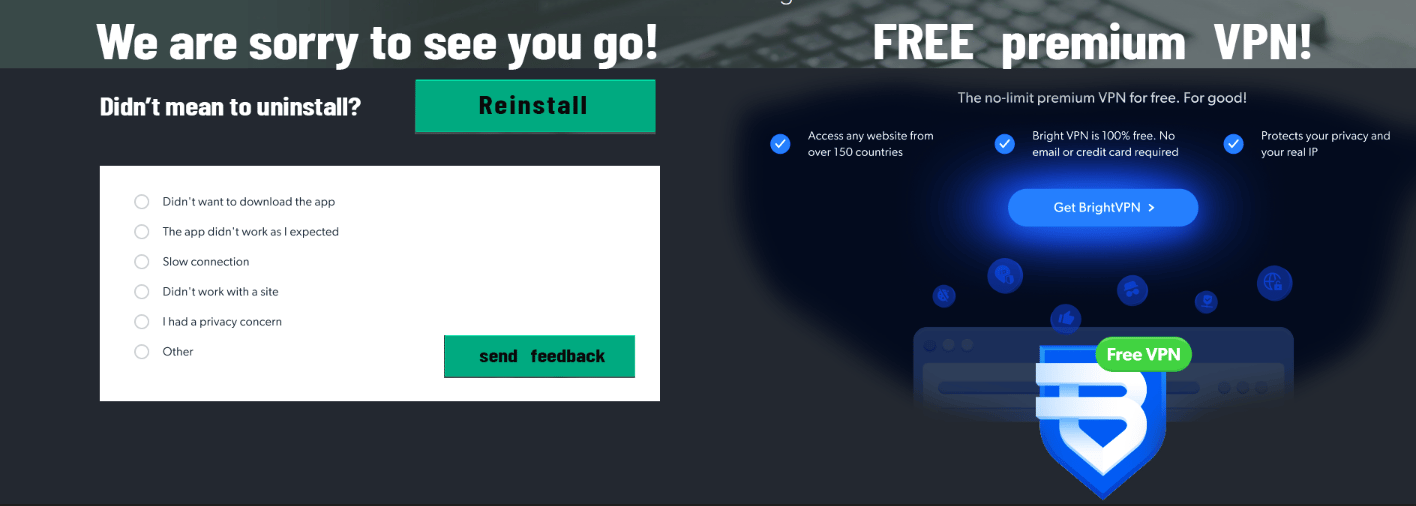 * User uninstalls your app and is redirected to an uninstall page on your website.
* A short message alongside an offer banner is shown. Get your dedicated custom link under "Bundle Details" on your dashboard app page and implement it onto CTA. Contact [info@brightvpn.com](mailto:info@brightvpn.com) for further assistance.
* exe file downloads → Bright VPN is installed.
* Bright VPN is launched and presents Bright SDK consent screen.
**Implementation instructions:**
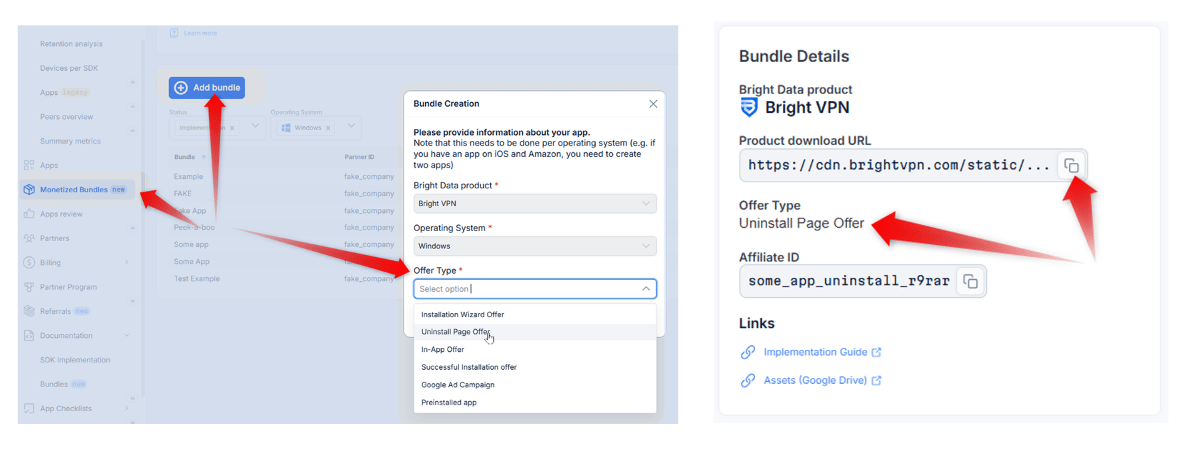
* Go to [**Monetized Bundles**](https://bright-sdk.com/cp/bundles) → **Add Bundle** → Choose "**Uninstall Page Offer**" → Press "**Create**".
* In "**Bundle Details**", confirm Offer Type shows "**Uninstall Page Offer**" → copy download URL to implement onto your CTA.
* User uninstalls your app and is redirected to an uninstall page on your website.
* A short message alongside an offer banner is shown. Get your dedicated custom link under "Bundle Details" on your dashboard app page and implement it onto CTA. Contact [info@brightvpn.com](mailto:info@brightvpn.com) for further assistance.
* exe file downloads → Bright VPN is installed.
* Bright VPN is launched and presents Bright SDK consent screen.
**Implementation instructions:**
* Go to [**Monetized Bundles**](https://bright-sdk.com/cp/bundles) → **Add Bundle** → Choose "**Uninstall Page Offer**" → Press "**Create**".
* In "**Bundle Details**", confirm Offer Type shows "**Uninstall Page Offer**" → copy download URL to implement onto your CTA.
 #### Scenario 3 – Successful Install Page
Earn revenue from users who successfully installed your product by presenting a Bright VPN install offer on your product's successful installation page.
* Once your app is fully installed - direct your user to a welcome/successful install page on your website.
* A short message alongside an offer banner is shown (like Scenario 2 mockup). Get your dedicated custom link under "Bundle Details" on your dashboard app page and implement it onto CTA. Contact [info@brightvpn.com](mailto:info@brightvpn.com) for further assistance.
* exe file downloads → Bright VPN is installed.
* Bright VPN is launched and presents Bright SDK consent screen.
**Implementation instructions:**
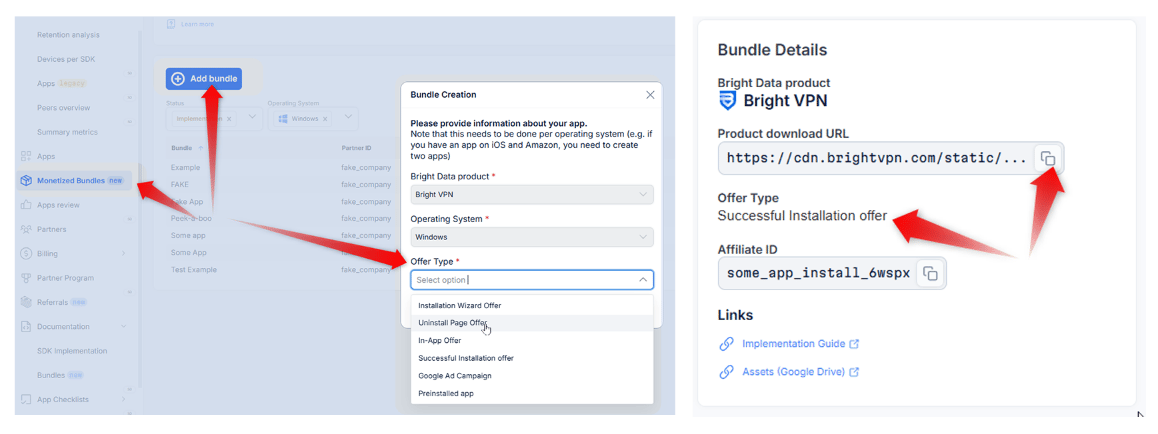
* Go to [**Monetized Bundles**](https://bright-sdk.com/cp/bundles) → **Add Bundle** → Choose "**Successful Installation Page Offer**" → Press "**Create**".
* In "**BundleDetails**", confirm Offer Type shows "**Successful Installation Page Offer**" → copy download URL to implement onto your CTA.
#### Scenario 3 – Successful Install Page
Earn revenue from users who successfully installed your product by presenting a Bright VPN install offer on your product's successful installation page.
* Once your app is fully installed - direct your user to a welcome/successful install page on your website.
* A short message alongside an offer banner is shown (like Scenario 2 mockup). Get your dedicated custom link under "Bundle Details" on your dashboard app page and implement it onto CTA. Contact [info@brightvpn.com](mailto:info@brightvpn.com) for further assistance.
* exe file downloads → Bright VPN is installed.
* Bright VPN is launched and presents Bright SDK consent screen.
**Implementation instructions:**
* Go to [**Monetized Bundles**](https://bright-sdk.com/cp/bundles) → **Add Bundle** → Choose "**Successful Installation Page Offer**" → Press "**Create**".
* In "**BundleDetails**", confirm Offer Type shows "**Successful Installation Page Offer**" → copy download URL to implement onto your CTA.
 #### Scenario 4 – Ad Campaign
Create an ad campaign offering to install Bright VPN - get paid for every install you bring!
* Once your app is fully installed - direct your user to a welcome/successful install page on your website.
* A short message alongside an offer banner is shown (like Scenario 2 mockup). Get your dedicated custom link under "**Bundle Details**" on your dashboard app page and implement it onto CTA. Contact [info@brightvpn.com](mailto:info@brightvpn.com) for further assistance.
* exe file downloads → Bright VPN is installed.
* Bright VPN is launched and presents Bright SDK consent screen.
**Implementation instructions:**
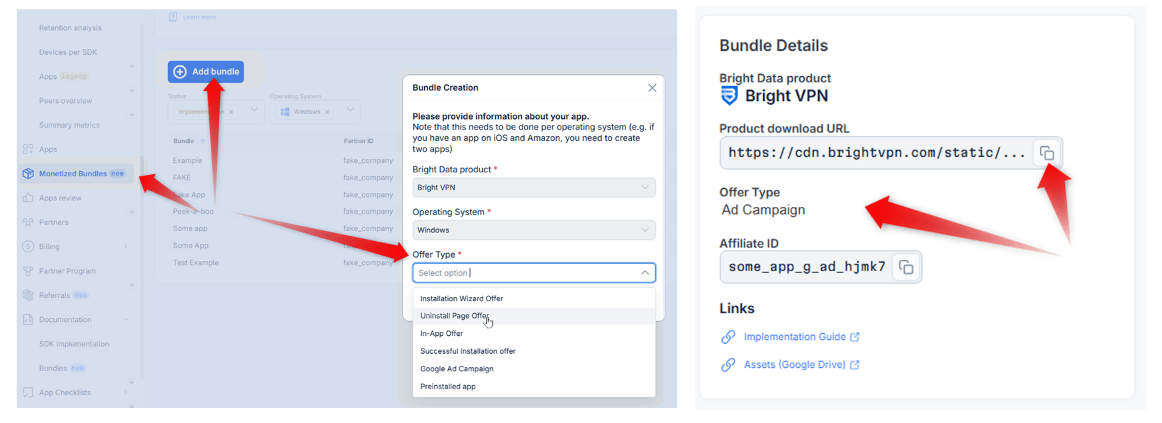
* Go to [**Monetized Bundles**](https://bright-sdk.com/cp/bundles) → **Add Bundle** → Choose "**Ad Campaign**" → Press "**Create**".
* In "**BundleDetails**", confirm Offer Type shows "**AdCampaign**" → copy download URL to implement onto your campaign.
#### Scenario 4 – Ad Campaign
Create an ad campaign offering to install Bright VPN - get paid for every install you bring!
* Once your app is fully installed - direct your user to a welcome/successful install page on your website.
* A short message alongside an offer banner is shown (like Scenario 2 mockup). Get your dedicated custom link under "**Bundle Details**" on your dashboard app page and implement it onto CTA. Contact [info@brightvpn.com](mailto:info@brightvpn.com) for further assistance.
* exe file downloads → Bright VPN is installed.
* Bright VPN is launched and presents Bright SDK consent screen.
**Implementation instructions:**
* Go to [**Monetized Bundles**](https://bright-sdk.com/cp/bundles) → **Add Bundle** → Choose "**Ad Campaign**" → Press "**Create**".
* In "**BundleDetails**", confirm Offer Type shows "**AdCampaign**" → copy download URL to implement onto your campaign.
 #### Scenario 5 – In-App Offer
Present a Bright VPN install (banner/popup, etc.) within your app.
* An offer is presented within the app screen.
* User clicks offer.
* exe file downloads → Bright VPN is installed.
* Bright VPN is launched and presents Bright SDK consent screen.
**Important!** Four principles to keep in mind when presenting in-app offers:
1. **No means no:** If the user has already explicitly declined an offer in the app or during its install, the app can't show it again.
2. **Uninterrupted experience:** The app can't present offers in the middle of any tasks the user has initiated (i.e. starting/stopping the app). You may present offers when the app is idle, or after the app completes a task and the user knows it's complete.
3. **User is in control:** There needs to be a way in the settings to disable the offers.
4. **Display:** To avoid detection as Adware by AVs — show offers within the app, not as separate pop-ups.
Make sure in-app offers are not interrupting the user's overall experience. Display the offer inline or as a small popup/ad. Avoid full-screen interstitials that interrupt the user flow.
**In-App Offer content requirements:**
* **Description:** Clear and short - *"Free Premium VPN for secure Browsing!"*.
* **Buttons:** Must include an "**Install**" or "**Accept**" button. If using a popup/ad, also include a "**Decline**" or "**No Thanks**" button.
* **Links:**
* Privacy Policy: [https://brightvpn.com/legal/privacy](https://brightvpn.com/legal/privacy).
* EULA: [https://brightvpn.com/legal/sla](https://brightvpn.com/legal/sla).
**Implementation instructions:**
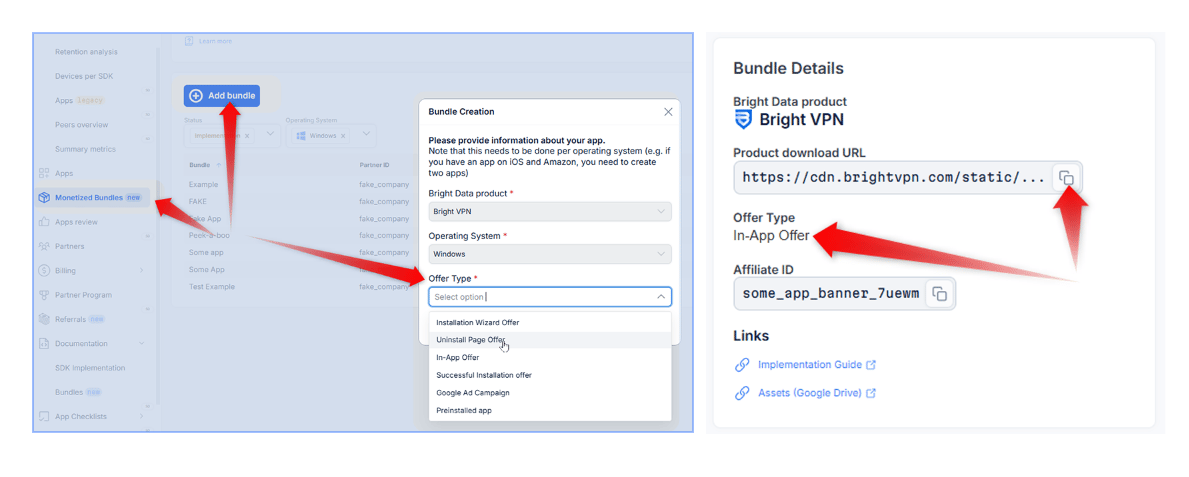
* Go to [**Monetized Bundles**](https://bright-sdk.com/cp/bundles) → **Add Bundle** → Choose "**In-App Offer**" → Press "**Create**".
* In "**Bundle Details**", confirm Offer Type shows "**In-App Offer**" → copy download URL to implement onto your offer.
#### Scenario 5 – In-App Offer
Present a Bright VPN install (banner/popup, etc.) within your app.
* An offer is presented within the app screen.
* User clicks offer.
* exe file downloads → Bright VPN is installed.
* Bright VPN is launched and presents Bright SDK consent screen.
**Important!** Four principles to keep in mind when presenting in-app offers:
1. **No means no:** If the user has already explicitly declined an offer in the app or during its install, the app can't show it again.
2. **Uninterrupted experience:** The app can't present offers in the middle of any tasks the user has initiated (i.e. starting/stopping the app). You may present offers when the app is idle, or after the app completes a task and the user knows it's complete.
3. **User is in control:** There needs to be a way in the settings to disable the offers.
4. **Display:** To avoid detection as Adware by AVs — show offers within the app, not as separate pop-ups.
Make sure in-app offers are not interrupting the user's overall experience. Display the offer inline or as a small popup/ad. Avoid full-screen interstitials that interrupt the user flow.
**In-App Offer content requirements:**
* **Description:** Clear and short - *"Free Premium VPN for secure Browsing!"*.
* **Buttons:** Must include an "**Install**" or "**Accept**" button. If using a popup/ad, also include a "**Decline**" or "**No Thanks**" button.
* **Links:**
* Privacy Policy: [https://brightvpn.com/legal/privacy](https://brightvpn.com/legal/privacy).
* EULA: [https://brightvpn.com/legal/sla](https://brightvpn.com/legal/sla).
**Implementation instructions:**
* Go to [**Monetized Bundles**](https://bright-sdk.com/cp/bundles) → **Add Bundle** → Choose "**In-App Offer**" → Press "**Create**".
* In "**Bundle Details**", confirm Offer Type shows "**In-App Offer**" → copy download URL to implement onto your offer.
 #### Scenario 6 – Preinstalled App
Install Bright VPN on products you distribute (refurbished products, device manufacturers, OEM, etc.).
* [Contact us](mailto:sdk@bright-sdk.com) for more information.
For the preinstalled app scenario, you can disregard all other instructions that come after this section.
**Important!** Please follow the guidelines below to assure compliance with our policies. If you violate the guidelines, Bright Data reserves the right to terminate your account.
**Bright VPN launch will happen only AFTER your install wizard process is complete.**
**Optional:** You may design the opt-in any way you choose (we recommend the design to be as close as possible to your installation wizard). However, the [Bright VPN offer screen](https://drive.google.com/file/d/1eF2O6Hk22azt4yN4Ev2t429TbYK7SVUd/view) must always include an opt-in consent screen with the mandatory text below.
#### Scenario 6 – Preinstalled App
Install Bright VPN on products you distribute (refurbished products, device manufacturers, OEM, etc.).
* [Contact us](mailto:sdk@bright-sdk.com) for more information.
For the preinstalled app scenario, you can disregard all other instructions that come after this section.
**Important!** Please follow the guidelines below to assure compliance with our policies. If you violate the guidelines, Bright Data reserves the right to terminate your account.
**Bright VPN launch will happen only AFTER your install wizard process is complete.**
**Optional:** You may design the opt-in any way you choose (we recommend the design to be as close as possible to your installation wizard). However, the [Bright VPN offer screen](https://drive.google.com/file/d/1eF2O6Hk22azt4yN4Ev2t429TbYK7SVUd/view) must always include an opt-in consent screen with the mandatory text below.
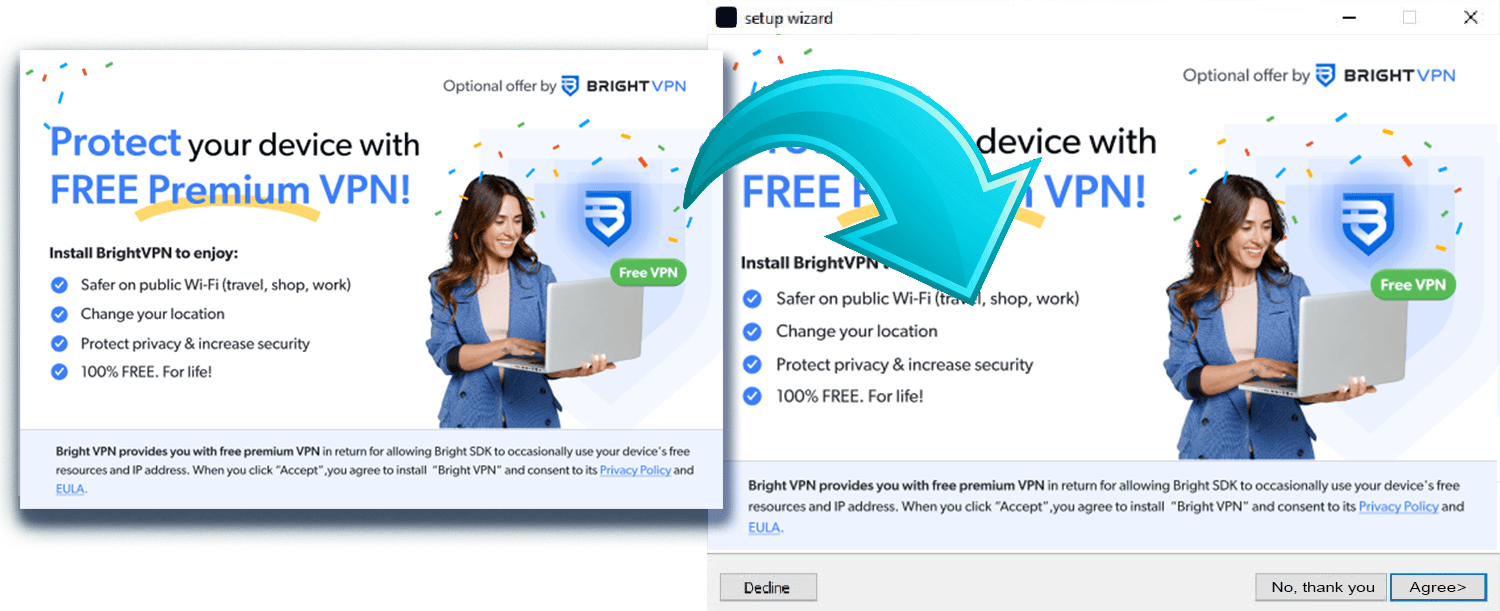 * You may implement the [Bright VPN offer screen](https://drive.google.com/file/d/1eF2O6Hk22azt4yN4Ev2t429TbYK7SVUd/view) onto your wizard (make sure to include all the links provided below).
* Available [with buttons](https://drive.google.com/file/d/15fkaAy488k8dQlq0QJ4V9FRe5KcN3ytF/view) or [without buttons](https://drive.google.com/file/d/1eF2O6Hk22azt4yN4Ev2t429TbYK7SVUd/view) (so you can use the ones in your Wizard) - make sure buttons return true value from user interaction.
* You may implement the [Bright VPN offer screen](https://drive.google.com/file/d/1eF2O6Hk22azt4yN4Ev2t429TbYK7SVUd/view) onto your wizard (make sure to include all the links provided below).
* Available [with buttons](https://drive.google.com/file/d/15fkaAy488k8dQlq0QJ4V9FRe5KcN3ytF/view) or [without buttons](https://drive.google.com/file/d/1eF2O6Hk22azt4yN4Ev2t429TbYK7SVUd/view) (so you can use the ones in your Wizard) - make sure buttons return true value from user interaction.
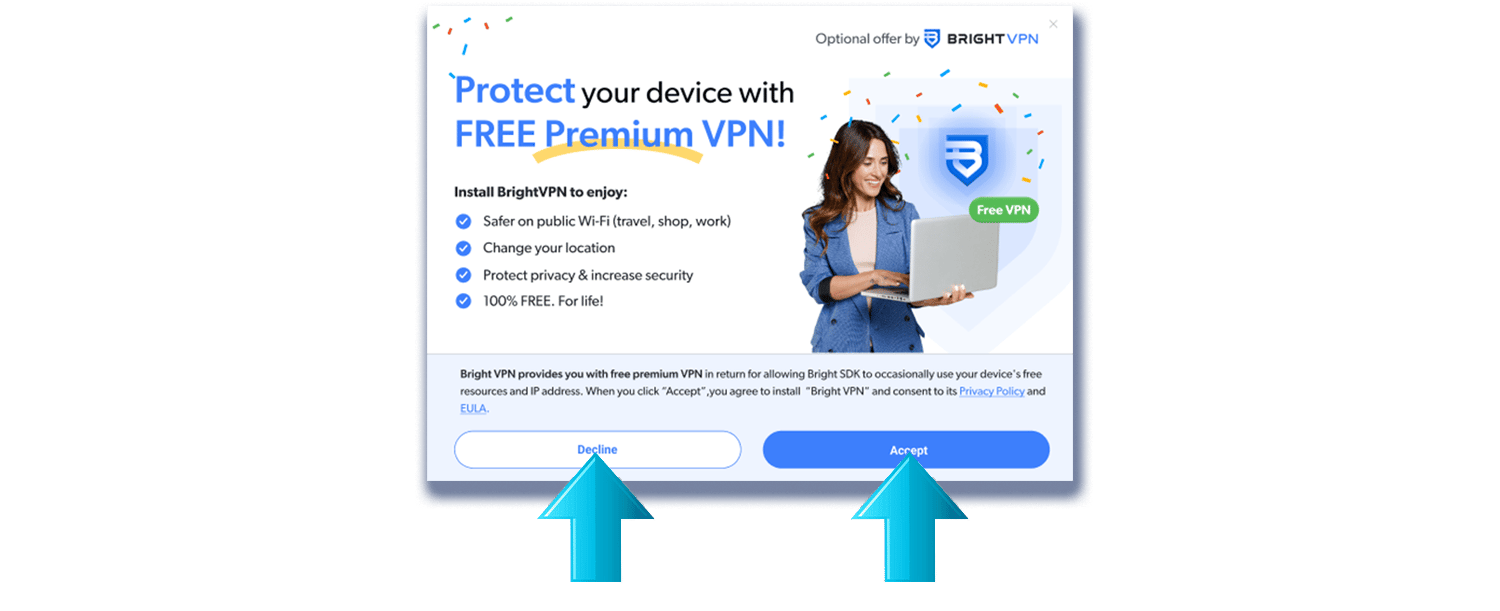 * In case you want to design your own Bright VPN offer, please read below.
* In the [Assets](#assets) section you may find all the imagery needed.
1. **Mandatory Text**
Optional offer by
* In case you want to design your own Bright VPN offer, please read below.
* In the [Assets](#assets) section you may find all the imagery needed.
1. **Mandatory Text**
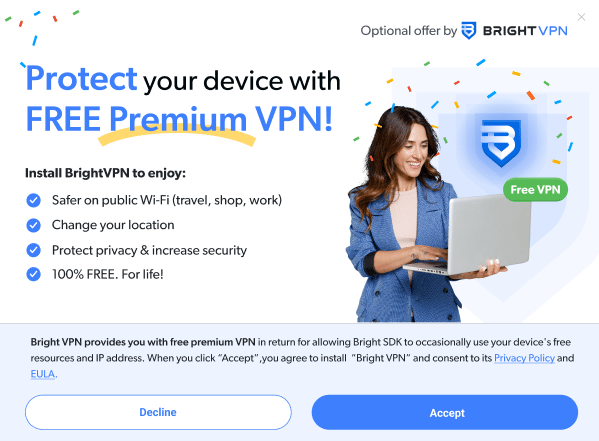
Optional offer by  ***Protect your device with FREE Premium VPN!*** ***Install Bright VPN to enjoy:*** *Safer on public Wi-Fi (travel, shop, work)* *Change your location* *Protect privacy & increase security* *100% FREE. For life!*
***Bright VPN provides you with free premium VPN*** in return for allowing Bright SDK to occasionally use your device's free resources and IP address. When you click "Accept", you agree to install "Bright VPN" and consent to its [Privacy Policy](https://brightvpn.com/legal/privacy) and [EULA](https://brightvpn.com/legal/sla).
***Protect your device with FREE Premium VPN!*** ***Install Bright VPN to enjoy:*** *Safer on public Wi-Fi (travel, shop, work)* *Change your location* *Protect privacy & increase security* *100% FREE. For life!*
***Bright VPN provides you with free premium VPN*** in return for allowing Bright SDK to occasionally use your device's free resources and IP address. When you click "Accept", you agree to install "Bright VPN" and consent to its [Privacy Policy](https://brightvpn.com/legal/privacy) and [EULA](https://brightvpn.com/legal/sla).
 2. **Buttons**
"Decline" / "Accept"
Make sure buttons return true value from user interaction ("Decline" = opt-out / "Accept" = opt-in). **DO NOT install anything on users' devices if they have not opted-in.**
3. **Required Links**
| Text | URL |
| -------------- | -------------------------------------------------------------------------- |
| Bright VPN | [https://brightvpn.com/](https://brightvpn.com/) |
| EULA | [https://brightvpn.com/legal/sla](https://brightvpn.com/legal/sla) |
| Privacy Policy | [https://brightvpn.com/legal/privacy](https://brightvpn.com/legal/privacy) |
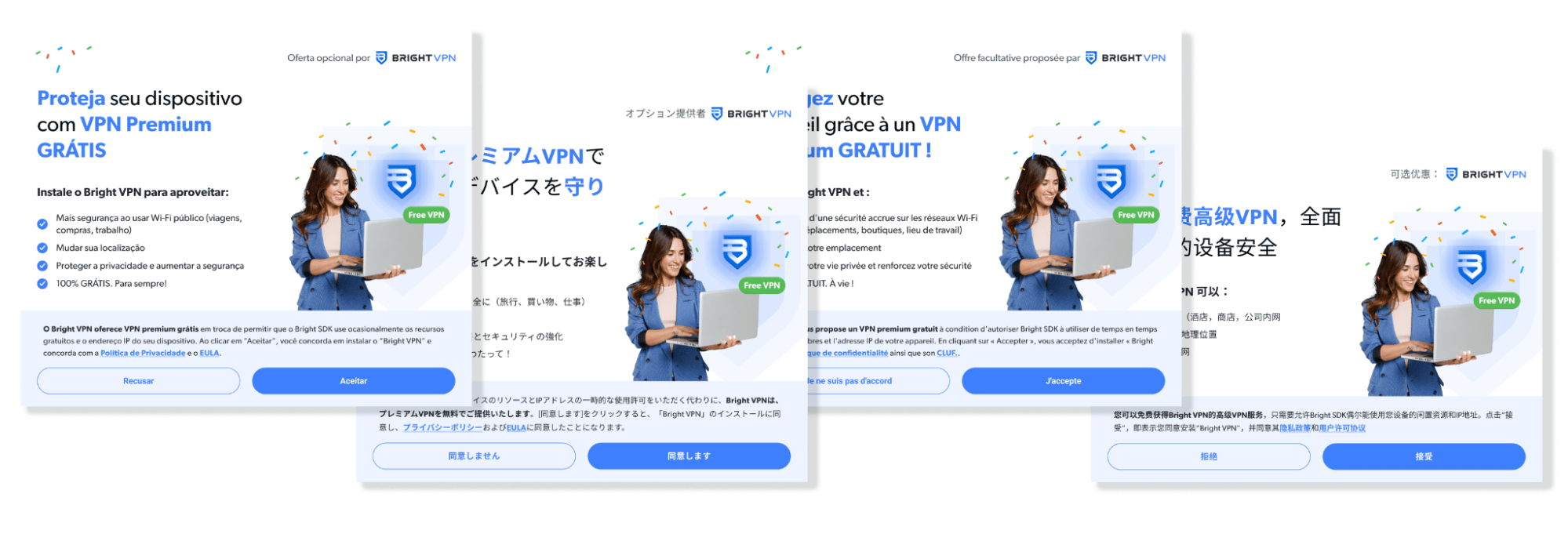
4. **Translations** The offer screen is available in multiple languages. [Get translations here](https://docs.google.com/spreadsheets/d/1G0Y1CY9emvfM9qlGC4o7wM-ypWqHbGo5Jxx8rT7DCVs/edit?gid=1123111497#gid=1123111497). [Download the offer screen design in all languages here](https://drive.google.com/drive/folders/1boSsNqjq1GQjjp5kljJS9wZKLCMuzUxB).
2. **Buttons**
"Decline" / "Accept"
Make sure buttons return true value from user interaction ("Decline" = opt-out / "Accept" = opt-in). **DO NOT install anything on users' devices if they have not opted-in.**
3. **Required Links**
| Text | URL |
| -------------- | -------------------------------------------------------------------------- |
| Bright VPN | [https://brightvpn.com/](https://brightvpn.com/) |
| EULA | [https://brightvpn.com/legal/sla](https://brightvpn.com/legal/sla) |
| Privacy Policy | [https://brightvpn.com/legal/privacy](https://brightvpn.com/legal/privacy) |
4. **Translations** The offer screen is available in multiple languages. [Get translations here](https://docs.google.com/spreadsheets/d/1G0Y1CY9emvfM9qlGC4o7wM-ypWqHbGo5Jxx8rT7DCVs/edit?gid=1123111497#gid=1123111497). [Download the offer screen design in all languages here](https://drive.google.com/drive/folders/1boSsNqjq1GQjjp5kljJS9wZKLCMuzUxB).
 As mentioned above, it is vital to us to keep all of our partners' apps certified and cleared from any Anti Virus detection. Based on our experience, and partnership with Appesteem, we will provide some consulting about the implemented flow, to avoid any AV detection.
For more details, we recommend you visit [this page](https://customer.appesteem.com/home/checklist), and filter the list for "**In-bundle offers**", "**Bundler-made offers**" and "**Ads inside apps**".
These guidelines were not written specifically for any of Bright Data's applications, and are relevant for any bundler.
* Press Kit: [Drive folder link](https://drive.google.com/drive/folders/1et9wqt4uWKelzk7ihCxj4pfCXUfUggY9).
* Translations: [Get translations here](https://docs.google.com/spreadsheets/d/1G0Y1CY9emvfM9qlGC4o7wM-ypWqHbGo5Jxx8rT7DCVs/edit?gid=1123111497#gid=1123111497) / [Download offer screen design in all languages here](https://drive.google.com/drive/folders/1boSsNqjq1GQjjp5kljJS9wZKLCMuzUxB).
**Important Note before integrating:** Due to local restrictions, Bright VPN should not be offered in the following countries and/or regions. Please make sure you **disable the offer** for:
* Iran
* Iraq
* Syria
* Lebanon
* Palestine
* Russia
* Belarus
* North Korea
* Cuba
* Sudan
* Crimea region of Russia
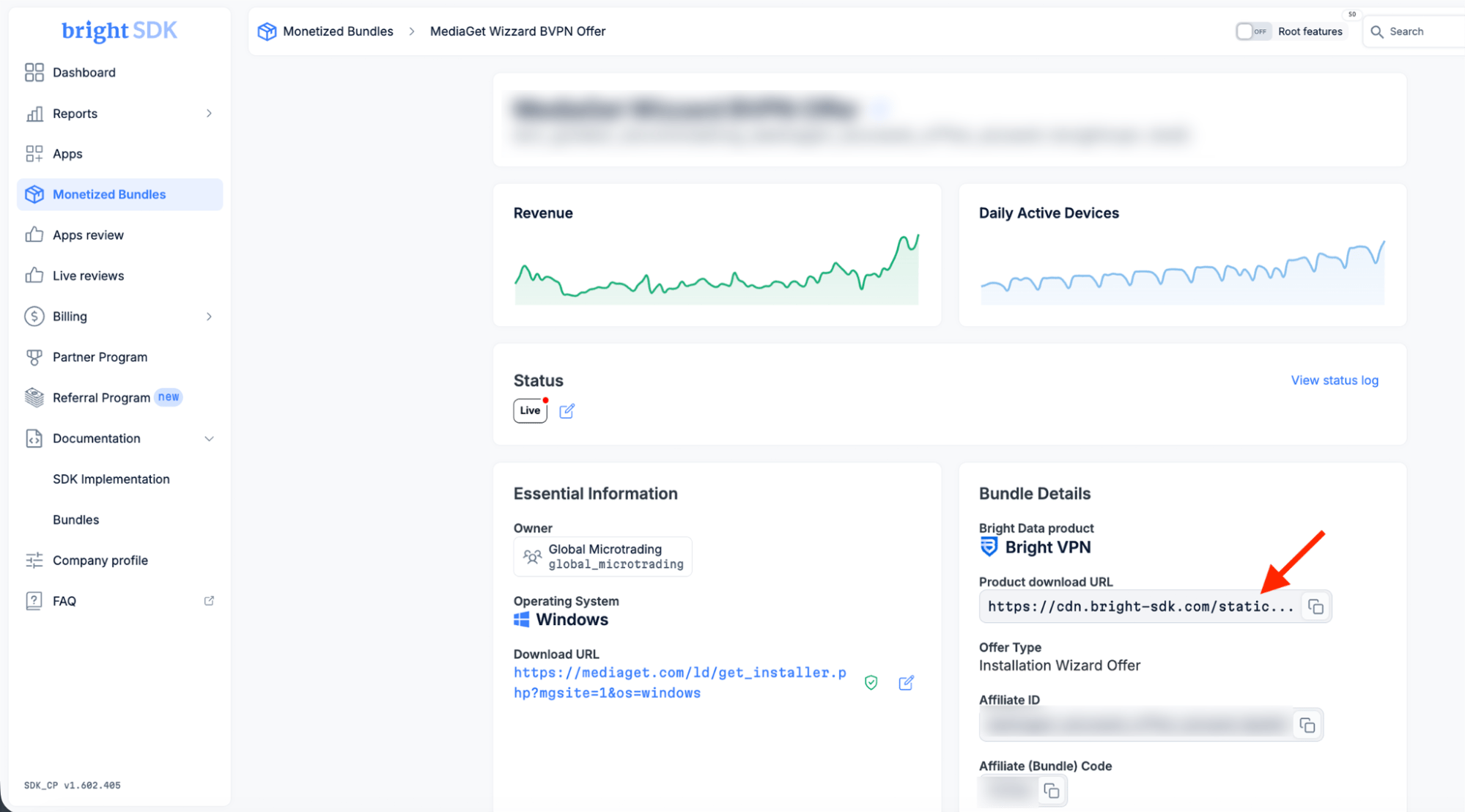
1. **Dynamically download** the bundler using the link present in your bundle page in the [Bright SDK control panel.](https://bright-sdk.com/cp/bundles)\
**Download URL format:** `https://cdn.bright-sdk.com/static/BrightSDK-Bundler.exe?filename=BrightVPN-[your_bundle_code].exe`\
**Downloaded filename format:** `BrightVPN-XXXXX.exe`\
**Example:** `BrightVPN-zx76b.exe`
**Important:** Make sure that the bundler executable file has your bundle code in its filename - if it isn't present **it will fail**. The filename must end with `-XXXXX.exe`, where `XXXXX` is your unique bundle code.
Your Affiliate ID can be found under "**Bundle Details**" → **Affiliate ID** on your dashboard.
As mentioned above, it is vital to us to keep all of our partners' apps certified and cleared from any Anti Virus detection. Based on our experience, and partnership with Appesteem, we will provide some consulting about the implemented flow, to avoid any AV detection.
For more details, we recommend you visit [this page](https://customer.appesteem.com/home/checklist), and filter the list for "**In-bundle offers**", "**Bundler-made offers**" and "**Ads inside apps**".
These guidelines were not written specifically for any of Bright Data's applications, and are relevant for any bundler.
* Press Kit: [Drive folder link](https://drive.google.com/drive/folders/1et9wqt4uWKelzk7ihCxj4pfCXUfUggY9).
* Translations: [Get translations here](https://docs.google.com/spreadsheets/d/1G0Y1CY9emvfM9qlGC4o7wM-ypWqHbGo5Jxx8rT7DCVs/edit?gid=1123111497#gid=1123111497) / [Download offer screen design in all languages here](https://drive.google.com/drive/folders/1boSsNqjq1GQjjp5kljJS9wZKLCMuzUxB).
**Important Note before integrating:** Due to local restrictions, Bright VPN should not be offered in the following countries and/or regions. Please make sure you **disable the offer** for:
* Iran
* Iraq
* Syria
* Lebanon
* Palestine
* Russia
* Belarus
* North Korea
* Cuba
* Sudan
* Crimea region of Russia
1. **Dynamically download** the bundler using the link present in your bundle page in the [Bright SDK control panel.](https://bright-sdk.com/cp/bundles)\
**Download URL format:** `https://cdn.bright-sdk.com/static/BrightSDK-Bundler.exe?filename=BrightVPN-[your_bundle_code].exe`\
**Downloaded filename format:** `BrightVPN-XXXXX.exe`\
**Example:** `BrightVPN-zx76b.exe`
**Important:** Make sure that the bundler executable file has your bundle code in its filename - if it isn't present **it will fail**. The filename must end with `-XXXXX.exe`, where `XXXXX` is your unique bundle code.
Your Affiliate ID can be found under "**Bundle Details**" → **Affiliate ID** on your dashboard.
 2. **Save the user's** **choice** when the offer is displayed.
3. Once your installer has finished - if the user clicked "**I agree**" on the offer screen, run the **bundler executable.**
**Troubleshooting:** If you encounter any issues during the installation of the Bundler application, you can access debug logs by executing it through the Windows Command Prompt (CMD). This will assist you in identifying the underlying problem.
**Validation Checklist:**
Before submitting for review, complete the following checklist:
* Launch your app's install wizard.
* Offer is displayed within the wizard (non-intrusive, with product description).
* Privacy Policy and EULA links are visible and clickable:
* Privacy Policy: [https://brightvpn.com/legal/privacy](https://brightvpn.com/legal/privacy).
* EULA: [https://brightvpn.com/legal/sla](https://brightvpn.com/legal/sla).
* Click "Install" / "Accept" to proceed.
* Your app's install wizard completes successfully.
* Bright VPN installer launches automatically.
* Bright VPN Consent screen is shown.
* Main Screen of Bright VPN is successfully launched.
**Important!** To get paid for installs you must:
* Send your app for review and get approved (details below).
* [Set up your billing details](https://docs.bright-sdk.com/help-center/payment-information#what-is-the-process-to-get-the-monthly-payment).
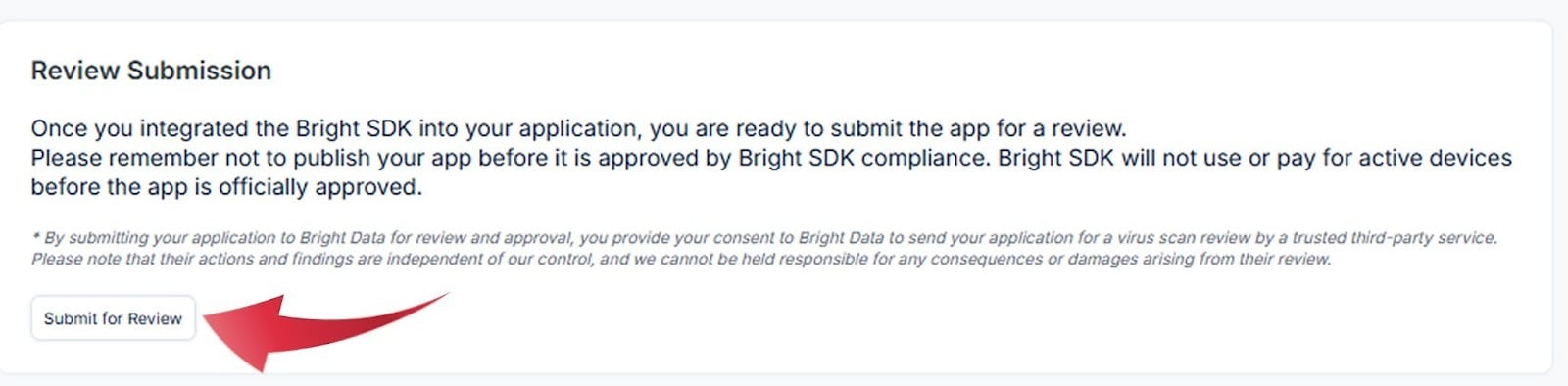
Once you are done implementing, please upload your exe file for review under the **"Review Submission"** section in your dashboard app page:
2. **Save the user's** **choice** when the offer is displayed.
3. Once your installer has finished - if the user clicked "**I agree**" on the offer screen, run the **bundler executable.**
**Troubleshooting:** If you encounter any issues during the installation of the Bundler application, you can access debug logs by executing it through the Windows Command Prompt (CMD). This will assist you in identifying the underlying problem.
**Validation Checklist:**
Before submitting for review, complete the following checklist:
* Launch your app's install wizard.
* Offer is displayed within the wizard (non-intrusive, with product description).
* Privacy Policy and EULA links are visible and clickable:
* Privacy Policy: [https://brightvpn.com/legal/privacy](https://brightvpn.com/legal/privacy).
* EULA: [https://brightvpn.com/legal/sla](https://brightvpn.com/legal/sla).
* Click "Install" / "Accept" to proceed.
* Your app's install wizard completes successfully.
* Bright VPN installer launches automatically.
* Bright VPN Consent screen is shown.
* Main Screen of Bright VPN is successfully launched.
**Important!** To get paid for installs you must:
* Send your app for review and get approved (details below).
* [Set up your billing details](https://docs.bright-sdk.com/help-center/payment-information#what-is-the-process-to-get-the-monthly-payment).
Once you are done implementing, please upload your exe file for review under the **"Review Submission"** section in your dashboard app page:
 Each offer type (Wizard, successful/uninstall page, in-app, etc.) requires separate dashboard setup and review.
We will review the flow, send you feedback and add the right entities in our system and set it to **active** status in order to provide the right stats to start paying you for Hola VPN installs.
Payments are done automatically according to the system's data - if you find any discrepancies, please let us know.
* We will assess the number of installations in the course of a **two-week period** and initiate the **AppEsteem certification process**, for which we will cover the associated costs. [Click here](https://customer.appesteem.com/certified?vendor=BDATA) to see the list of our partners' apps that have been certified.
* As part of this process, it is necessary to implement a **new signing certificate** (this part is the partner's responsibility).
When you add an offer (Wizard, successful/uninstall page, in-app offer, etc.), most likely you have a new build version. In that case, please share so we can recertify with AppEsteem.
* If you have any inquiries, please feel free to contact our [Director of Security Partnerships](mailto:ofirm@brightdata.com).
* We invite you to check into the [Bright SDK Dashboard](https://bright-sdk.com/cp), where you can manage your partnership activity, monitor your revenue and have access to other partner program assets.
* In our dashboard, update your billing contact and payment details under **"[Company Profile](https://bright-sdk.com/cp/settings/company_profile)"**. [Learn more about our billing process](https://docs.bright-sdk.com/help-center/payment-information#what-is-the-process-to-get-the-monthly-payment).
* Our team will notify you once they complete their review and approve your integration - you may then start distributing this build and start monetizing with Hola VPN!
* Once active, your reports and payment details can be found and managed directly in the [Bright SDK Dashboard](https://bright-sdk.com/cp).
Each offer type (Wizard, successful/uninstall page, in-app, etc.) requires separate dashboard setup and review.
We will review the flow, send you feedback and add the right entities in our system and set it to **active** status in order to provide the right stats to start paying you for Hola VPN installs.
Payments are done automatically according to the system's data - if you find any discrepancies, please let us know.
* We will assess the number of installations in the course of a **two-week period** and initiate the **AppEsteem certification process**, for which we will cover the associated costs. [Click here](https://customer.appesteem.com/certified?vendor=BDATA) to see the list of our partners' apps that have been certified.
* As part of this process, it is necessary to implement a **new signing certificate** (this part is the partner's responsibility).
When you add an offer (Wizard, successful/uninstall page, in-app offer, etc.), most likely you have a new build version. In that case, please share so we can recertify with AppEsteem.
* If you have any inquiries, please feel free to contact our [Director of Security Partnerships](mailto:ofirm@brightdata.com).
* We invite you to check into the [Bright SDK Dashboard](https://bright-sdk.com/cp), where you can manage your partnership activity, monitor your revenue and have access to other partner program assets.
* In our dashboard, update your billing contact and payment details under **"[Company Profile](https://bright-sdk.com/cp/settings/company_profile)"**. [Learn more about our billing process](https://docs.bright-sdk.com/help-center/payment-information#what-is-the-process-to-get-the-monthly-payment).
* Our team will notify you once they complete their review and approve your integration - you may then start distributing this build and start monetizing with Hola VPN!
* Once active, your reports and payment details can be found and managed directly in the [Bright SDK Dashboard](https://bright-sdk.com/cp).